
If you have the epub of the same book as your audiobook, you can link the two. Excerpt aligns the text of the ebook with the narration on your device, so your highlights use the exact text of the book instead of a transcription, and you can read along while the audiobook plays.
What linking enables
With a matching ebook linked, Excerpt can do the following:
- Replace a rough transcription with the exact text from the book.
- Open a highlight at its place in the ebook.
- Create a highlight from text that you select in the ebook.
- Follow the narration in Read Along.
See Read Along with an Audiobook and Create a Highlight from the Ebook for how to use these.
Your first ebook match is free, and LibriVox books always match for free. Premium is only required beyond that. See Excerpt Premium.
Add the file
Excerpt accepts standard EPUB 2 and EPUB 3 files (for example from Project Gutenberg or Standard Ebooks). An ebook that is protected with DRM cannot be imported.
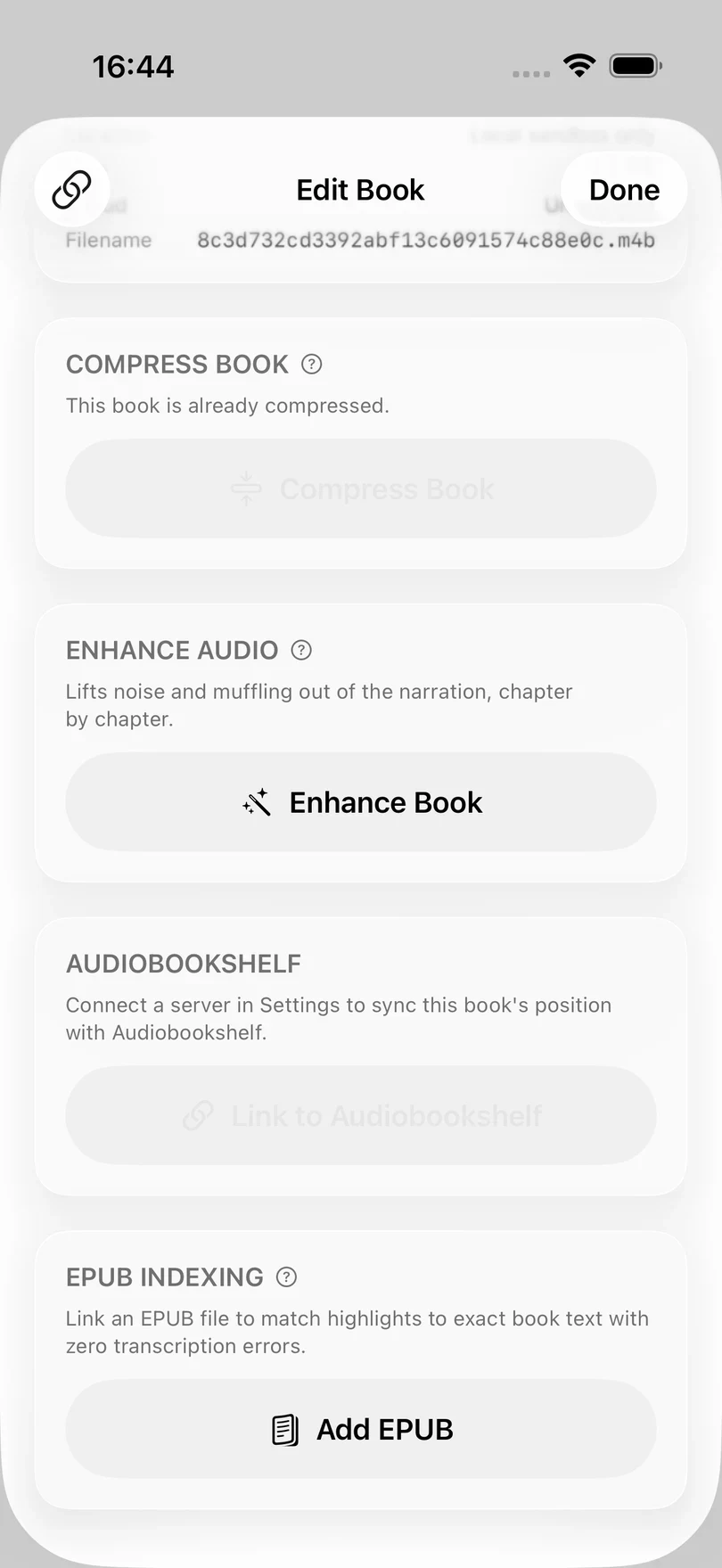
- In Library, swipe right on the audiobook and choose Edit.
- Find EPUB Indexing and tap Add EPUB.
- Choose the matching epub file in Files.
You can also tap Match in the message that is shown after you import a new audiobook.
Only epub ebooks are supported
Excerpt can only link ebooks in the epub format. If your ebook is in another format (such as mobi or azw3), you can convert it to epub with Calibre, which is free.
What happens while it is prepared
Excerpt copies the ebook into your library and parses its text, which takes about a second. The EPUB section then reads Linked with the length of the epub shown (in number of words).
The long step is the forced alignment. A custom trained on-device model matches the text of the ebook to the audiobook and gives every word a timestamp in the audio and a confidence flag, which is what makes Read Along and exact text highlights possible. The model was custom tuned for the Apple Neural Engine so it completes in 1100x real-time but for long books that can still mean a few minutes, so Excerpt names the step it is on in the progress bar shown in the Library tab:
| What it says | What it is doing |
|---|---|
| Parsing ebook… | Reading the text out of the epub file. |
| Loading forced alignment model | Bringing up the alignment model. |
| Running forced alignment | Matching the text to the narration, word by word. |
| Loading transcription model | Bringing up the speech model for the last step. |
| Refining low-confidence passages | Listening again to the passages it was least sure of. |
You can keep listening and keep using the app while it works. The player’s read-along button reads Aligning ebook… until the timings are ready.
When the alignment has finished, Excerpt checks how well the ebook matched the audio. See if the edition does not match.
It carries on when you leave the app
Alignment keeps running after you background the app. While it does, iOS shows a live activity with a progress bar on the Lock Screen, titled Running forced alignment with the name of the book beneath it.
iOS decides how much background time that card gets, and can take it back at any moment — for a phone call, because the phone is too hot, or because it wants the processor for something else. Nothing is lost when it does. The alignment picks up from where it stopped the next time you open the app, and a message reads Resuming forced alignment where it stopped. You never need to add the ebook again.
Two things make it more likely to finish while the phone is in your pocket:
- Leave Background App Refresh on for Excerpt, in the iOS Settings app under General → Background App Refresh. With it off, iOS will not wake Excerpt to carry on an alignment while the phone is idle.
- Keep the app playing. Alignment runs in background and playing something (even a different book) increases the budget iOS allows for it.
If the Lock Screen card says the task failed
That wording is iOS’s, not Excerpt’s, and it means only that the background time ran out before the alignment finished. Dismiss the card. The alignment resumes where it stopped when you next open Excerpt.
The badge on the cover
While a book’s ebook is being aligned, its cover shows a small badge in the Library, so you can see what the alignment is doing without opening the book.
| Badge | What it means |
|---|---|
| A map, with light passing through it | Aligning now. |
| An hourglass | Waiting its turn behind another job. |
| A pause symbol | Stopped for the moment. |
| An amber exclamation mark | It needs you. |
Tap the badge to see the detail of what the alignment is doing or waiting for: a highlight being transcribed, audio being enhanced, a book being imported, iCloud syncing the app, or the phone’s thermals needing to cool down first. A stopped alignment continues again on its own once the blocker resolves or the job its awaiting has finished.
If it has failed three times, the alert offers Try Again. If it needs the multilingual model for the book’s language, it requires you to accept the model download prompting an alert where you can press Download; see reading in other languages.
A book that is downloading from iCloud shows the iCloud badge instead, because that is the thing to wait for. The alignment badge comes back once the audio is on the device.
If the edition does not match
Once the ebook has been aligned, Excerpt works out how much of it it could find in the audio. The two may not match if the recording is abridged, is a different translation, or is a different edition.
- If enough of the ebook was found, nothing is shown and the ebook is ready to use.
- If less than 40% of the ebooks words was found in the audiobook, Excerpt shows EPUB may not match with the share that did match. Choose Keep EPUB if you know it is the right book, and Read Along and exact text will work in the parts that match. Choose Remove EPUB to unlink it and try another edition.
- If almost none of it was found, Excerpt shows EPUB does not match and has already unlinked the ebook. The audiobook is not changed, and if this was your free match it is given back.
You can use Replace EPUB at any time to try a different file, and your existing highlights are then matched again against the new text.
LibriVox books link their ebook automatically
Some LibriVox audiobooks (and most english language ones) are tagged Matching ebook in the search results. When you download one of these, Excerpt also downloads its free Project Gutenberg ebook and links it during the import, so you do not need to find an epub yourself. See searching LibriVox for how to find them.
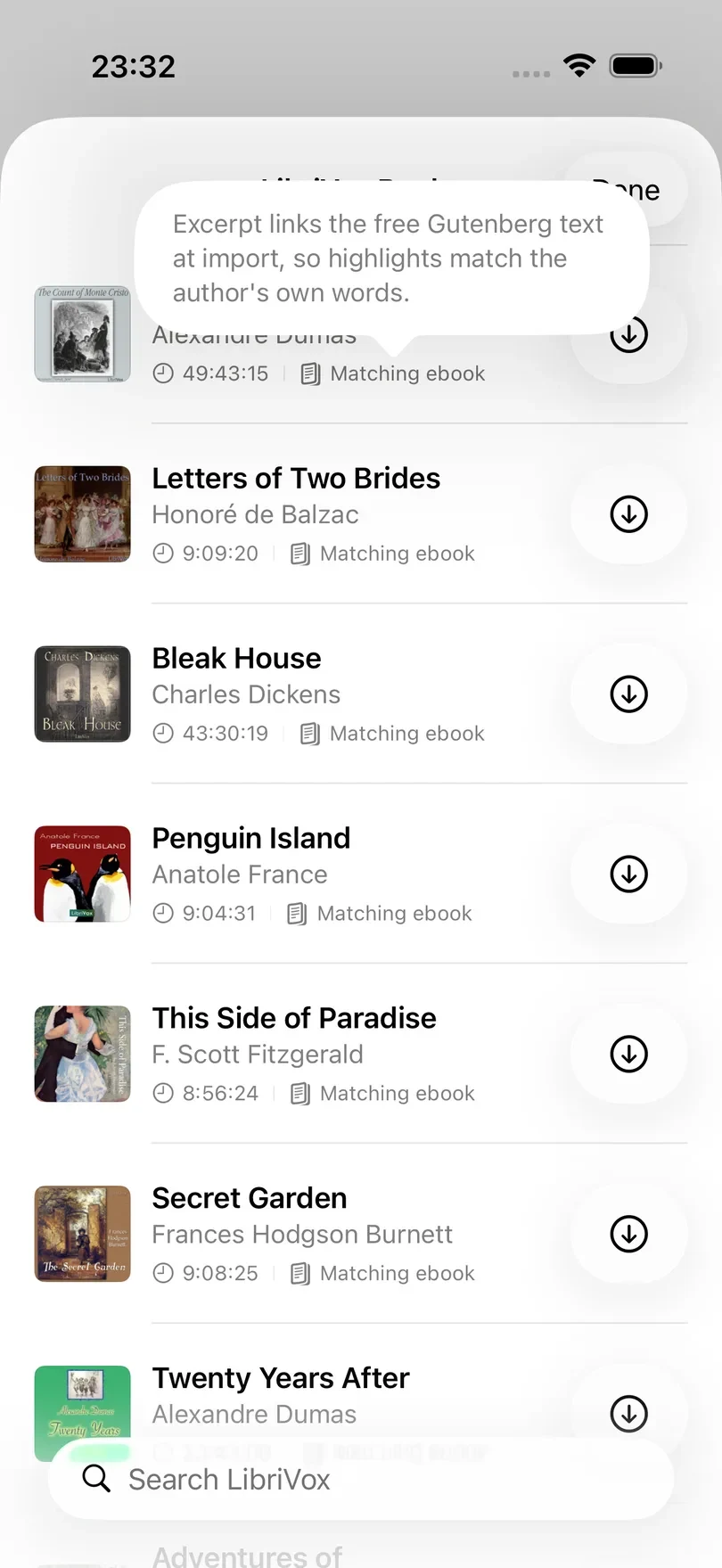
The audiobook is added to your library first, so you can start listening while the ebook is still being downloaded and aligned.
If the ebook cannot be downloaded or indexed, Excerpt shows:
Ebook Not Linked No ebook was available for “Book title”. You can add one from the book’s edit screen.
This only affects the ebook, as the audiobook is already in your library and plays normally. There is no button to retry the download, so if for some reason the linking fails (which can happen with some gutenberg books containing a mix of translations) add an epub yourself as described above.
Ebook matching is always free for books that were imported with the Search LibriVox sheet, whether Excerpt linked the ebook automatically or you added one later.