
Excerpt uses iCloud to keep your library the same on every iPhone and iPad that is signed in with the same Apple ID. There is no setting for this in Excerpt: it happens automatically once the device is signed in to iCloud.
What syncs
Two different things are synced, and they are stored in different places.
The library records sync through iCloud as soon as you are signed in:
- Your books, with their details and covers.
- Every highlight and chapter.
- Your listening history and the statistics shown in Insights.
- Your position in each book. Excerpt saves it to iCloud every five minutes, and if two devices disagree the more recent position is used.
The audio and ebook files are much larger, so they are stored in iCloud Drive instead. If you turn iCloud Drive on for Excerpt after you have already imported books, Excerpt moves those files into iCloud Drive automatically.
Before you start
- Sign in to iCloud with the same Apple ID on every device.
- Turn on iCloud Drive and allow Excerpt to use it, in the iCloud section of the iOS Settings.
If iCloud Drive is off, the library records still sync but the audio and ebook files stay on the device that imported them. Your other devices will show the books and their highlights, but each book will need its audio file relinked before it can be played there.
Set up a new device
Install Excerpt and open it. Excerpt looks for an existing library in iCloud before it shows an empty library. On the first page you might see:
- Loading Library with Looking for your existing library in iCloud… is shown while Excerpt checks for a library.
- Syncing from iCloud… with Your library is on its way is shown once it has found an existing library and is downloading it.
A large library can take a few minutes to appear, so keep Excerpt open while it syncs and don’t panic if it shows an empty library at first, in some tests it took up to 10 minutes to sync a large library.
The books and highlights appear before the audio does, as the audio files are much larger. The audio files should download automatically but in case it doesn’t, you can tap a book to download its audio.
If you see iCloud Download Failed, check your internet connection. Excerpt retries the download automatically. Book Still Syncing is shown for a book that was added in the last hour, as your other device may not have finished uploading it yet, so try again in a few minutes.
Check where a book is stored
Open Edit Book and scroll to Storage to see where a book’s files are kept. It shows the Location, the Size, whether iCloud is Signed in, and the internal filenames of the audio and the ebook.
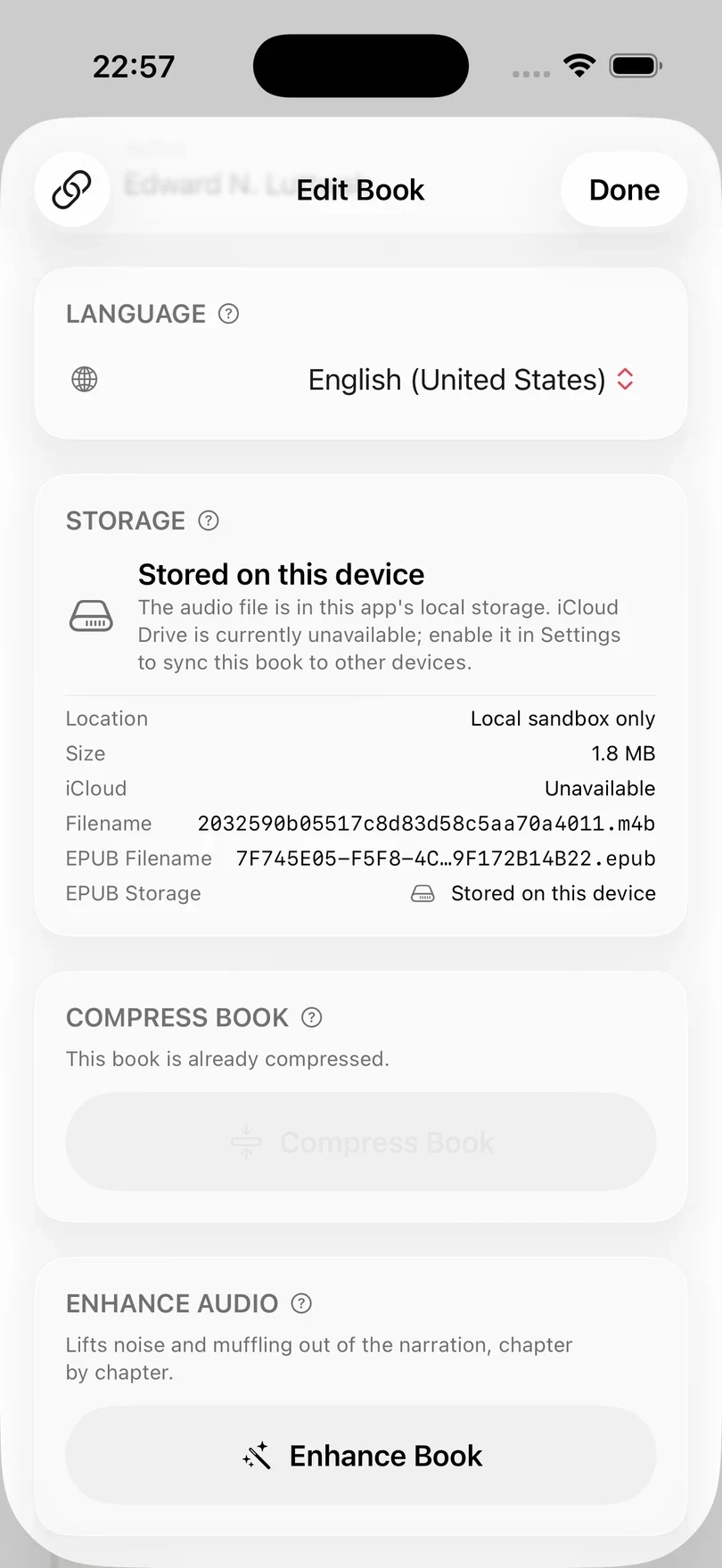
Occasionally a book stays on one device even though iCloud Drive is on. Tap Move to iCloud to upload it so that your other devices can download it. The button reads Moving to iCloud… while it works, and is only shown when iCloud Drive is on for Excerpt.
The Storage section describes the file with one of these messages:
| Message | What it means |
|---|---|
| Stored in iCloud Drive | The file is in iCloud and syncs to your other devices. |
| On device, uploading to iCloud | The book plays on this device. Your other devices can download it once the upload has finished. |
| On device, iCloud upload failed | The book plays on this device, but your other devices cannot download it yet. The line underneath gives iCloud’s own reason, such as no connection or no iCloud storage left. |
| In iCloud, not downloaded | The file is in iCloud but not on this device. Tap the book in the Library to download it. |
| Downloading from iCloud | The file is being downloaded, and the percentage completed is shown. |
| Download failed | Excerpt has tried three times and stopped. The line underneath gives iCloud’s own reason. Tap the book in the Library to try again. |
| Uploading to iCloud | Another device is still uploading the file. Try again once that device has finished. |
| Upload to iCloud failed | The upload failed on the device that has the file. Import or relink the book again on that device. |
| On device (duplicate sandbox copy) | The file is in iCloud and a second copy is on this device. Tap Move to iCloud to remove the spare copy. |
| Local only — not syncing | The file is only on this device. Tap Move to iCloud to sync it. |
| Stored on this device | iCloud Drive is off for Excerpt, so the file is kept on this device only. |
| No copy on device or in iCloud | The audio file is missing and needs to be relinked. See relinking a book’s audio. |
Clean Up iCloud Files?
Excerpt shows this when it finds audio files in its iCloud folder that no book in your library uses, which are usually left over from books you have deleted. It lists them by name.
- Delete removes them from iCloud on all of your devices and frees up that storage.
- Keep changes nothing. Excerpt may ask again the next time it is opened.
If in doubt, opt to keep them.
What stays on each device
Some things are stored separately on each device and are not synced by iCloud:
- Your settings (such as the rewind/skip duration and the highlight length).
- Your Readwise key, which is kept in the keychain of the device.
- Downloaded models (such as for transcription or enhancement). These need to be downloaded again on each device.
- Exported m4b files. Share the book again from the other device if you want to share it from there.