
Excerpt makes highlighting an audiobook as easy as highlighting an ebook. This page takes you from an empty library to your first exported highlight in eight short steps, using a free book so that you can try everything without preparing any files.

1. Add a book
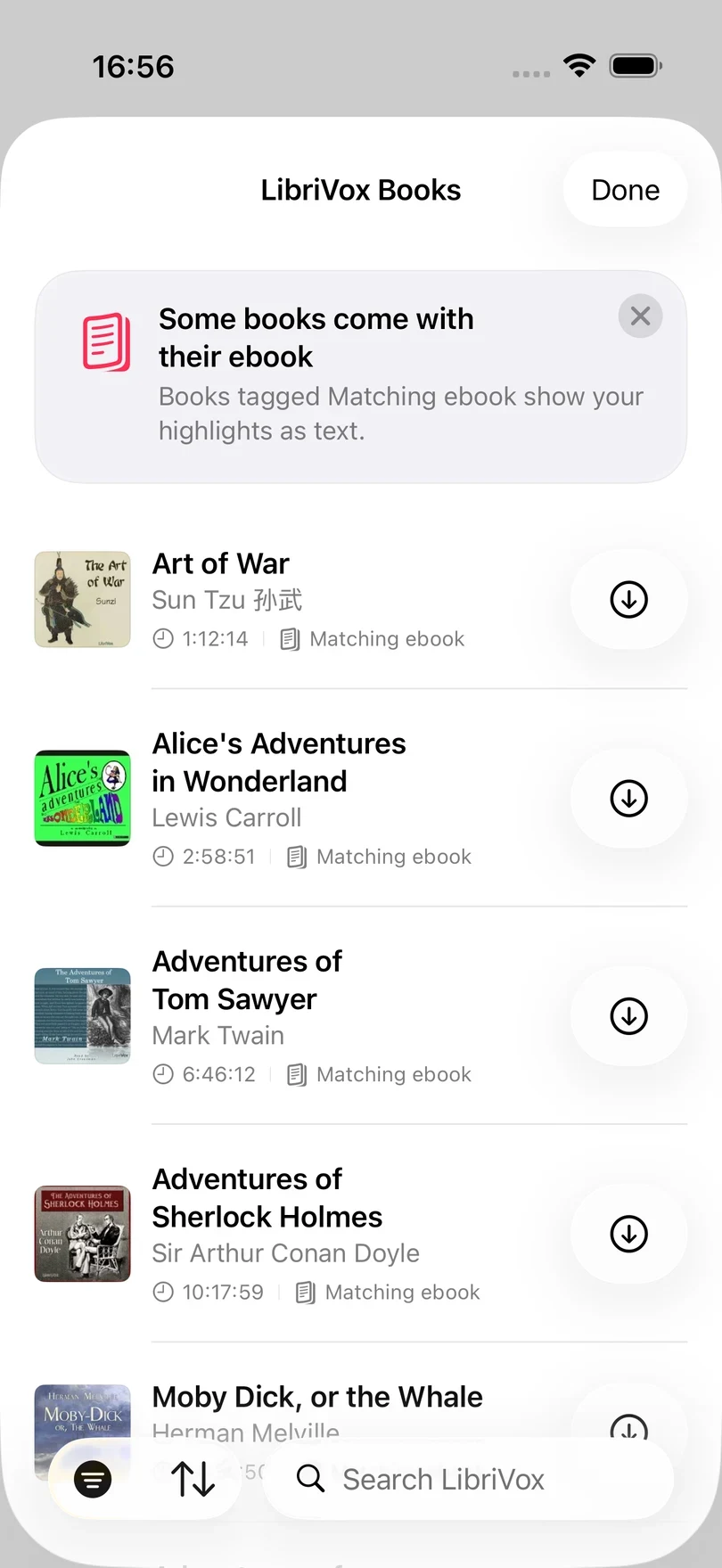
The quickest way to try everything is a free book from LibriVox. Open Library, tap +, and choose Search LibriVox. The list opens on books tagged Matching ebook, which means Excerpt also downloads the ebook of the book and links the two. That link is what the exact text and Read Along in the later steps rely on.
To use an audiobook you already own, choose Import File (m4b, mp3, and most other formats) or Import ZIP if it is split into chapter tracks. Audible downloads and most library loans are protected with DRM and cannot be imported. See Find Audiobooks for Excerpt for every source, including your Audiobookshelf server.
2. Take a highlight
Tap the book to open it in the player and start listening. When you hear something you want to keep, tap the highlighter at the right-hand end of the player controls. Excerpt saves the last 30 seconds of the book and transcribes them into text on your device, and the book keeps playing while it does this.
The first time you do this, iOS asks whether Excerpt may use speech recognition, which is what turns the audio into text. You can set the length to anything from 5 to 90 seconds in Settings, and trim or correct a highlight afterwards. See Create and Edit a Highlight.
3. Take a highlight without touching the phone
Most listening happens with the phone in a pocket, so you can also take a highlight without opening Excerpt:
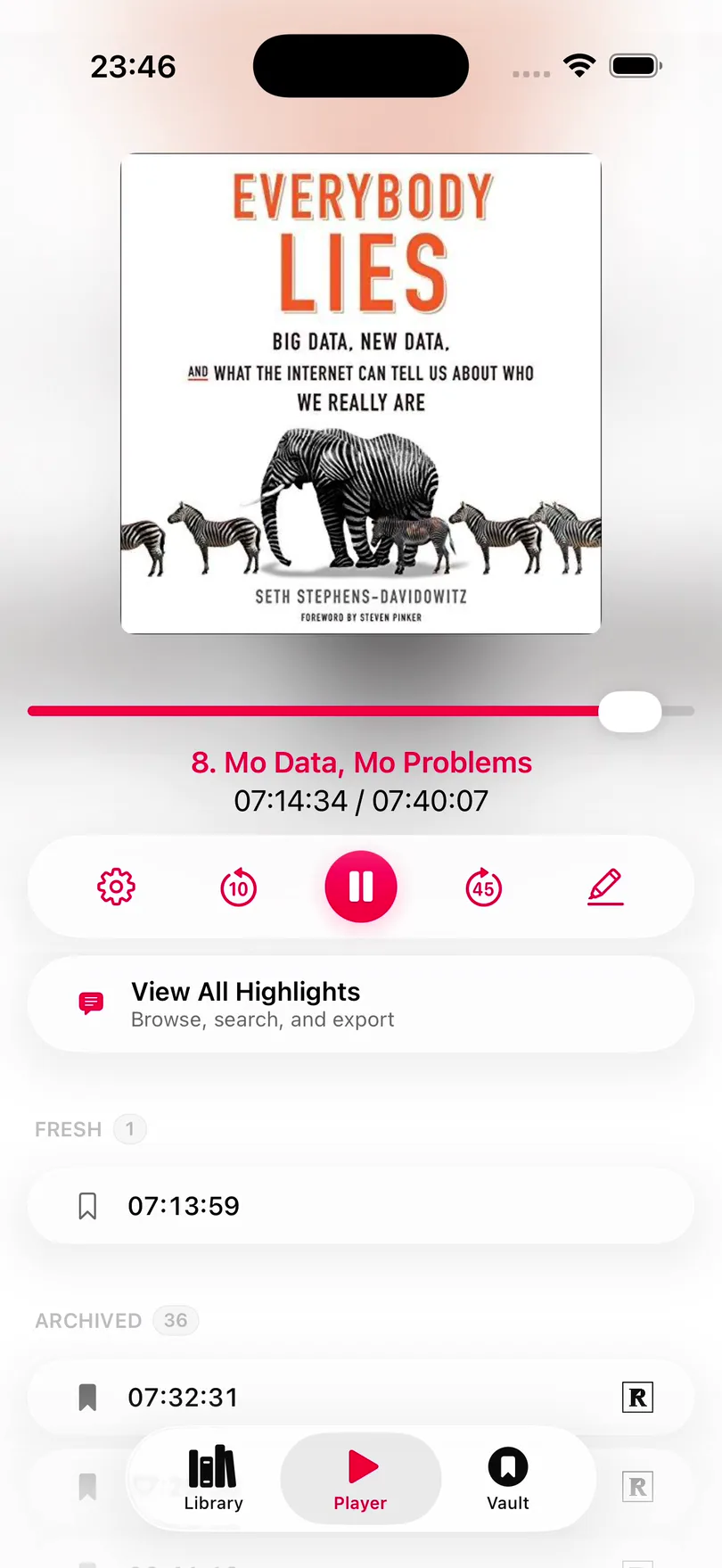
- Tap Take Highlight on the Lock Screen or in the Dynamic Island.
- Triple-press your headphones (such as AirPods), once you have set Quick Highlight in Settings.
- Add the Take Highlight control to Control Centre or the Action button.
- Tap the highlighter on your Apple Watch.
- Ask Siri to “Take highlight in Excerpt”.
Excerpt plays a short chime to confirm the highlight, and the book carries on. See Take a Highlight from the Lock Screen.
4. Get the author’s exact words
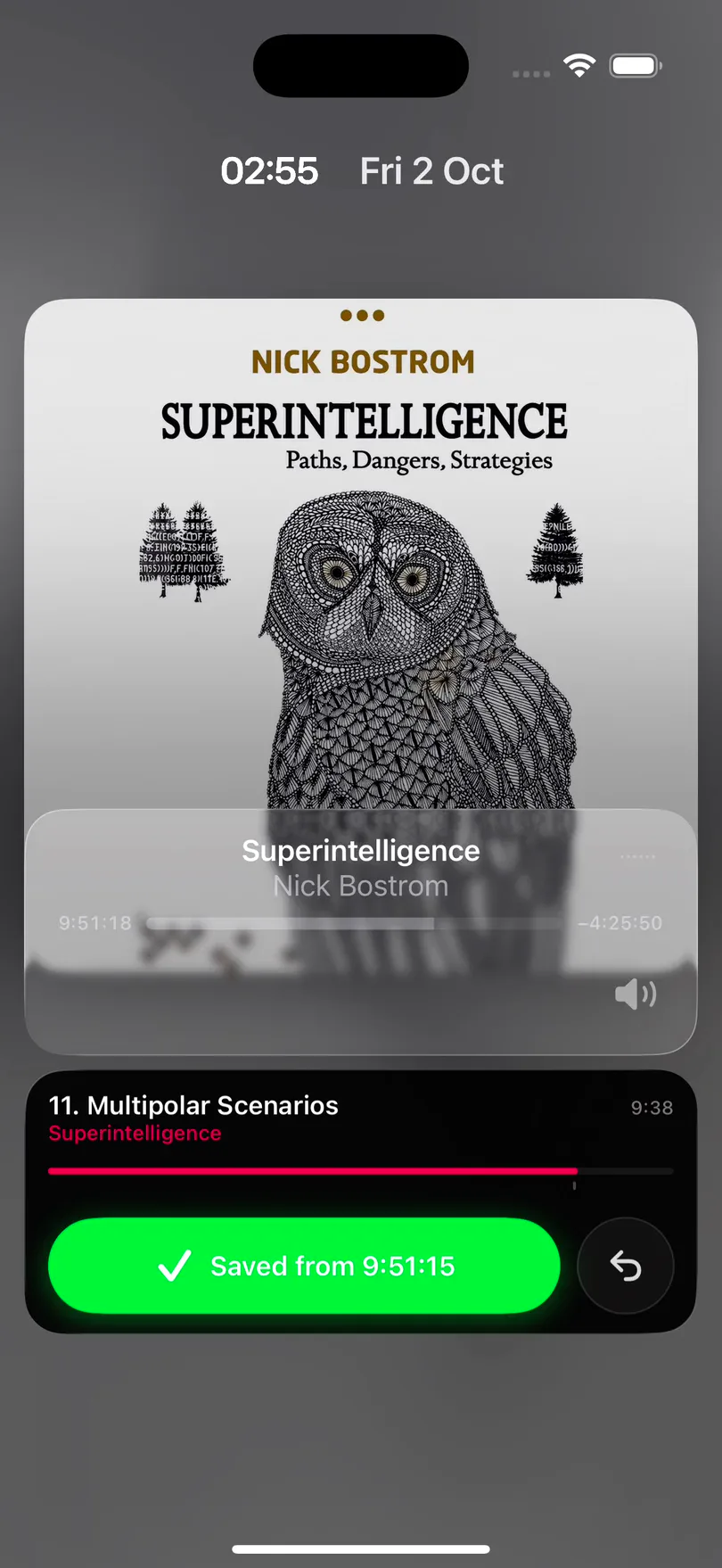
A transcription is a close guess at what the narrator said, so it can get a word, a name, or the punctuation wrong. When the book has its ebook linked, Excerpt replaces the transcription with the same passage from the ebook, so the highlight uses the author’s own words and punctuation, and starts and ends on whole sentences.
Transcribed
“Embarrassingly for our species as a moth laws remain state-of-the-art…”
From the ebook
“Embarrassingly for our species, Asimov’s laws remained state-of-the-art…”
A LibriVox book tagged Matching ebook is linked for you. Excerpt aligns the ebook with the audio in the background after the import, which takes a while, and the highlights you took in the meantime are matched once it has finished.
For your own books, add the epub from Edit Book. Your first match is free, and Premium is only needed beyond that. See Align an EPUB with Your Audiobook.
5. Read along
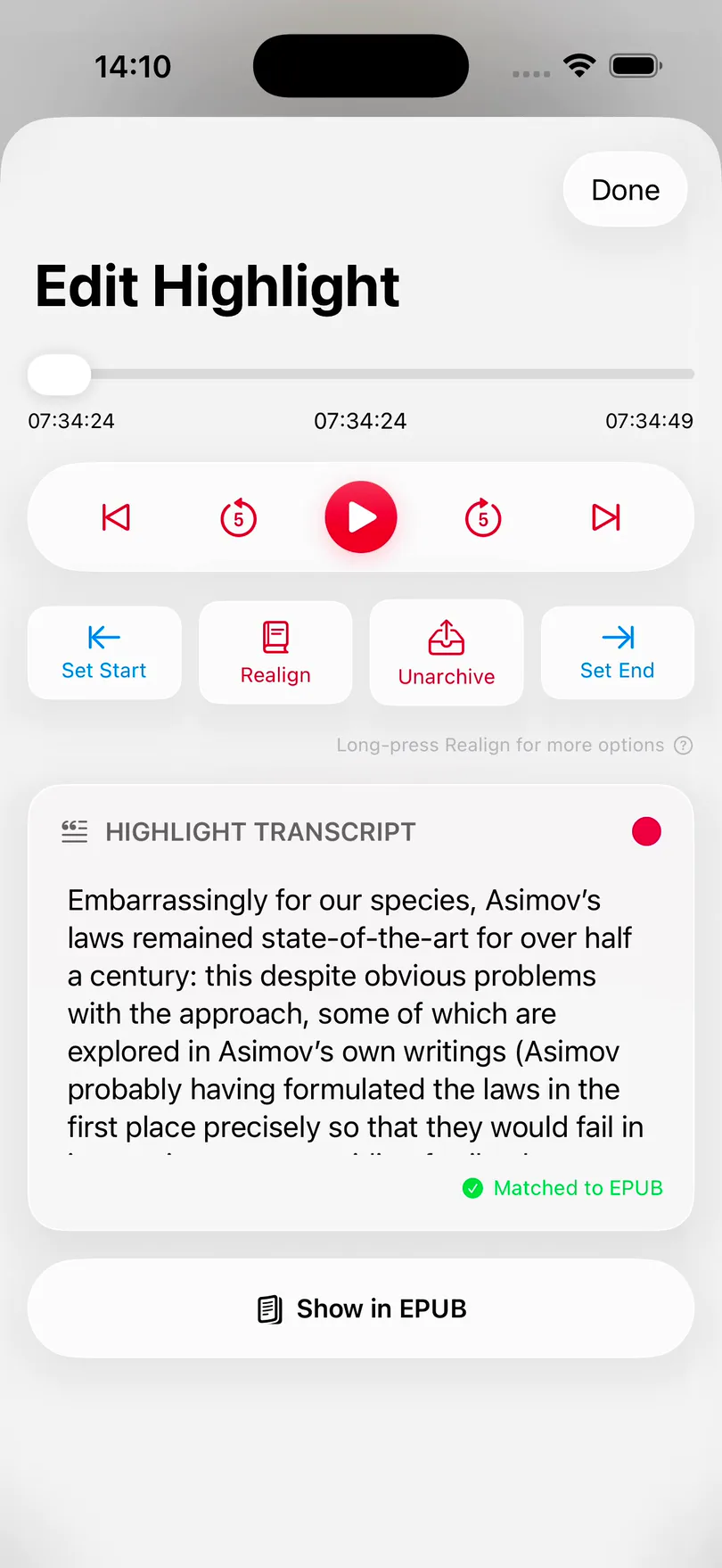
With the ebook linked, tap Read along beneath the artwork. Excerpt shows the sentence being narrated and moves the text on with the audio.
On iPhone, the Read Along panel replaces the artwork and shows the sentence being narrated.
On iPad, the ebook page opens beside the player and follows the narration.
See Read Along with an Audiobook for its settings, such as following by paragraph instead of by sentence.
6. Highlight from the page
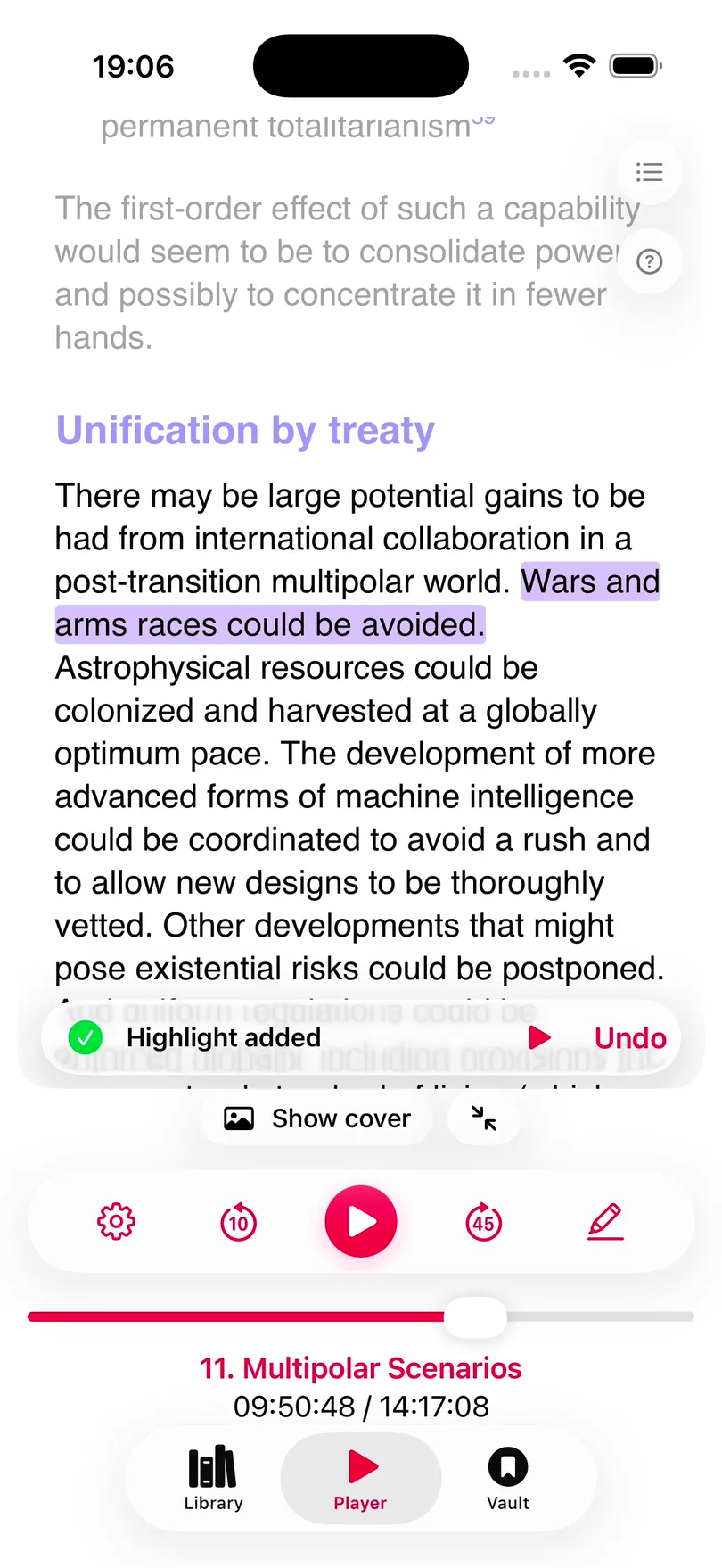
Tap the expand button beside Read along to open the full page of the ebook. Select five or more words and Excerpt creates a highlight from them, with the audio of that passage attached.
This is useful when you already know which sentence you want, as you do not have to wait for the narrator to reach it. You can extend or trim a highlight you already have in the same way. See Create a Highlight from the Ebook.
7. Send highlights to your notes
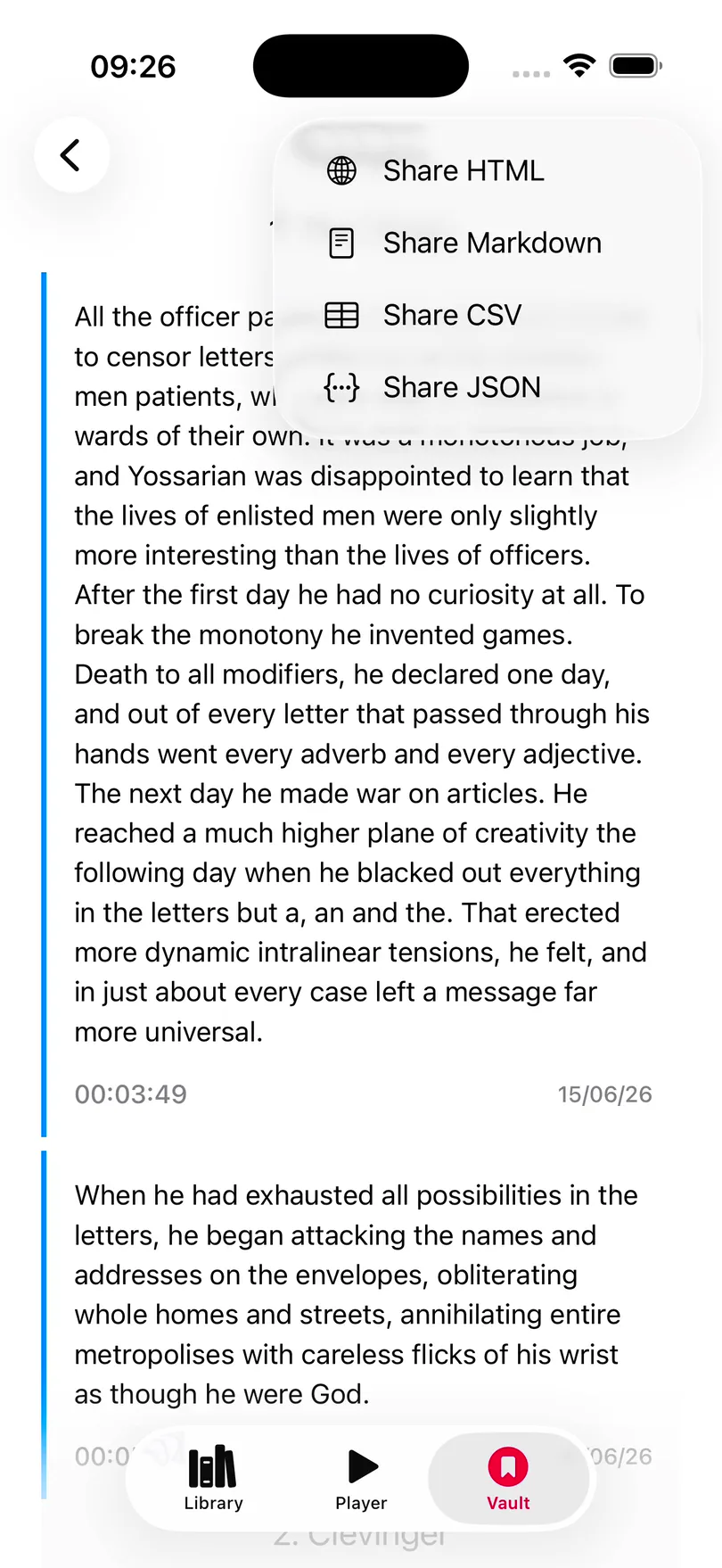
Open View All Highlights from the player, tap Share, and choose Share Markdown. The file has a heading for each chapter and each highlight as a quote, which Obsidian and other notes apps can open as it is:
# Highlights

## Chapter 1

> It is a truth universally acknowledged, that a single man in possession of a good fortune, must be in want of a wife.
If you use Readwise, Excerpt can send each highlight to it automatically when you archive the highlight. See Export Highlights as Markdown and Send Highlights to Readwise.
8. Find a highlight again
Open Vault to search the highlights of every book at once, including the ones you have archived. Tap a book to open its highlights grouped by chapter, and tap a highlight to open it and play its audio. See Search the Highlight Vault.

That is everything you need to get started. The articles below cover what to try next, such as connecting your Audiobookshelf server, automating Excerpt with Shortcuts, or syncing your library between your devices.