
If you come across a passage while reading the ebook, you can select the words and turn them into an audiobook highlight. Excerpt finds where that passage is spoken in the audiobook, and saves the text and the audio together.
Open the ebook
You can open the ebook viewer from a highlight or from the player.
From a highlight, open Edit Highlight and tap the Show in EPUB button at the bottom of the sheet, which opens the ebook at that passage. If the button reads Preparing ebook… the epub is still being prepared, and if it reads No EPUB match the highlight has not been matched to the ebook yet, so realign it first.
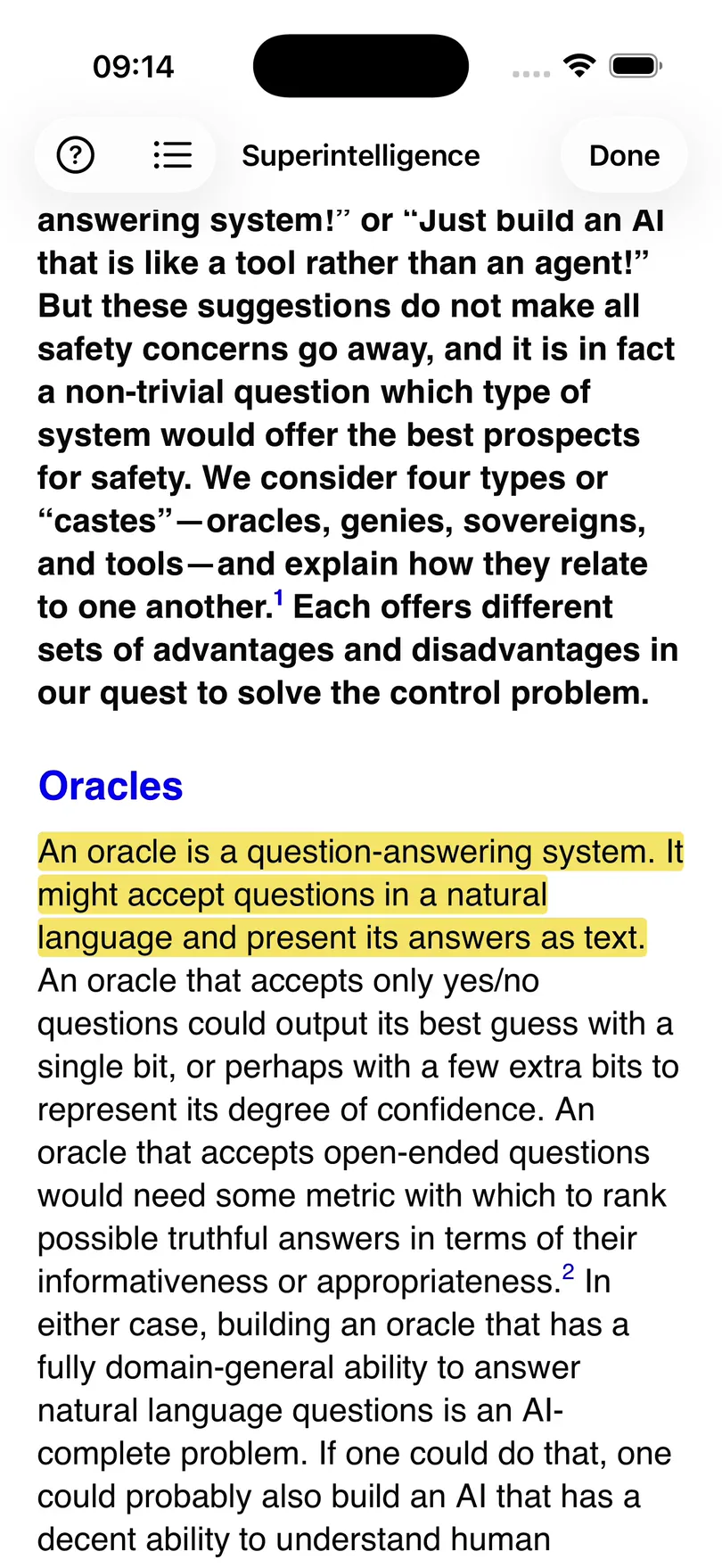
The ebook viewer can also be accessed from Read along. The ebook opens at the passage that is being narrated, and the list icon at the top opens the Table of Contents if you want to browse another chapter.
Highlight colours
Highlights are coloured in the ebook so that you can tell them apart:
- Yellow marks the highlight you are editing, if you opened the ebook with Show in EPUB.
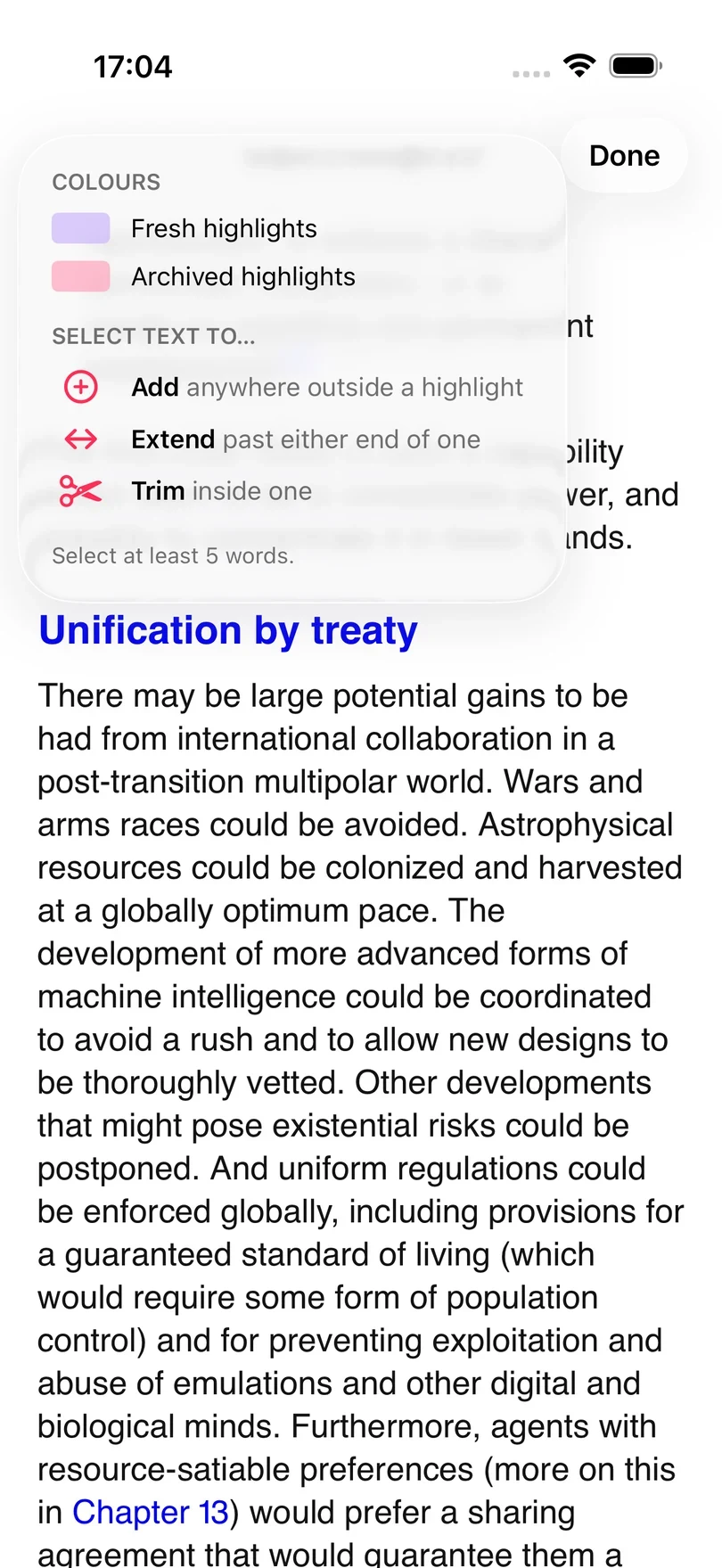
- Lavender marks your other active highlights.
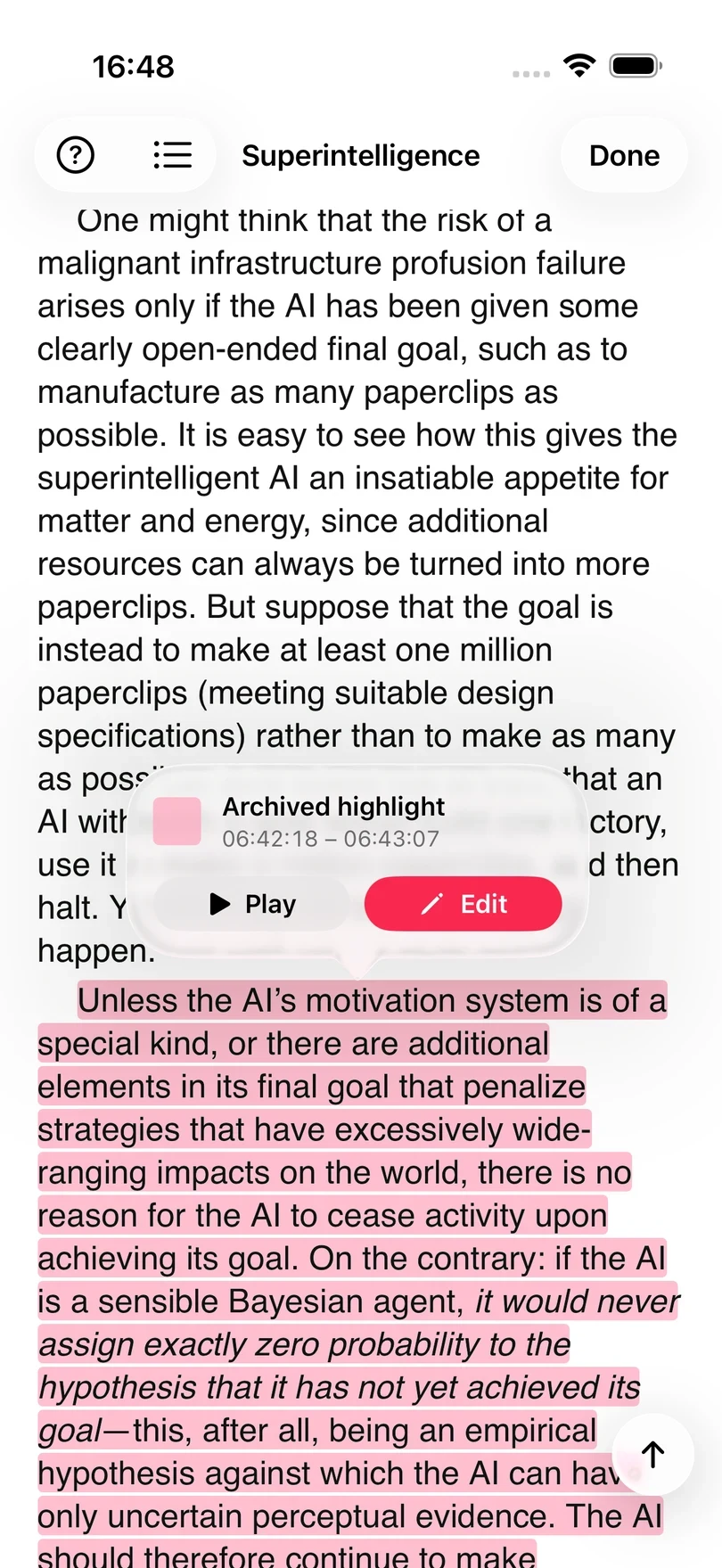
- Pink marks archived highlights.
Tap any highlight on the page to see what it is and when it plays. The callout that appears has Play and Edit buttons.
Select a passage
Press and hold a word, then drag the selection handles to cover the passage. You need to select at least five words, as Excerpt needs enough text to find the same passage in the audio.
When you have selected text, a coloured capsule will appear at the bottom of the screen that you can press to add a new highlight, extend one, or trim one, depending on whether your selection is outside, overlapping, or inside a highlight you already have (see headings below).
Create a new highlight
Select text that is not part of any highlight and tap New Highlight. Excerpt searches the audio around that part of the book, aligns the words you selected with the recording, and marks the new highlight in the ebook once it is ready. You can keep reading while it does this.
Extend a highlight
Start the selection inside a highlight and drag it past either end, then tap the capsule, which shows how many words will be added (for example Extend by 12 words). Excerpt extends that existing highlight rather than creating a second one.
Trim a highlight
Select the words you want to remove from inside a highlight, then tap the capsule. Excerpt shortens both the text and the audio of the highlight.
If Excerpt cannot find the passage
If Excerpt cannot find the selected text in the audiobook, the capsule reads Selection not in audio or an alert explains what to try, and nothing is saved. A selection under five words shows Select at least 5 words. If no capsule appears at all, the words are not in the index of the linked ebook. In either case, try the following:
- Select a longer passage. Five words is the minimum, and a phrase that is repeated elsewhere in the book needs more than that to be placed.
- Include a few distinctive words around the sentence.
- Check that the linked epub is the same edition and translation as the audiobook.
- Try a passage near a highlight that already matches correctly.
If the alert says the book’s language is wrong, change Book Language in Edit Book; see Listen to Books in Other Languages. If it says the audio file is not available, tap the book in the Library to download it from iCloud.
The alignment and transcription models are language specific, so if part of your selection includes text in another language or is otherwise hard for machine transcription to accurately transcribe then you would be better off selecting more normal text nearby and editing the highlight via the audio start/end in the highlight editor sheet.