
You know the scene. A detective squints at a blurry CCTV frame, says “Enhance!”, and a number plate appears out of six pixels. It was never real for photos. For a hissy, low quality audiobook recording though, it more or less is.
Excerpt’s Enhance reprocesses the narration on your device to take out the background noise and clean up low quality muffled audio. It makes a second, enhanced copy of the audio and never touches the original, so if you prefer the recording as it was, it is still there. It will not turn a recording made in someone’s kitchen into a studio production, but it makes a real difference to old or noisy recordings, and you can hear that for yourself before enhancing a whole book.
Hear the before and after
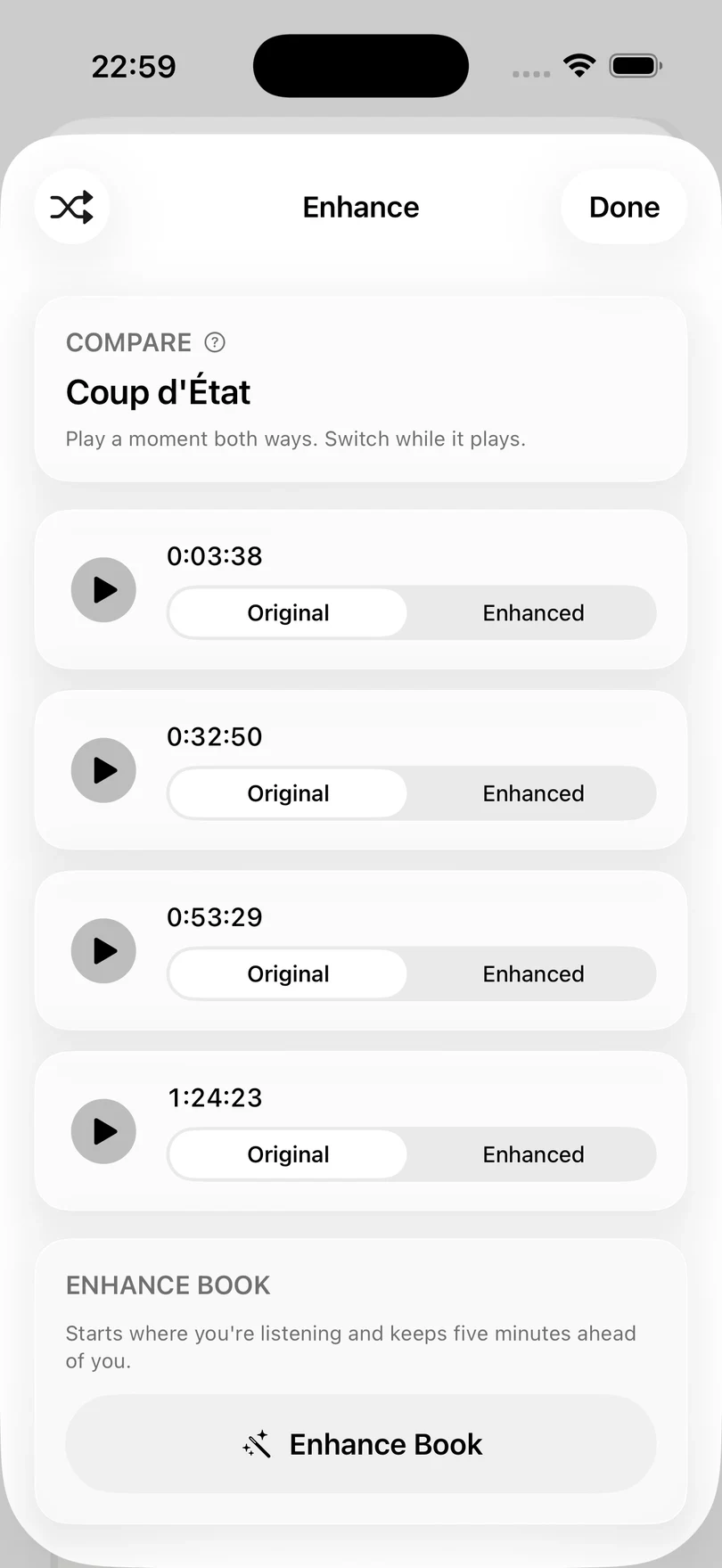
Don’t take my word for it. In Edit Book, tap Enhance Book to open a preview of what enhancement does to your book.
The preview picks a few short moments from the book, and each one can be switched between Original and Enhanced while it plays. Tap Shuffle for a different set of moments, and Done when you have heard enough.
If the Enhance model is not on the device yet, the preview offers Download (570 MB) first. This is a one-off download and is separate from enhancing the book itself, so it can take a while.
Say “Enhance!”
Sadly, shouting it at the screen does nothing (I checked). There are two ways to start enhancing a book:
- In the preview, tap Enhance Book.
- In the player’s Playback sheet, turn on Enhanced audio. Excerpt starts with the chapter you are listening to and works onwards from there, and can carry on in the background.
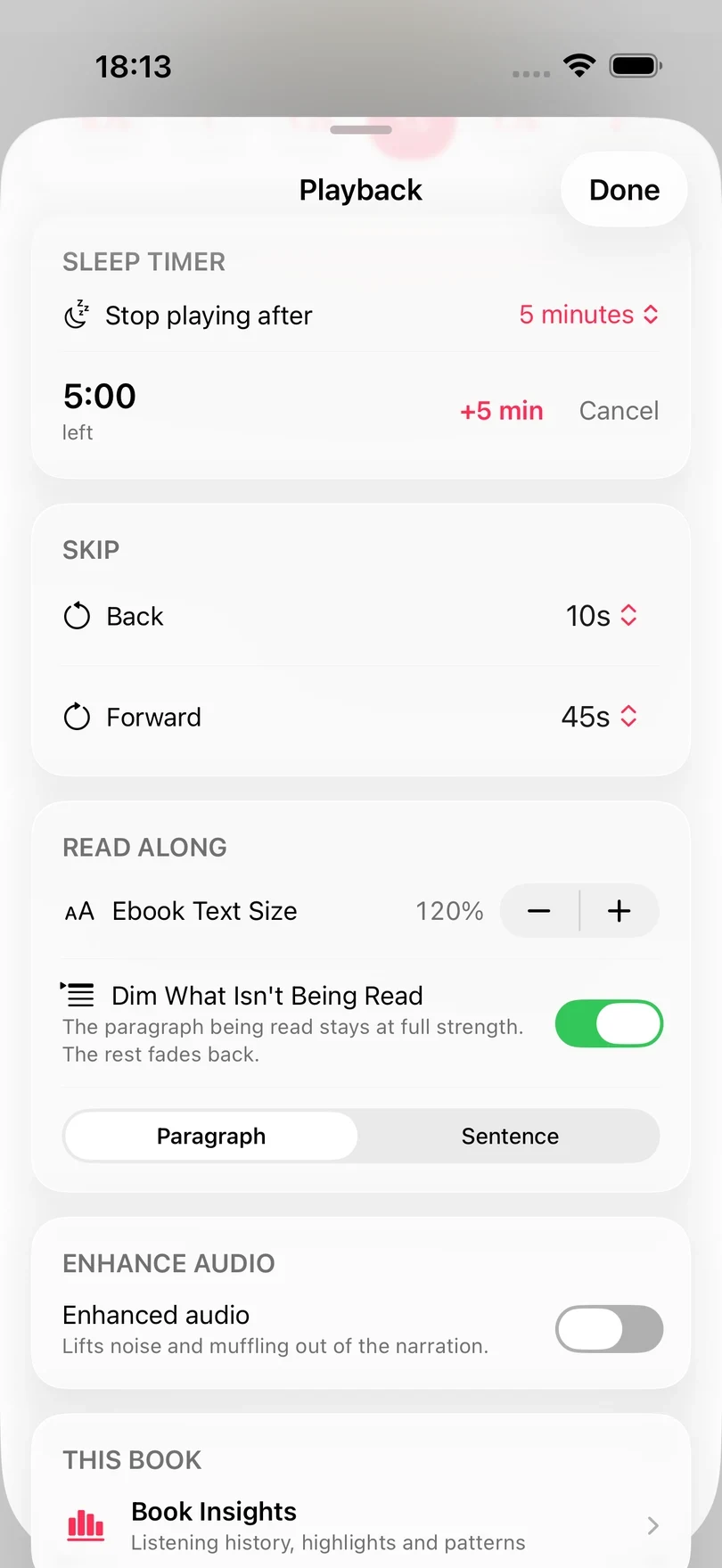
You do not have to wait for it. The original recording keeps playing while the enhanced chapters are being prepared, and the status row tells you which one you are hearing with Playing enhanced or Playing the original.
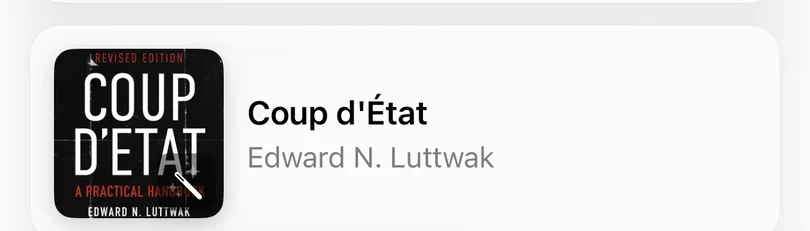
While a book is being enhanced, a small wand shimmers on its cover in the Library.
If you really do want to say it out loud, you can. Add the Set Enhanced Audio action to a shortcut, name the shortcut “Enhance”, and ask Siri to run it. See Shortcuts Actions Reference.
Enhance one chapter at a time
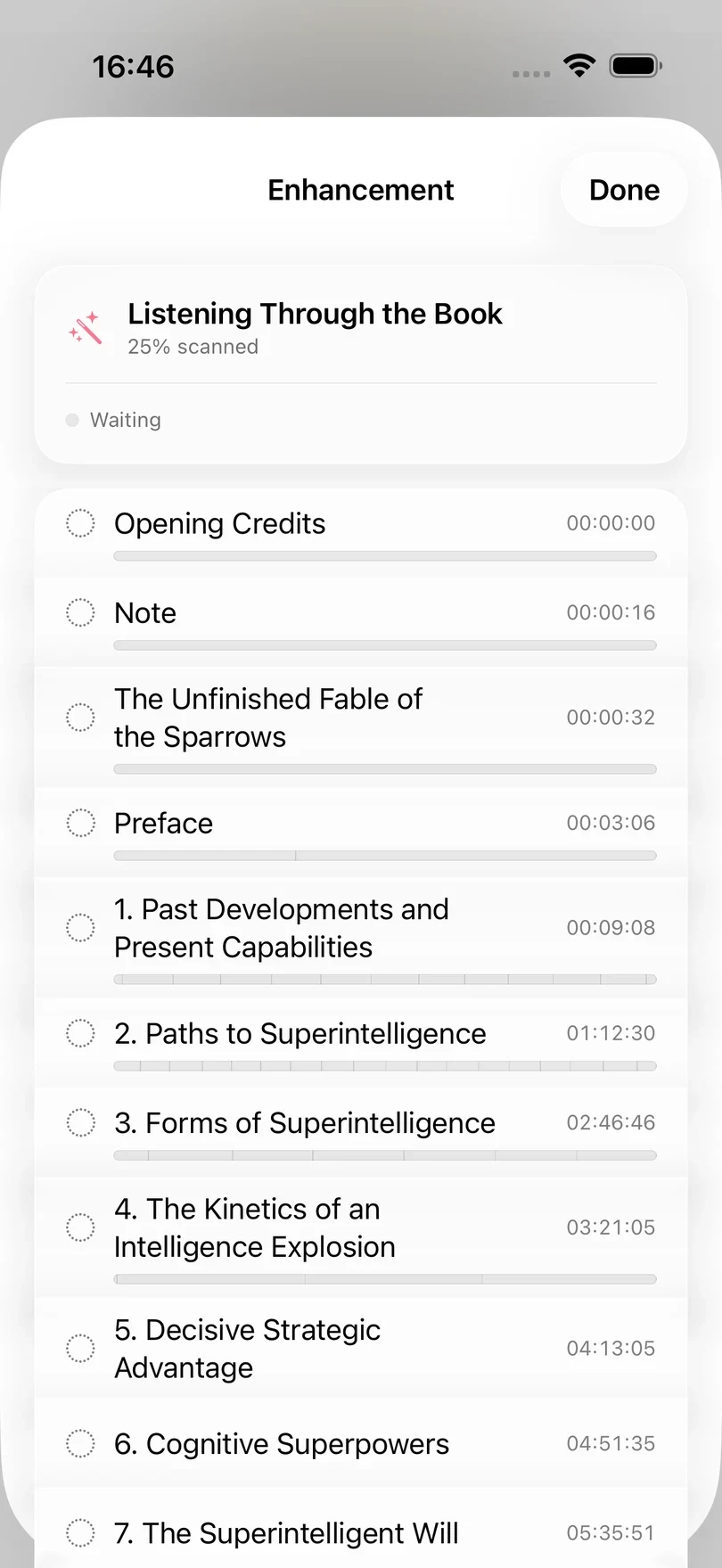
A whole book takes a while to enhance, so Excerpt does it one chapter at a time. With Enhanced audio turned on in Playback, tap Chapters to open the Enhancement screen. Each chapter shows its state, with a tick once it has been enhanced and an hourglass while it is waiting its turn. If you cannot wait for a particular chapter, swipe right on it and tap Enhance.
If part of a chapter has already been enhanced, Excerpt asks what to do with it:
- Fill the Gaps keeps the parts that are already enhanced and only processes the parts that are missing.
- Enhance Again deletes the enhanced audio for that chapter and enhances the whole chapter again.
If a chapter failed to enhance, swiping right on it offers Try Again.
Until the whole book is done, some of its chapters will be enhanced and the others will still be the original.
When enhancement pauses
Excerpt always enhances the five minutes ahead of your listening position. The rest of the book waits when the device is busy, and the Enhancement screen reads Paused with the reason:
| The screen says | Why | What to do |
|---|---|---|
| Battery is low | The device is below 20% and not charging. | Plug it in. |
| Device is too warm | The device is running hot. | Let it cool down. |
| Resumes when Excerpt is open | Excerpt is in the background and nothing is playing. | Open Excerpt, or keep the book playing. |
| Waiting for this book to download | The audio is still in iCloud. | Tap the book in the Library to download it. |
| Waiting for another model to finish | Another job, such as a transcription or an ebook alignment, is using the device. | Nothing, it continues when that job finishes. |
| Model download failed. Retries when reopened | The Enhance model could not be downloaded. | Close Excerpt and open it again. |
| Device needs a memory break | The device is short of memory. | Nothing, it carries on by itself. |
To get a whole book done, plug the device in and leave Excerpt open.
Delete enhanced audio or the model
Enhanced audio is a second copy of the book, so it takes up storage, and the Playback sheet shows how much this book’s enhanced audio is using under On this device. Tapping Delete there removes the enhanced copy and leaves the original recording exactly as it was. You can always enhance the book again later.
The Enhance model is shared by every book. To free up its 570 MB, open Settings › Transcription › Manage Models and tap Delete Model under Enhance Audio model. Books that have not been fully enhanced will have enhancement turned off, and can be enhanced again once you have downloaded the model again.
Enhancement is not compression
Enhance changes how the audio sounds and keeps the original. Compress Book is a very different button: it re-encodes the file to make it smaller, which can reduce the quality and cannot be undone. Keep a separate copy of the file before compressing, and see compress the audio.