
Excerpt works with audiobook files you can download and keep. You can buy them from a DRM-free shop, download public-domain recordings from LibriVox, borrow them from a library that uses BorrowBox, import files you already own, or connect your Audiobookshelf server.
Buy a downloadable audiobook
Look for a shop that lets you download the audiobook as an mp3 or m4b file, rather than one where the book can only be played inside the shop’s own app.
Libro.fm (no affiliation) is a well-known shop that sells DRM-free audiobooks and supports independent bookshops. Other shops sell downloadable audiobooks too, so check which file format you will get before you buy.
Once the file is on your device, choose Import File. If the book is supplied as separate chapter tracks, put them into a ZIP and choose Import ZIP.
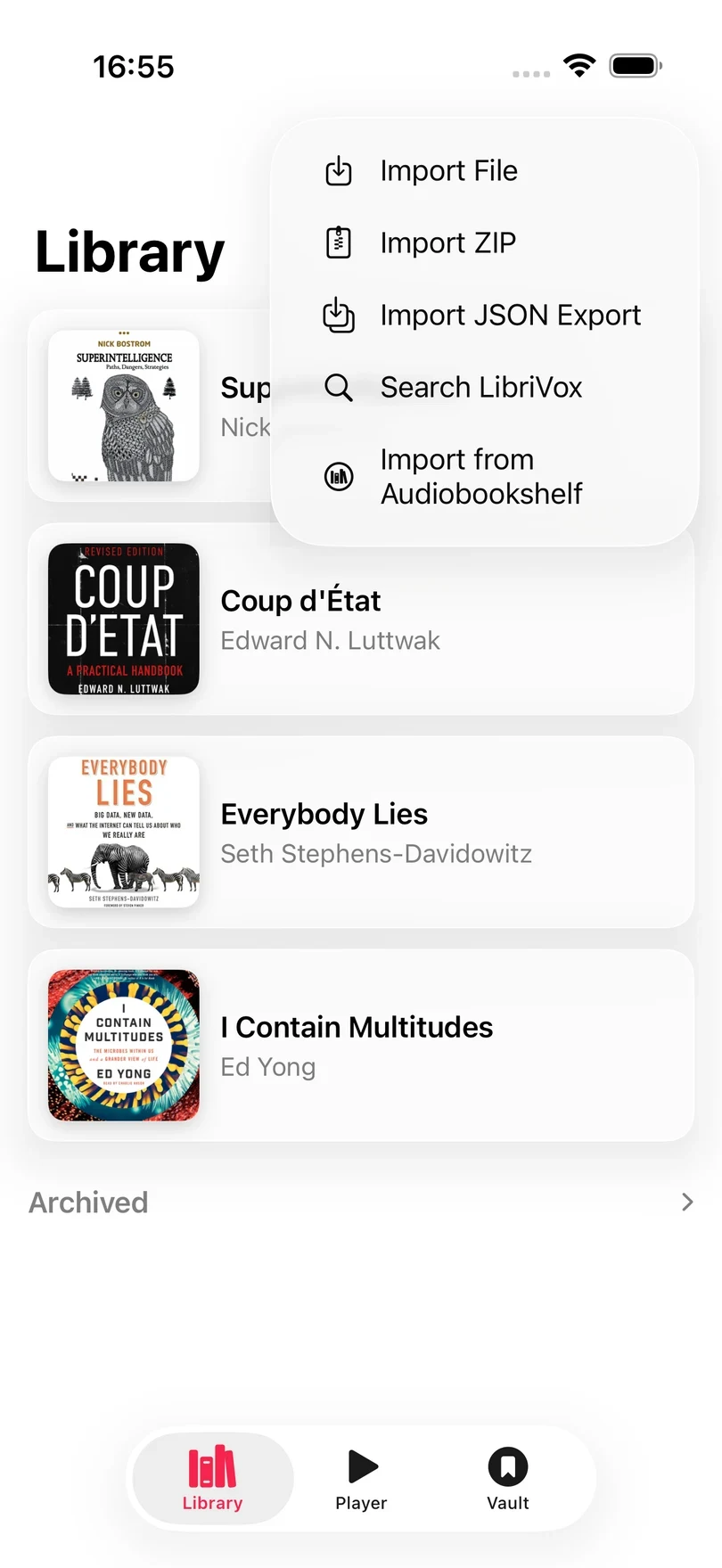
Search LibriVox in Excerpt
LibriVox is a library of free public-domain audiobooks read by volunteers. You can search it and download a book from inside Excerpt.
- Open Library and tap +.
- Choose Search LibriVox.
- Search by title or author, then tap a result to import it.
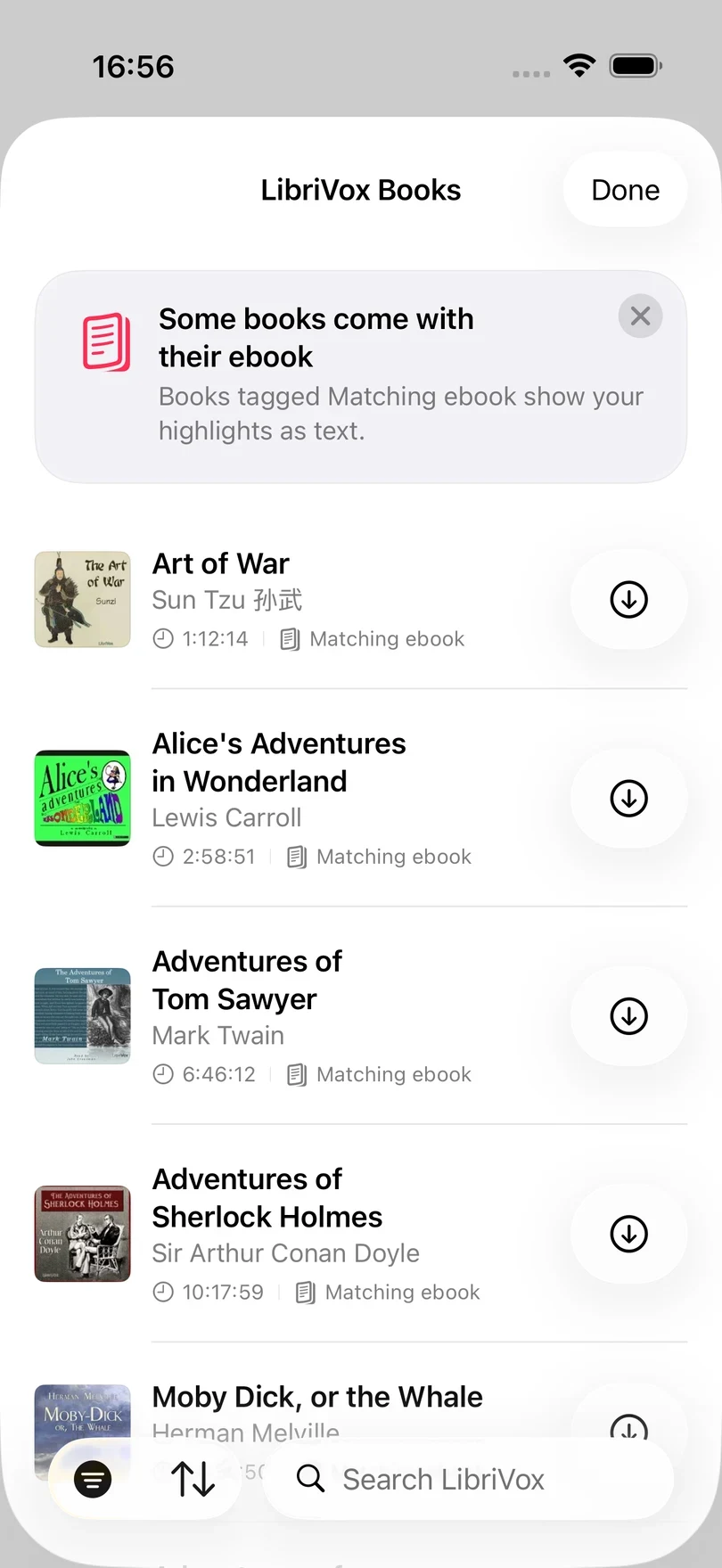
The download continues in the background when you leave the app, so a long book can finish downloading while you are doing something else.
When the list first opens it only shows English books that come with their ebook. You can change this from the toolbar:
- Filter › Matching ebook only is on by default. Turn it off to also see the books that have no ebook.
- Filter › Language is set to English by default. Clear Filters removes both filters, so every book in every language is shown.
- Sort By starts on Most Popular.
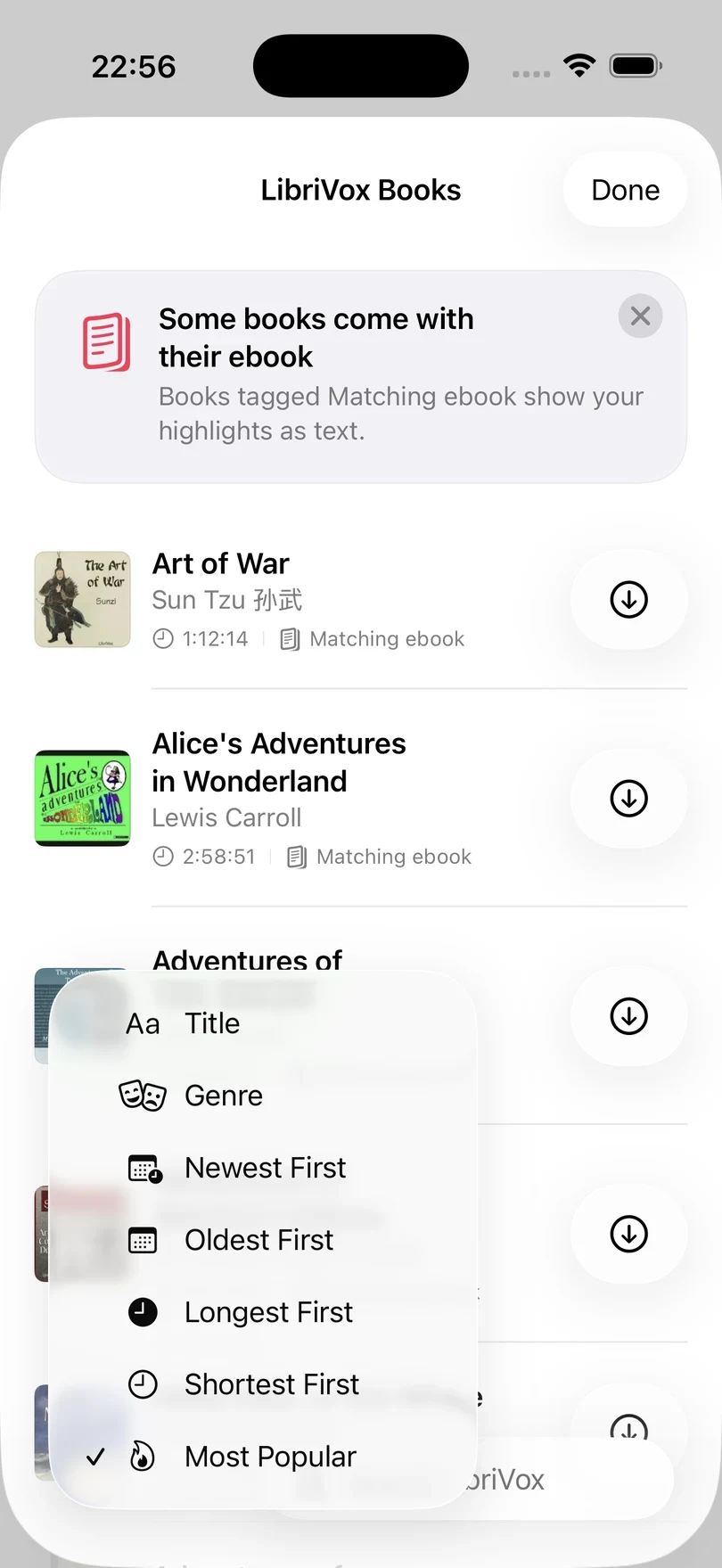
If you are offline, Excerpt still lists the catalogue that is built into the app and shows the error Can’t reach LibriVox. Showing built-in books. Tap Retry once you are back online.
The books built into the app are found by any word in their title or author. Every other book is searched for on LibriVox itself, which only matches a title from its first word and an author by surname. If a book does not appear, type the start of its title, or the author’s surname.
Books tagged Matching ebook are imported with their Project Gutenberg ebook already linked, so Read Along works and highlights use the book’s own text. See how LibriVox books link their ebook.
Import files you already have
Excerpt can import almost any audio file, and prides itself on supporting far more audio formats than the default Apple apps. Use Import File if the book is a single file, and Import ZIP if it is split into chapter tracks.
One complete audiobook
- Open Library and tap +.
- Choose Import File.
- Select the audiobook in Files.
Excerpt only re-encodes the audio when it has to:
- AAC, mp3, Opus, FLAC and ALAC audio is kept exactly as it is, which covers most m4b, m4a and mp3 files.
- WAV and AIFF files are stored as FLAC, which is lossless but takes about half the space.
- Other formats (such as ogg or wma) are converted to Opus, so these take longer to import.
The chapter markers, the cover, and the tags of the file (such as the narrator, year and genre) are imported with it.
You can also import a file from a link with excerpt://import?url=…, which is useful in a shortcut. See importing a file with a link.
Separate chapter tracks
If each chapter is a separate audio file, put the files in a ZIP and choose Import ZIP. Excerpt joins the tracks into a single book with one chapter for each track. Import a ZIP of Chapter Tracks explains how to name the files and add cover art so that it is imported correctly.
Files that cannot be imported
Excerpt does not accept .mp4 video files, or a few rare formats such as .asf, .rm and .spx. In Import File these are dimmed and cannot be chosen. If one reaches Excerpt another way, from a link or from another app’s share sheet, Excerpt shows Unsupported Format:
.mp4 files can’t be imported. Use an audio file or a ZIP of audio files.
A file that is damaged, empty or contains no audio shows Import Error with the name of the file and the reason. Try playing the file in another audio app, and if it does not play there either, download or export the audiobook again. Files protected with DRM cannot be imported either, as explained below.
Connect Audiobookshelf
If you keep your audiobooks on an Audiobookshelf server, Excerpt can import books from it and keep your listening position synced with the server. See Import from Audiobookshelf.
Audiobooks protected with DRM
Streaming services and some library apps protect their downloads with DRM. Those files remain tied to the service that supplied them and cannot be imported into Excerpt. Excerpt cannot remove DRM or turn an app-only title into an audiobook file.
Library loans
Which library app you have decides whether a loan works.
- BorrowBox, used by UK libraries, often gives you a loan as a ZIP of mp3 tracks. Import it with Import ZIP; see Import a ZIP of Chapter Tracks.
- Libby, used by US libraries, protects most loans with DRM. Those stay inside Libby and cannot be exported into Excerpt (or any external player).
Audible
Audible downloads are protected with DRM in their original format. Some people download their purchased Audible books and remove the DRM using third-party tools before importing the resulting files.
Legality depends on your jurisdiction
Whether you may download and convert Audible purchases for personal use varies by country. I can’t legally recommend this approach as the legality of freeing your Audible library depends on your jurisdiction.
The free, open-source Libation program is often mentioned in audiobook communities for downloading and managing an Audible library, but it is not affiliated with Excerpt and I cannot vouch for it. Once you have compatible files — a single .m4b or .mp3, or a ZIP of chapter tracks — import them with Import File or Import ZIP as described above.
From the high seas
I won’t point you to specific sources. Whether downloading audiobooks without paying for them is legal depends entirely on your jurisdiction, and Excerpt takes no position on it.
If you have obtained audio files by whatever means, the app imports them the same way as any other source.