
This page covers how to play a book, move through it, change the playback speed, set a sleep timer, and get back to where you were if you tap the timeline by accident. The layout is different on iPad, but the controls work in the same way.
Play, pause, and move through the book
Tap the centre button to play or pause. The curved arrows on either side of it skip backwards or forwards, and you can drag the timeline to move to another point in the book.
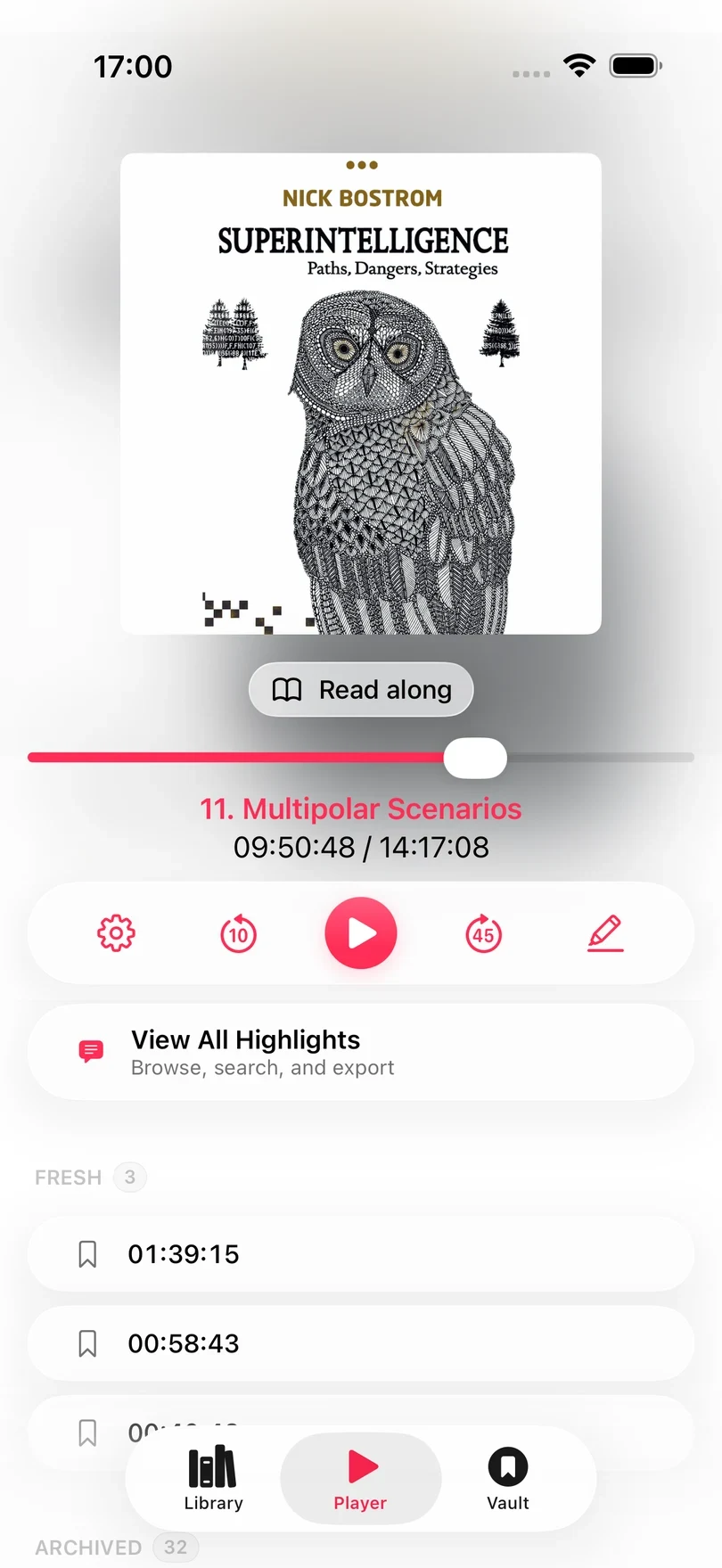
The highlight button at the right-hand end of the controls saves what you have just heard as a highlight. See Create and Edit a Highlight for how that works.
Choose a chapter
Tap the chapter title to open the chapter list. Swipe right on a chapter and tap Jump to continue playing from the start of that chapter. Excerpt remembers your position in each book separately.
If the chapter names are wrong, or the chapters start in the wrong places, see Manage Chapters for how to fix them.
Change speed and skip intervals
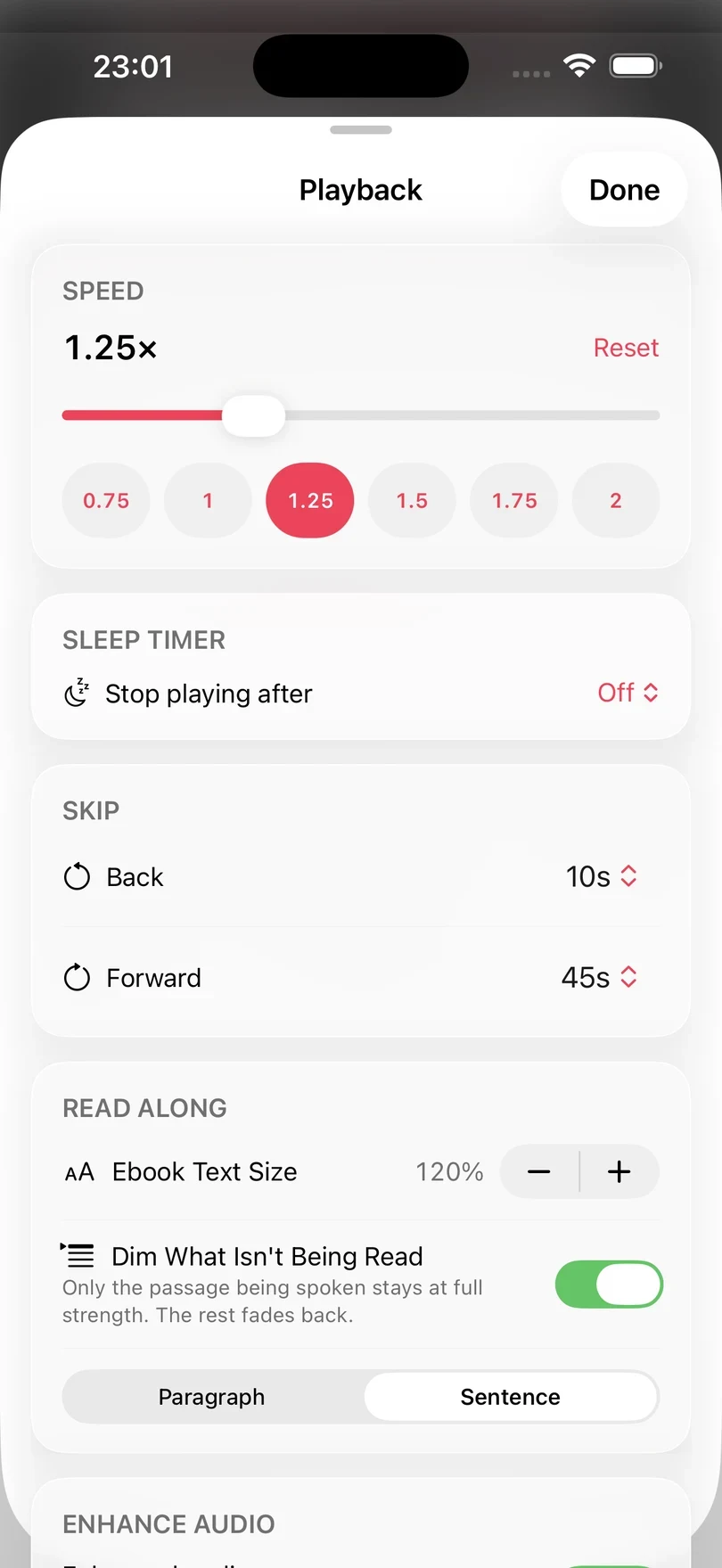
Tap the gear icon at the left of the player controls to open the Playback sheet. Drag the speed slider to anything from 0.5× to 3×, or tap one of the presets from 0.75× to 2×. Reset puts the speed back to 1×. The speed is saved for each book, so you can use different speeds for different books.
Under Skip, choose how far the Back and Forward buttons move playback: 5, 10, 15, 30, 45, 60 or 90 seconds. The same skip lengths are used by the Lock Screen and headphone controls.
Set a sleep timer
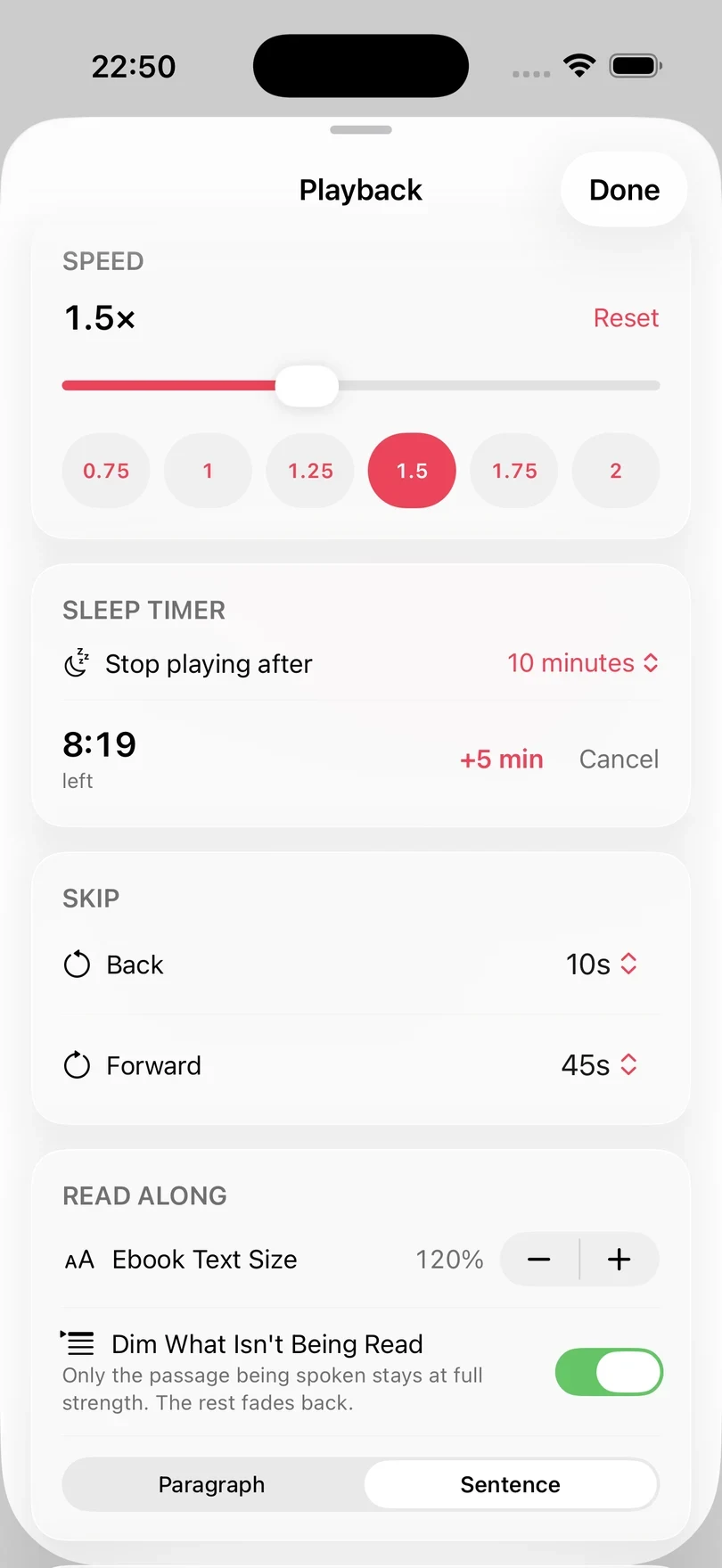
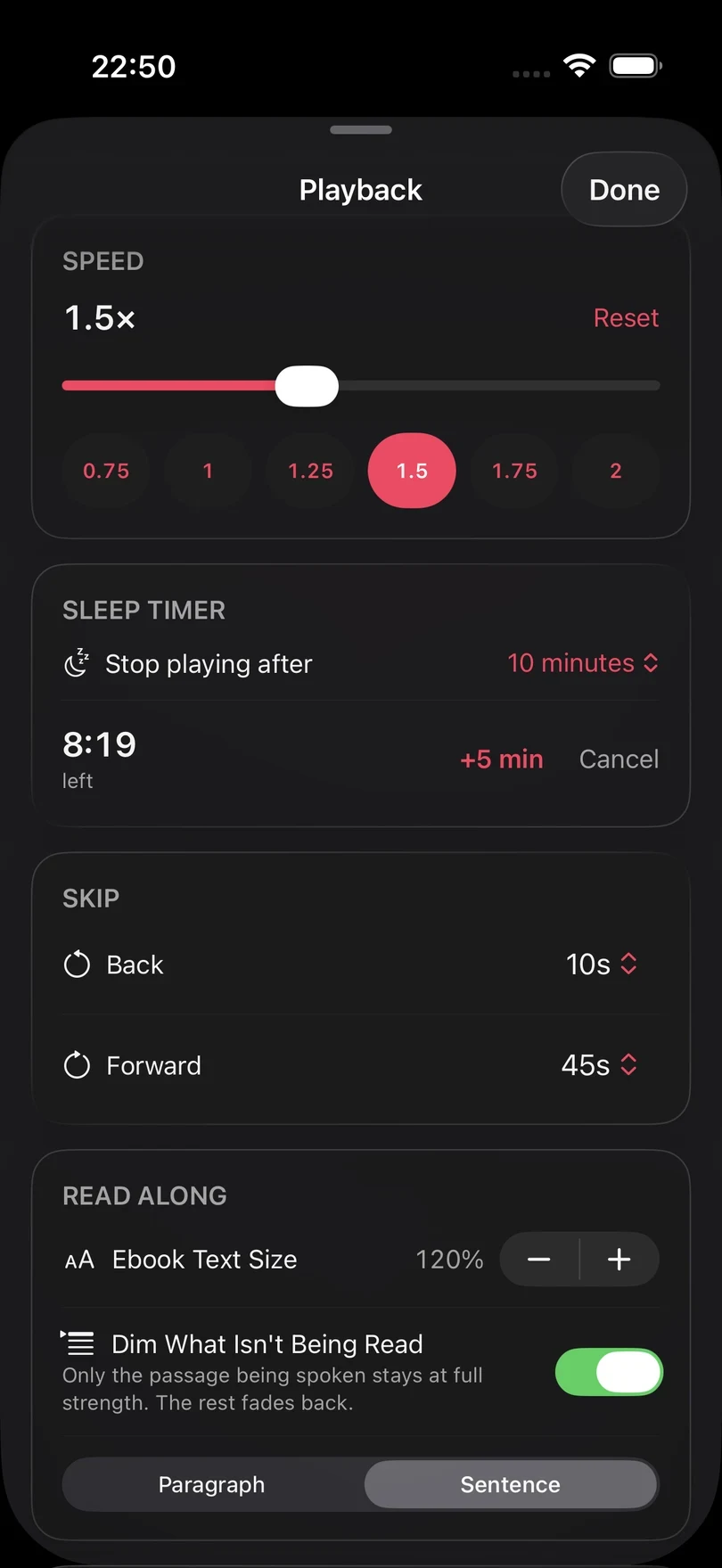
In the Playback sheet, open Stop playing after and choose a length from 5 minutes to 1 hour, or End of chapter. Once the timer is running, the time left is shown in the same row. Tap +5 min if you want to keep listening a little longer, or Cancel to stop the timer.
Move to an exact position
To go to an exact time, tap the time position shown beneath the chapter title to open the playback position sheet. Enter the timestamp and tap Seek.
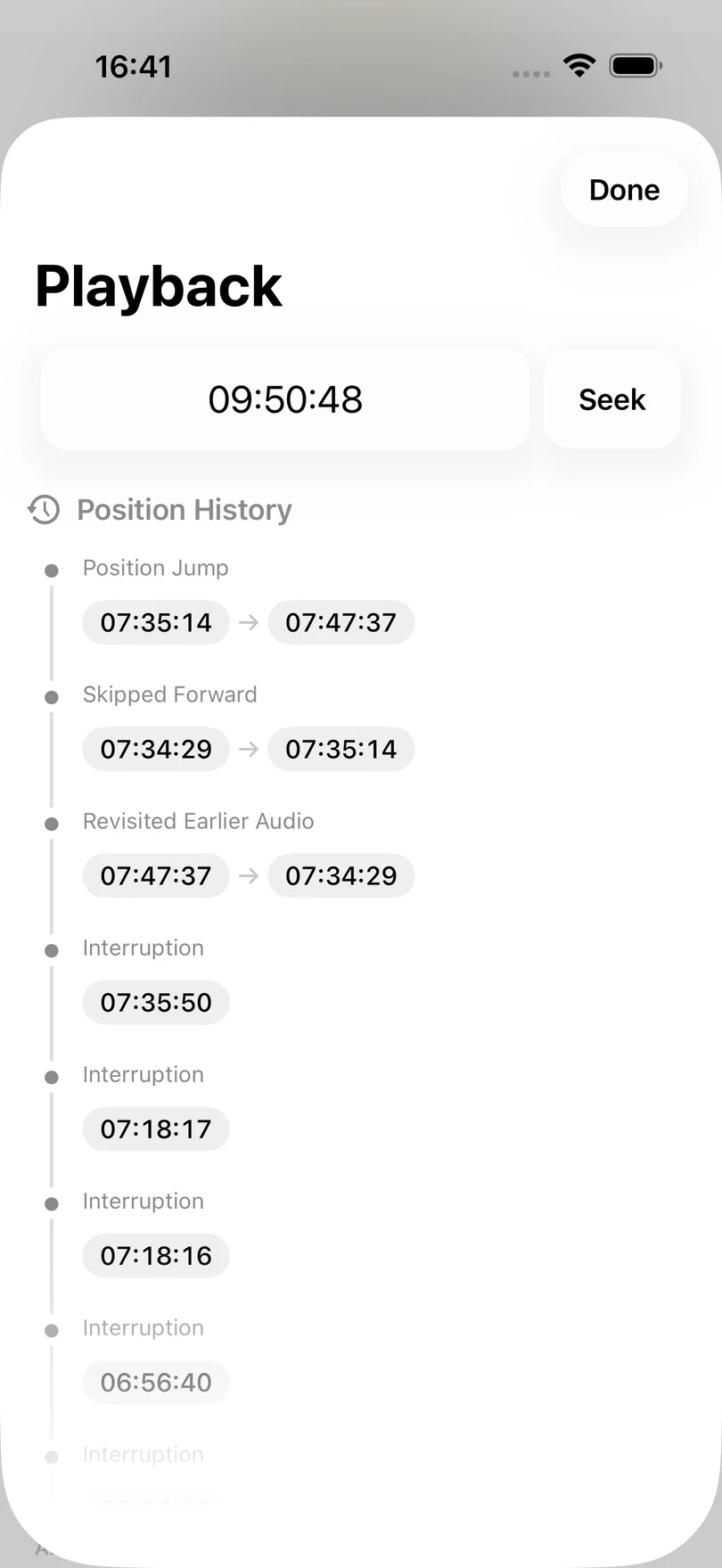
Position History lists every skip, jump, and interruption, with the book position before and after each one. Tap a time and choose Jump to to go back there, which is useful if you tapped the timeline by accident.
Read while you listen
If the book has a matching epub linked, tap Read along beneath the artwork. Excerpt follows the narration sentence by sentence while the audiobook keeps playing.
See Read Along with an Audiobook for how to set it up.