
If your audiobook is a folder of separate chapter tracks, put them in a ZIP and Excerpt will import them as a single book. It unpacks the ZIP, sorts the tracks by filename, and joins them together with one chapter for each track.
Before you make the archive
A ZIP is only needed when the chapters are separate files. If the book is a single m4b, m4a or mp3 file, use Import File instead.
The tracks in a ZIP can be in any of the audio formats that Import File accepts, including mp3, m4a, aac, ogg, opus, flac, wav and aiff. The checklist shown in the app lists fewer formats, but all of them work.
If all of the tracks are in the same format and it is one that Excerpt can play directly (such as mp3, AAC or Opus), they are joined without being re-encoded, so no quality is lost and the import is quick. Tracks in other formats, or in a mix of formats, are converted first, which takes longer.
Leave out any files that are protected with DRM, as Excerpt cannot import a protected download from a streaming service or a shop.
Prepare the folder
The Book/
├── 01 - Prologue.mp3
├── 02 - Chapter One.mp3
├── 03 - Chapter Two.mp3
└── cover.jpg
The outer folder is optional, as Excerpt looks for audio files in every subfolder of the ZIP.
Name tracks for chapter order
The tracks are played in the order of their filenames. Numbers are sorted as numbers, so track2 comes before track10 and leading zeros are optional. Excerpt sorts on the full path, so the tracks in Part 1/ come before the tracks in Part 2/. The order that Finder displays the files in is not used.
Add cover art and metadata
Excerpt uses the cover that is embedded in the audio files if there is one (it takes it from the first track that has a cover). If none of the tracks has a cover, add an image named cover, artwork, folder, front or album to the ZIP (jpg, png, webp). If there is no image with one of those names, Excerpt uses the first image it finds.
Each chapter is named after the title metadata of its track. A track without a title tag is named after its filename, and if two tracks have the same title then every chapter is named after its filename instead. The title and author of the book are taken from the tags of the first track, so if those tags are missing you can rename the book after importing it.
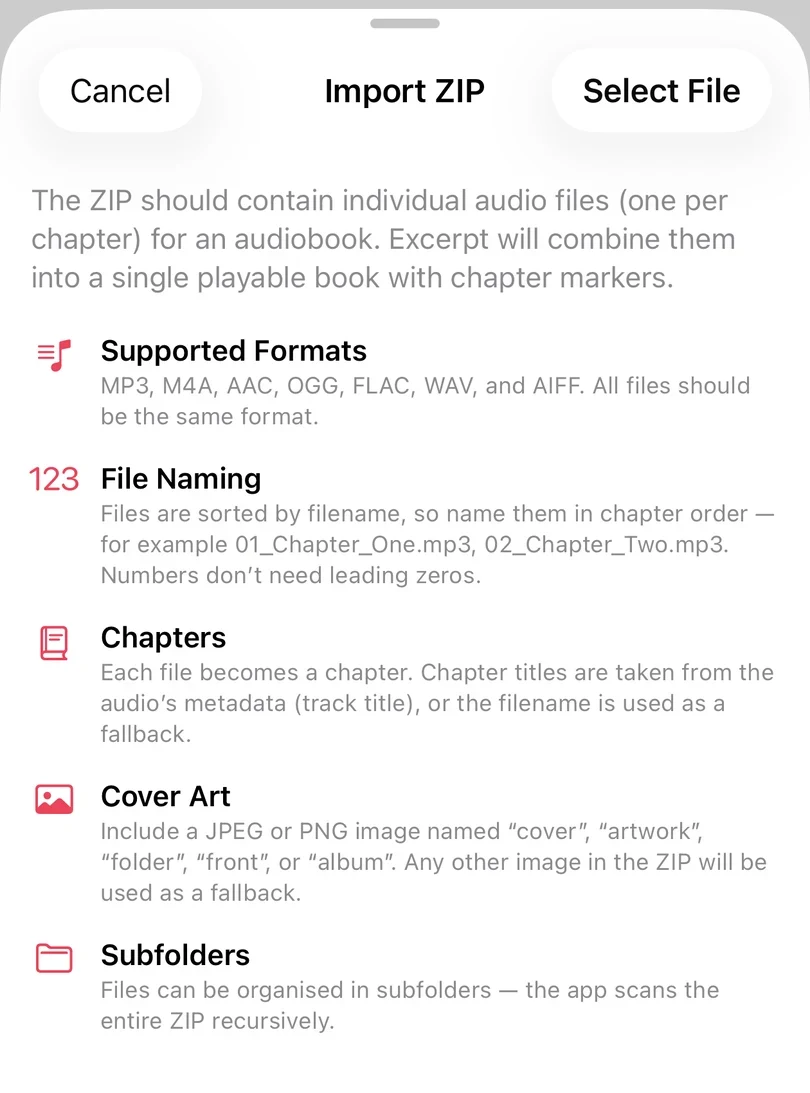
Import the ZIP
- Open Library and tap +.
- Choose Import ZIP, read the checklist, then tap Select File.
- Choose the
.zipfile in Files.
Fix common ZIP problems
If the chapters are in the wrong order or have the wrong names, correct the filenames or the title tags as described above and import the ZIP again. If the wrong cover is shown, remember that a cover embedded in a track is used before any image file in the ZIP.
| Error message | What to check |
|---|---|
| No audio files were found | The archive only contains another ZIP, a shortcut, or no audio at all. Put the audio tracks themselves into the archive. Inside a ZIP, files with an .mp4 extension or no extension are skipped. |
| None, but tracks are missing | Inside a ZIP, files without a recognised audio extension are skipped without a message. Check the extensions of the missing tracks. |
| The ZIP could not be read, so nothing was imported. | The archive is damaged or was only partly downloaded. Check that it opens on a computer, then download it or re-zip the files. |
| This import needs about … free and there is … | Importing needs free space of about two and a half times the size of the ZIP, and the same again is checked once it has been unpacked. Free up some storage and import again. |
| The … audio in … could not be converted. | Convert that track to mp3 or m4a on a computer and put it back in the ZIP. |
| Another Import Error | The error names the track that failed and says why (damaged, empty, video only, or unreadable). Convert that track to mp3 or m4a on a computer, put it back in the ZIP and import it again. |
If the ZIP came from another service
BorrowBox, used by UK libraries, often gives you a loan as a ZIP of mp3 chapter tracks. Import it the same way. For a book on an Audiobookshelf server, use Import from Audiobookshelf instead, so that the book’s details are imported with it and its position can sync with the server.
For other places to find audiobooks, see Find Audiobooks for Excerpt.