
You can ask Siri to start a book or to save what you just heard as a highlight, without touching the phone. Excerpt also adds its own actions to Shortcuts, so you can build shortcuts that collect highlights, export a book, or back up your library.
Try a Siri request
These are some of the requests that Siri understands:
- “Continue my audiobook in Excerpt.”
- “Play book title in Excerpt.”
- “Open book title in Excerpt.”
- “Highlight this in Excerpt.”
For a request that names a book, say the title as it appears in your Excerpt library. See every Siri phrase for the full list.
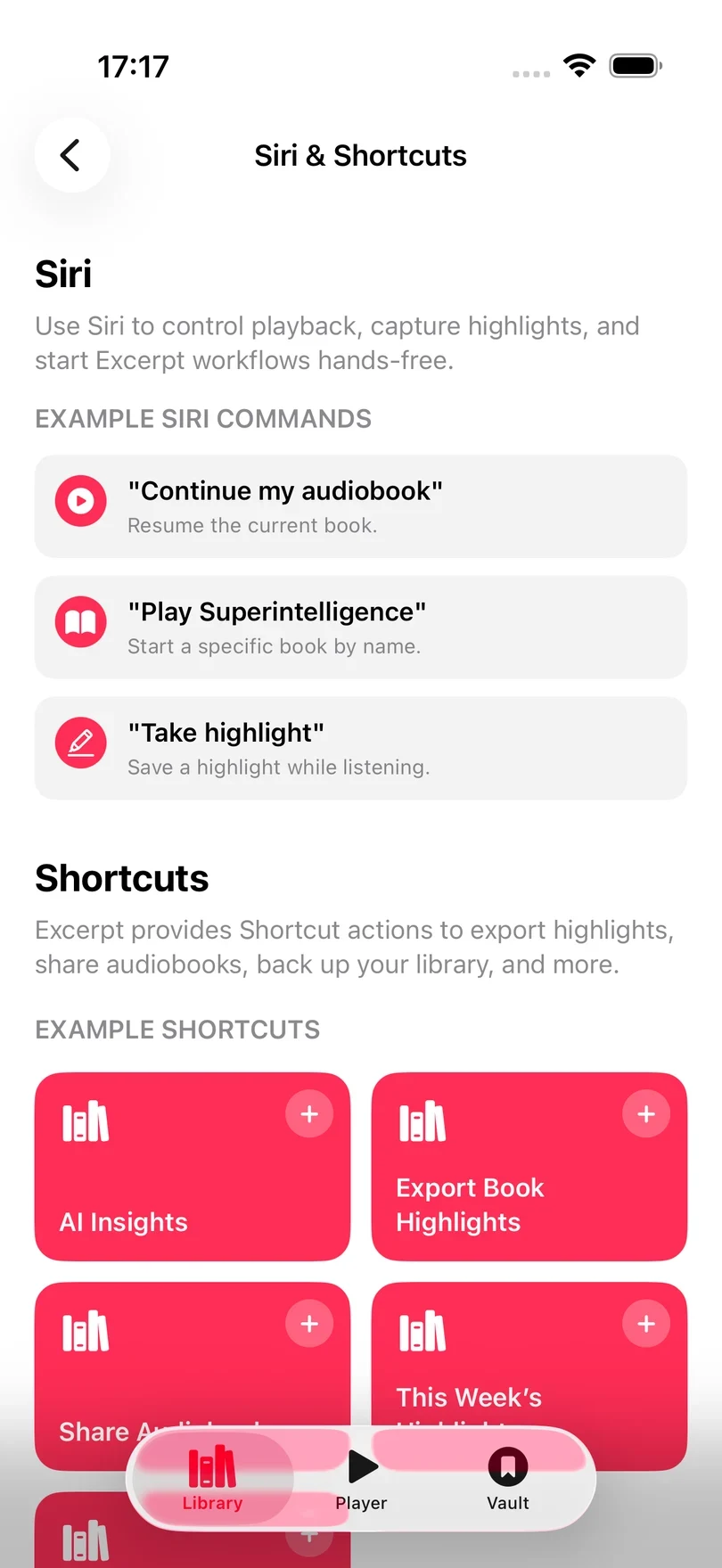
Find the examples in Excerpt
Excerpt has a page of example phrases and ready-made shortcuts. To open it:
- Open Library.
- Tap Settings.
- Choose Siri & Shortcuts.
Below the Siri phrases, the same page has ready-made shortcuts for AI Insights, book highlights, audiobook sharing, this week’s highlights, and library statistics. Tap one to add it to the Shortcuts app, where you can then edit it to do what you want.
Add an Excerpt action in Shortcuts
To build your own shortcut, add Excerpt’s actions to it in the Shortcuts app:
- Open Apple’s Shortcuts app and create a shortcut.
- Tap Add Action, search for “Excerpt,” and choose an action.
- Fill in any options, then tap the play button to test it.
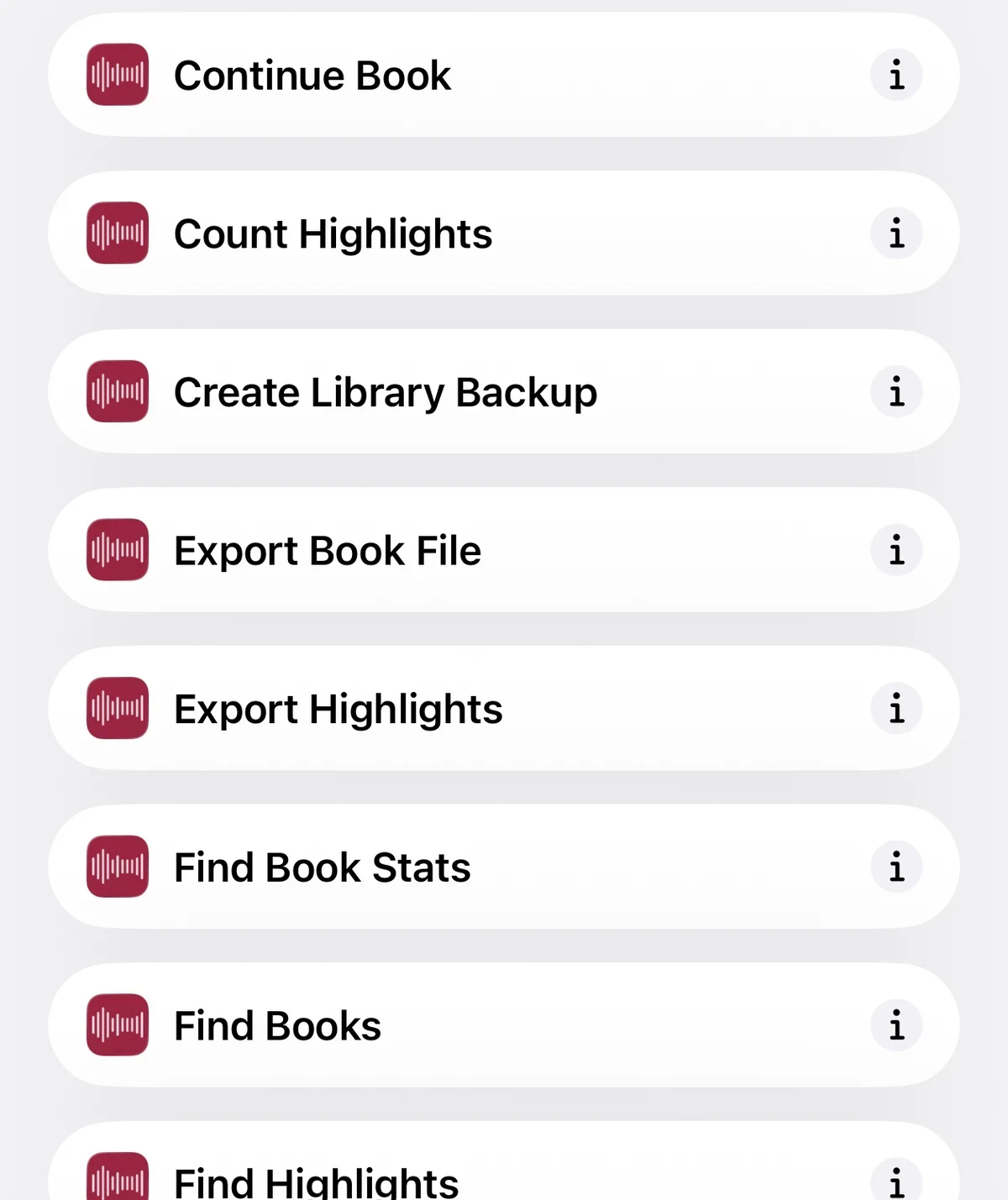
For a list of every action and what it returns, see Shortcuts Actions Reference.
Example shortcuts
Collect this week’s highlights
Add Export Highlights, leave Book empty, and set Created From and Created To to the week you want. It exports the matching highlights from every book into one file, so it does not need Find Highlights first. Add a Share or Save File action after it to choose where the exported file goes.
If no highlight matches, the shortcut stops with No highlights matched this request.
Export an audiobook
Use Find Books to choose a title, then pass the book to Export Book File. It waits up to 30 seconds for the file. A large book takes longer than that, and the shortcut then stops with The export has started but is not finished yet. The export carries on inside Excerpt, so leave Excerpt open until it has finished, then run Get Exported Book to collect the file.
An export is only kept until the book next changes. If you have edited the book’s details or chapters since, or the export was made on another device, run Start Book Export again.
Make a library backup
Add Create Library Backup, followed by Save File. This creates the same backup of the whole library as the automatic one.
If Siri cannot find a book
If Siri does not recognise the title, say it exactly as it appears in Library.
If Siri finds the book but Excerpt cannot play it, the message says why:
- “Title” is archived and cannot be played. Unarchive the book first. See bringing back an archived book.
- The audio file for “Title” is not available. The audio is not on this device. Open Excerpt and tap the book in the Library to download it.
- Excerpt couldn’t start “Title”. The book may have finished, so jump to a previous position in Excerpt and try again.
- No book is ready to continue in Excerpt. No book has been opened yet, so open or play one in Excerpt first.
A book that has only just been imported or renamed can take a moment before Siri knows about it.
Remember “in Excerpt”
Adding the app name to the request (such as “Play book title in Excerpt”) helps Siri send it to Excerpt rather than to another app.