
Excerpt turns the audio of each highlight into text with a transcription model that runs on the device. You can choose which model it uses: the built-in Apple Speech model, or the more accurate Whisper models.
Choose a model
Open Settings, scroll to the Transcription section, and tap Model.
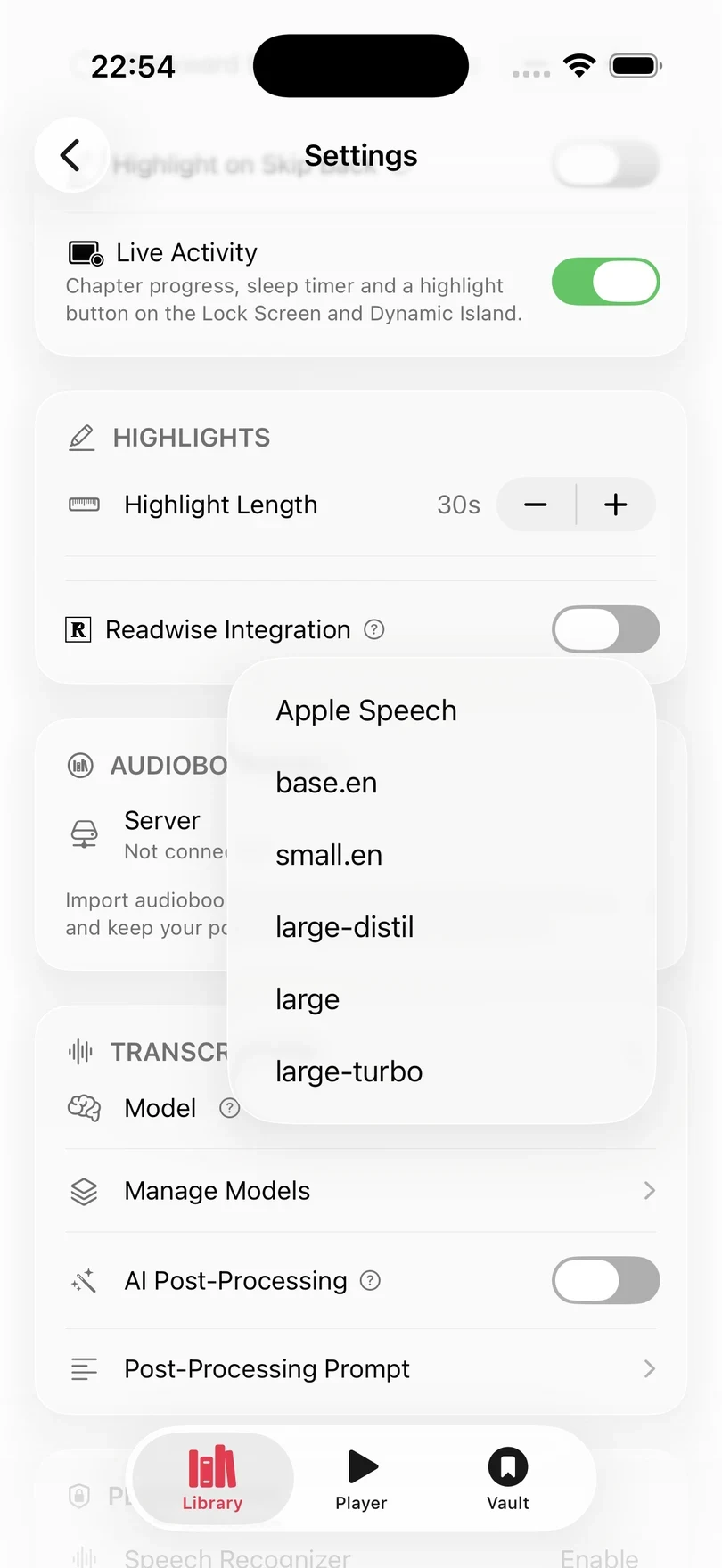
| Model | Download | Languages | Best for |
|---|---|---|---|
| Apple Speech | None | Every language Apple’s recogniser supports | Instant results on any device |
| base.en, small.en | Once | English only | Quick, accurate English |
| large-distil, large, large-turbo | Once | 95 languages | The highest accuracy |
Apple Speech is free to use. The Whisper models need Excerpt Premium. See Excerpt Premium. The larger a Whisper model is, the more accurate it is but (usually) the slower it runs.
The model you choose is used for the highlights you take from then on, and the highlights you already have keep the text they already have. To transcribe one of those again with the new model, open it and tap Transcribe. See Create and Edit a Highlight.
The first time you use a Whisper model, Excerpt asks to download it. As these Whisper models are custom built to run on the Apple Neural Engine after download they will take a minute or so to compile to your hardware but be almost-instant to load after that first time.
After each update of Excerpt the model is prepared again, and a banner reads Loading transcription model with Keep app open · this can take a few minutes after an update. Highlights taken in the meantime are transcribed once it is ready.
Compare accuracy and speed
Tap the question-mark button on the Transcription card to see how the models compare. The figures were measured on 100 real highlights from a dozen books.
- Semantic Match Score shows how close the meaning of each transcript is to the reference text, and Word Error Rate (WER) counts the words it got wrong. Use the toggle to switch between the two.
- Processing Speed is the time taken to transcribe the 100 highlights, so a shorter bar is faster.
- Punctuation Error Rate (PER) shows how often the punctuation is wrong.
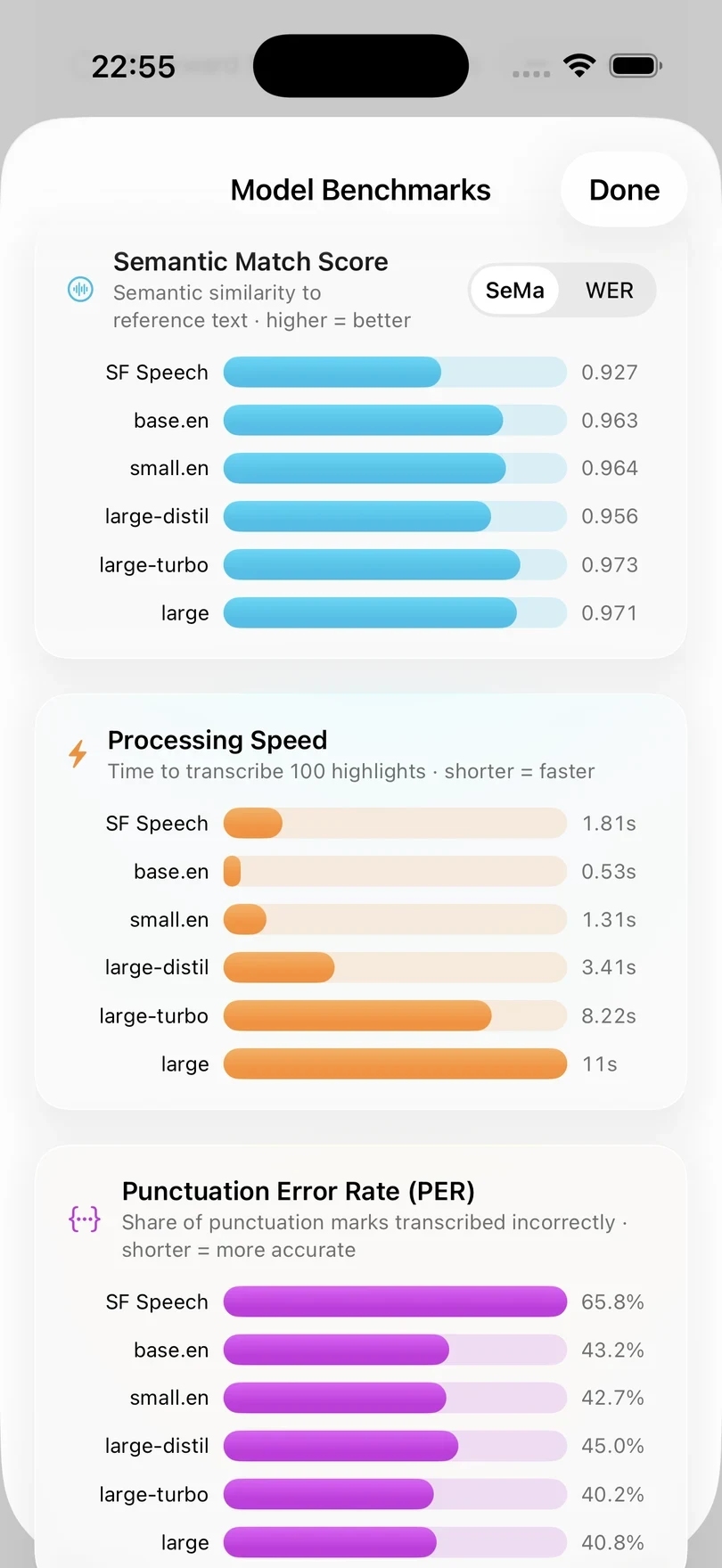
Apple Speech is labelled SF Speech in these charts.
Use an English-only model
base.en and small.en only understand English, and Excerpt reminds you of this each time you choose one.
If a book is in another language, Excerpt warns you when you open it and its highlights are not transcribed until you switch to Apple Speech or one of the large Whisper models. Playback is not affected. A book with no language set is treated as English. Listen to Books in Other Languages explains how to set a book’s language.
Clean up the transcript
Turn on AI Post-Processing to have Apple Intelligence fix homophones, punctuation, and names in the transcript. It helps the most with Apple Speech, as the large Whisper models so rarely need it, it actually slightly hurts accuracy.
It needs Excerpt Premium and a device that supports Apple Intelligence. It is not used for books that have an ebook linked, because their highlights already use the wording from the book.
To change what Apple Intelligence is asked to do, tap Post-Processing Prompt. to customize your own prompt (in testing providing the title and author helped a lot with non-english words or jargon). Reset to Default resets the prompt to Excerpt’s default template.
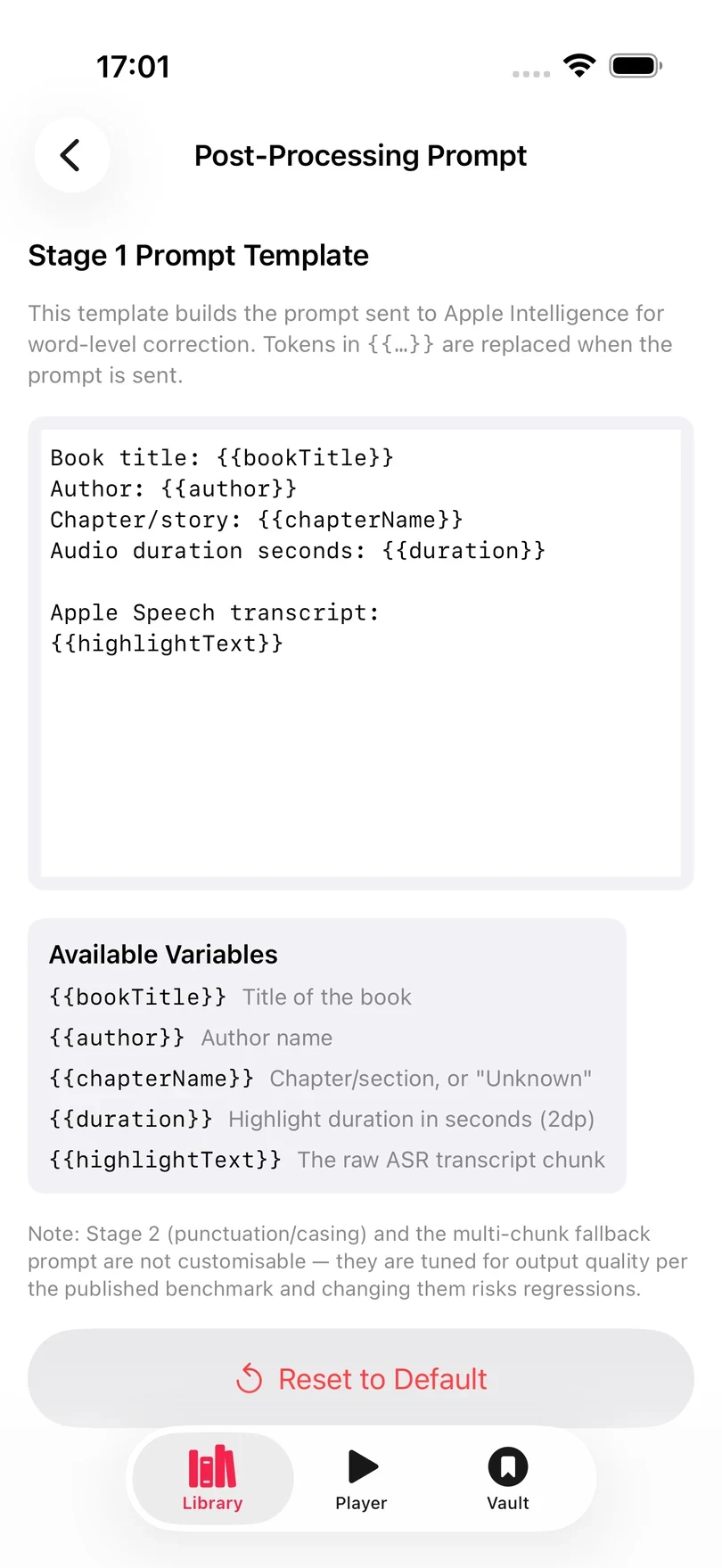
Post-processing is applied to the highlights you take from then on. It does not go back over text that is already saved.
Manage downloaded models
Tap Manage Models to see every model that is downloaded to this device, with its size and whether the device can run it well. The audio enhancement model is listed here too.
- Delete Model deletes a model to free up its storage. Excerpt downloads it again the next time you select it.
- Delete All Models & Reset removes every downloaded model at once. Use it if a model never finishes loading, or if Excerpt shows Transcription Model Load Failed, then choose the model again to download a fresh copy.
The model that is currently in use cannot be deleted until you choose another one.