
When you hear something you want to keep, you can save it as a highlight without stopping the audiobook, and then trim its audio and correct its text afterwards in the editor.
Save a highlight
Tap the highlight icon at the right-hand end of the player controls. Excerpt saves the part of the audiobook you have just heard and starts transcribing it into text, while the book carries on playing.
How much audio is saved is set by Highlight Length in Settings (30 seconds by default). If the book has an epub linked, the highlight is clipped to the sentence boundaries around that length, so it starts and ends on a whole sentence.
Highlights are transcribed one after another, so a new highlight can wait a short time before its text appears, and you can keep listening in the meantime. The first transcription takes longer as the transcription model has to be prepared on the device first, so keep the app open if it asks you to.
You do not need the app open to save a highlight. Take a Highlight from the Lock Screen explains how to do it from the Lock Screen, the Dynamic Island, and headphones. You can also take a highlight from an Apple Watch or by asking Siri. See Use Excerpt on Apple Watch and Automate Excerpt with Siri and Shortcuts.
Trim the audio
Tap the highlight to open Edit Highlight. There is no Save button, as your changes are saved as you make them, so tap Done when you have finished.
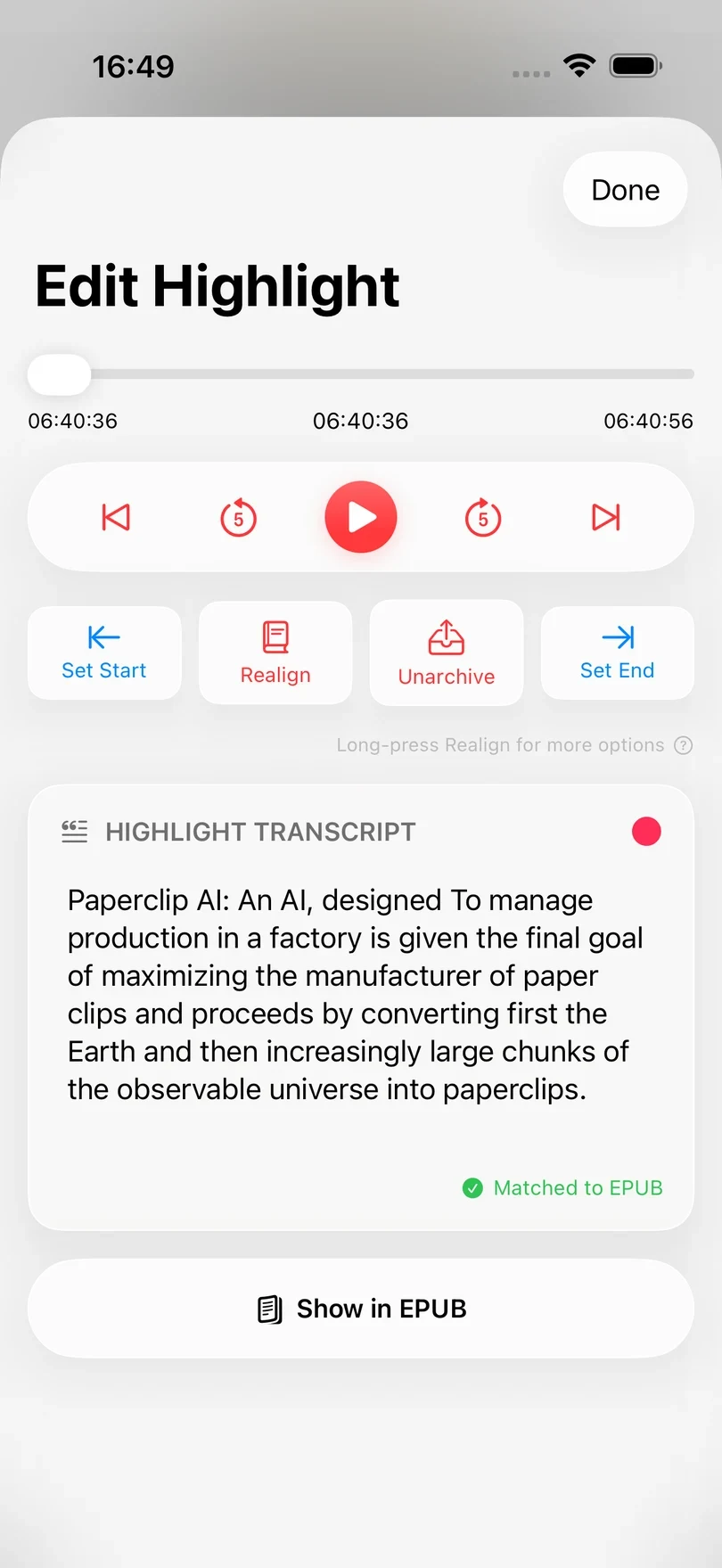
Drag the timeline to move through the audio of the highlight, or use the buttons below it to jump to the start or the end, move five seconds backwards or forwards, and play or pause. This only plays the highlight, so it does not change your listening position in the audiobook.
To trim the highlight, move to the first word you want to keep and tap Set Start, then move to the last word and tap Set End. The text is not updated when you trim, so transcribe the highlight again afterwards to update the highlight text.
Correct the highlight text
You can edit Highlight Transcript like any other text field (for example to fix a name the transcription got wrong).
To transcribe the highlight again, tap Transcribe. If the book has an epub linked the button reads Realign instead, and it also replaces the text with the wording from the book (See Realign a Highlight with the Ebook for what else that button can do). The transcript cannot be edited while this is running, but you can close the editor and come back later.
EPUB match status
If the book has an epub linked, a status is shown beneath the transcript:
- Matched to EPUB — the transcribed highlight was found in the ebook.
- No EPUB match — Excerpt transcribed the audio but could not find those words in the ebook. Correct any words the transcription got wrong, then press and hold Realign and choose Match with EPUB. See Realign a Highlight with the Ebook.
- Time may be wrong — the book’s audio was replaced and Excerpt could not find this highlight in the new file, so its audio may now be a different part of the book. Play the highlight, and if it is not the passage in the text, use Set Start and Set End to move it, which also clears the warning.
- EPUB match pending — the check has not finished yet.
Once a highlight is matched, tap Show in EPUB to open the ebook at that passage and read the highlight in context.
Archive a highlight
Tap Archive when you have finished with a highlight. This moves it out of the Fresh list so you can see at a glance what highlights you still need to review and edit. If you have connected Readwise, archiving is also what sends the highlight there. See Send Highlights to Readwise. To bring a highlight back, open it and tap Unarchive.
To search or export all the highlights of a book, see Export Highlights as Markdown.