
The Vault tab shows every highlight you have taken, and allows searching for highlights across all of your books.
Open the Vault
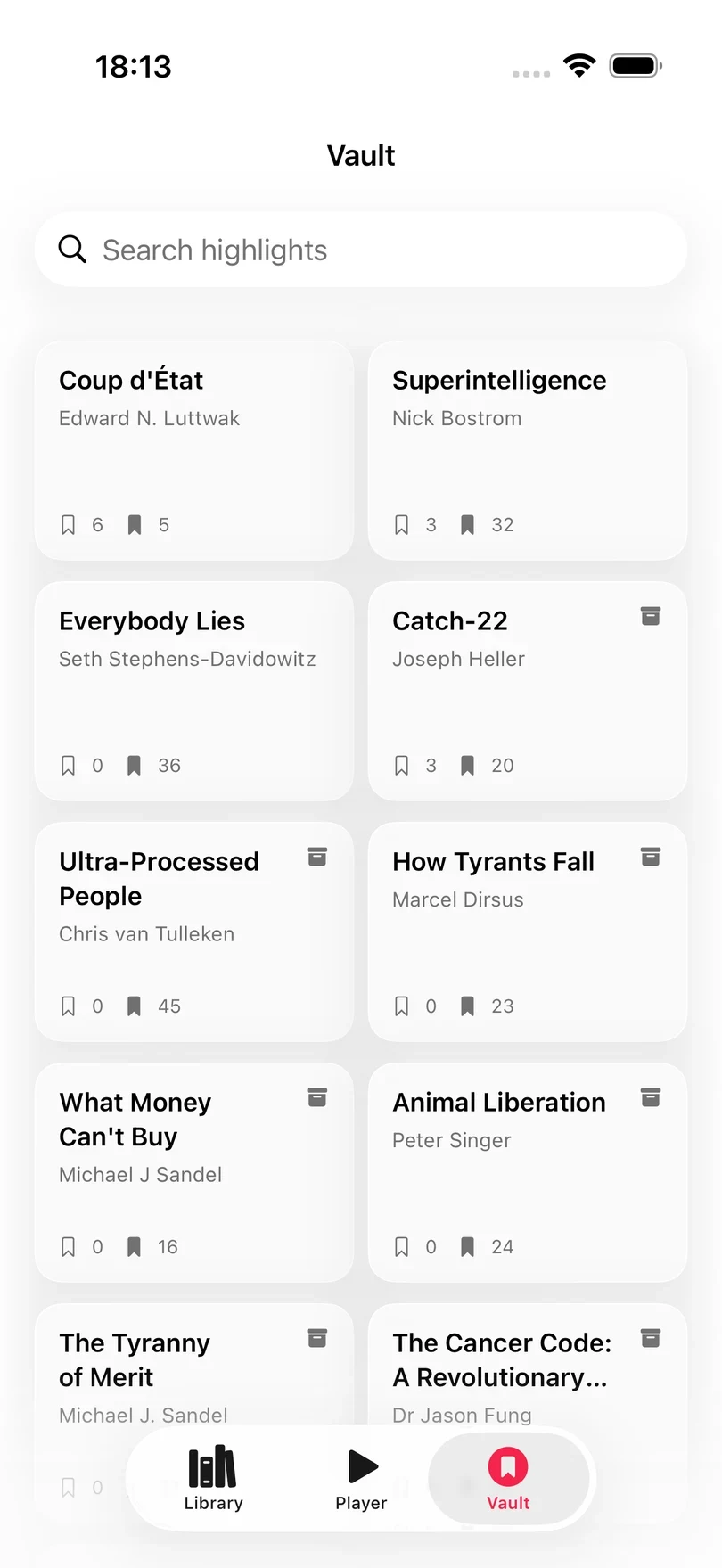
The Vault is the third tab, next to Library and Player. It opens on a grid of the books that have highlights, with the most recently updated first.
Each card shows the title and author of the book and two counts: the highlights that are still active, and the ones you have archived. Tap a card to open the Highlights view of that book.
Books without any highlights are not listed. If you have not taken any highlights yet the grid is empty, and the Vault shows No Highlights with No books with highlights found. Books you have archived are still listed here, with an archive box icon beside their title.
Search every highlight
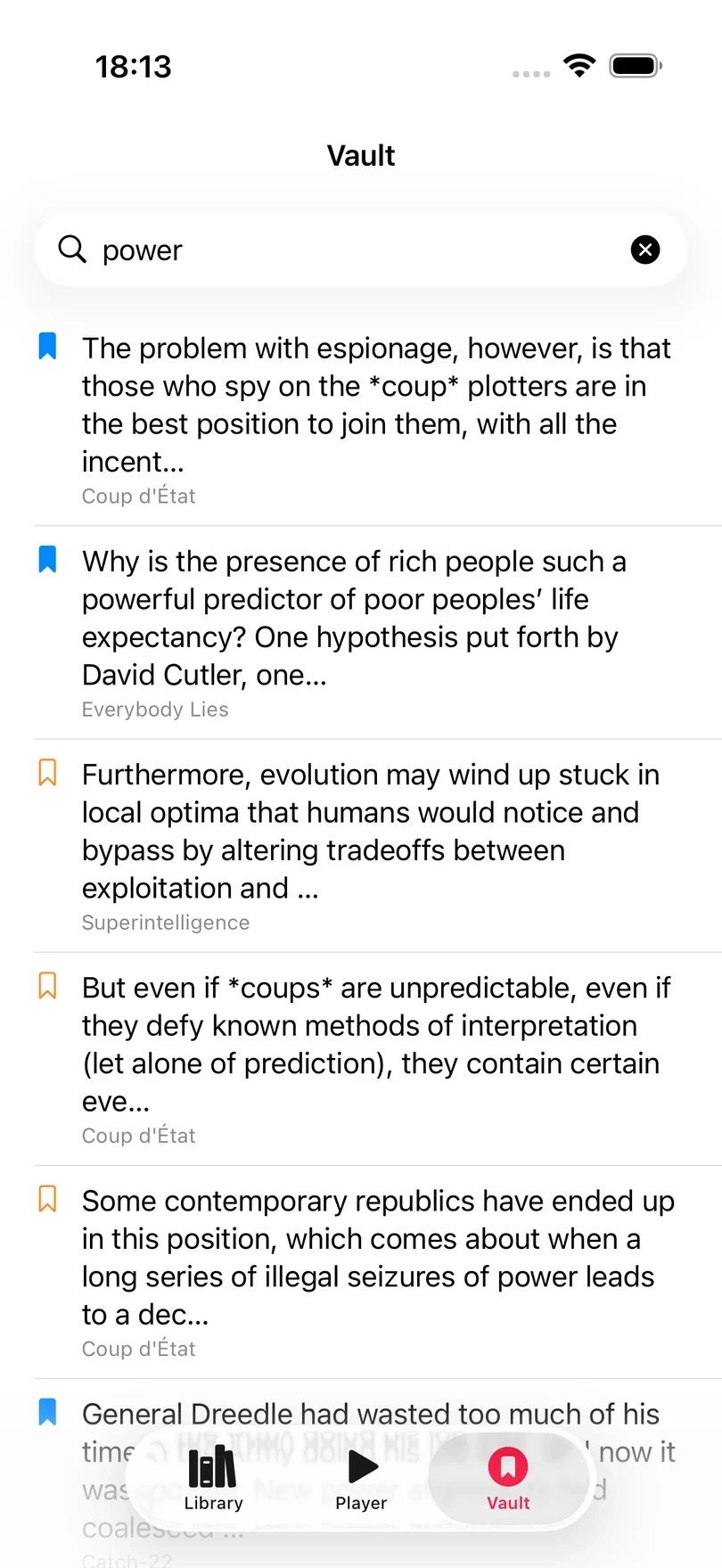
Type a word or phrase into Search highlights and Excerpt searches the text of every highlight in your library.
Each result has a bookmark icon: an outlined bookmark for a highlight that is still active, and a filled bookmark for one you have archived. Both kinds are searched and both can be opened. A highlight that still has its audio opens in the editor, and one whose audio is missing opens as read-only.
The Vault returns at most 50 matches, so searching for a very common word gives you the 50 most recent matches instead of all of them.
A book’s own Highlights screen
Tapping a card in the Vault opens the Highlights view for that book:
