
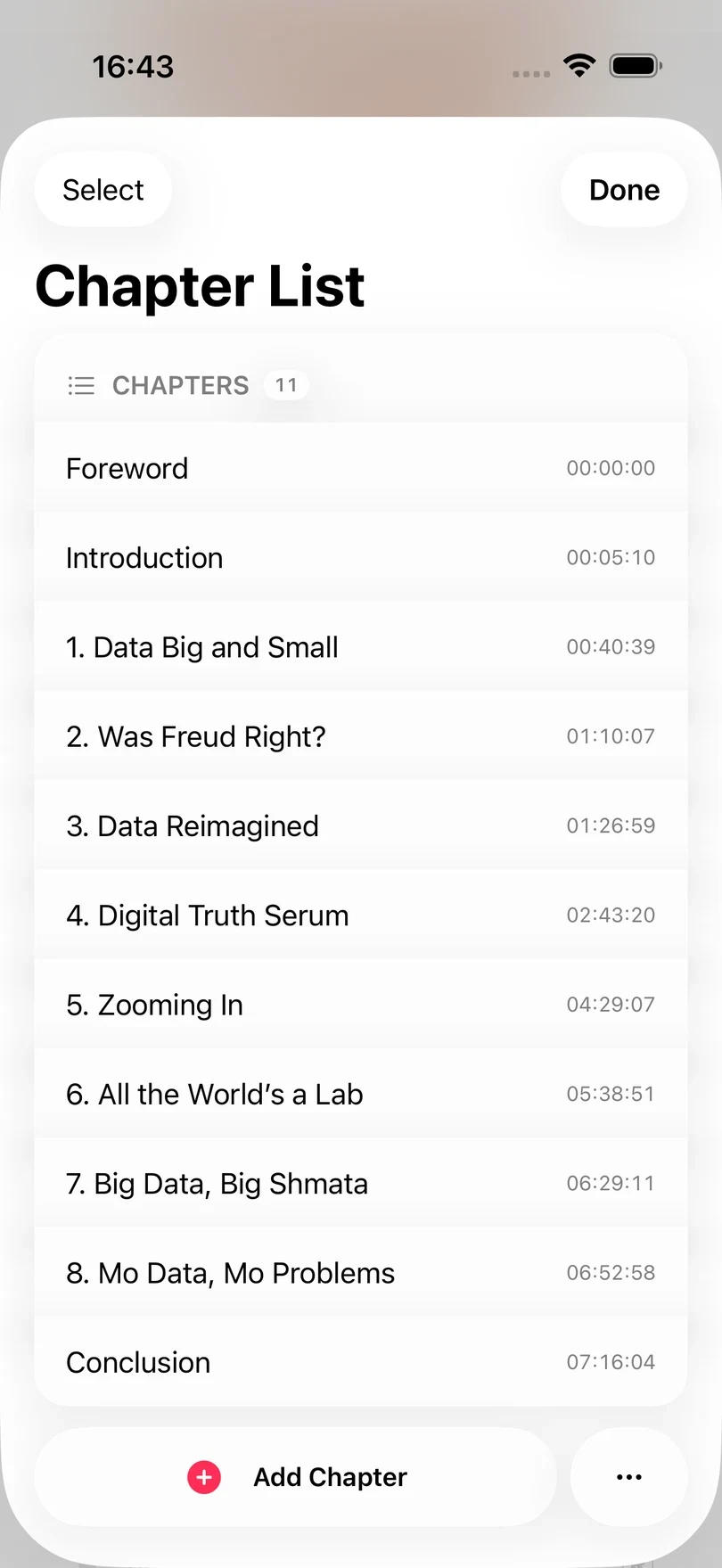
Tap the chapter title in the player to open Chapter List. From there you can jump to a chapter, correct its title, start and end timestamps, add a chapter that is missing, or delete chapters that are wrong. A book with no chapters shows No Chapter Info where the title would be, and tapping that opens the same list.
Jump to a chapter
Swipe right on a chapter and tap Jump to move playback to the start of that chapter. Tap Done to go back to the player.
Edit a chapter
Tap a chapter to open Edit Chapter. Here you can change the Title, Start Time or End Time (optional). Tap Save Changes when you have finished.
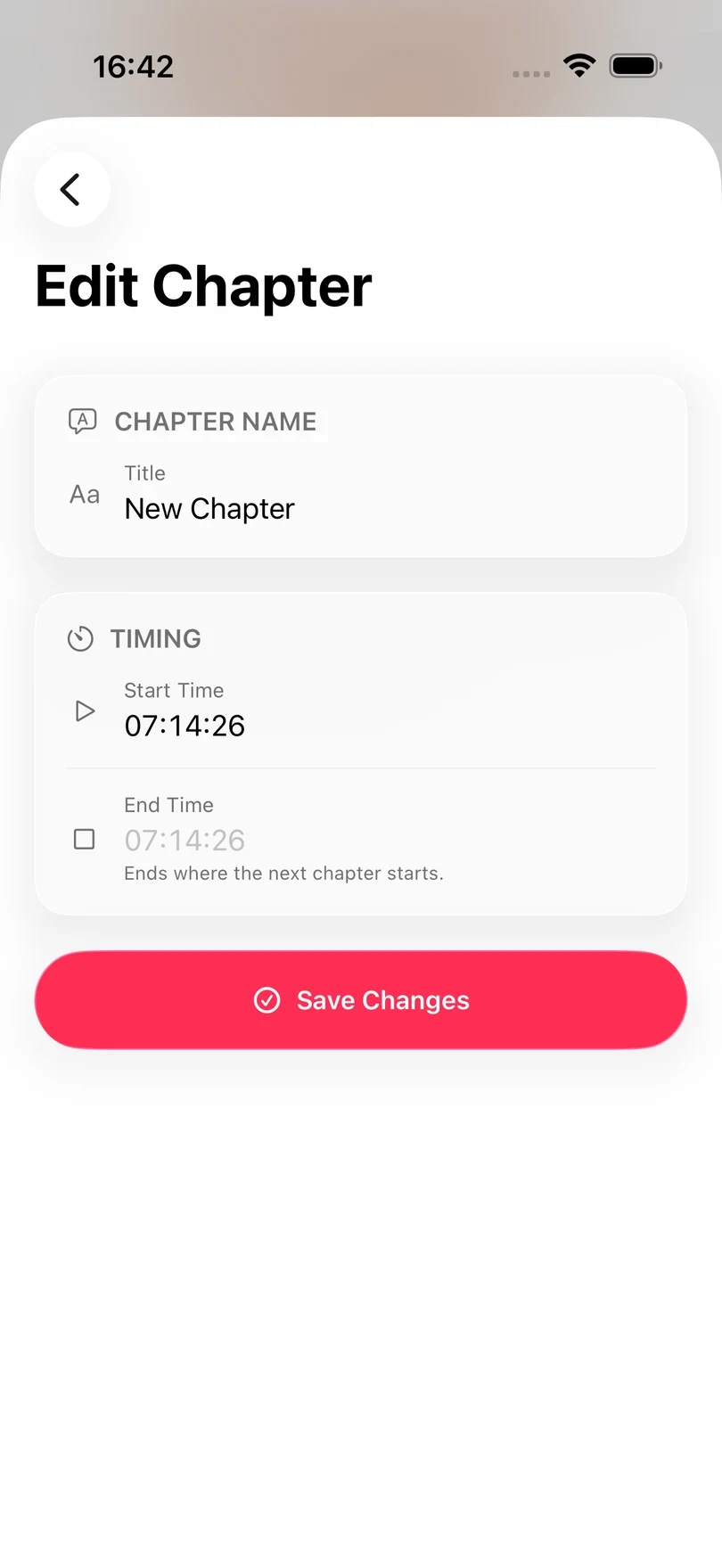
Times are entered as hours, minutes and seconds, such as 01:02:30. The End Time is optional. If you leave it empty, Excerpt sets it to the start of the next chapter.
Excerpt will not save a time that it cannot read, and shows one of these messages instead:
- Invalid start time format. or Invalid end time format. means the time needs all three parts,
HH:MM:SS. - End time must be after start time. means the end time needs to be later than the start time, or left empty.
Press and hold the title field to see two shortcuts:
- Convert to Title Case fixes the capitalisation of the title.
- Clear Title empties the field so you can type a new title.
If the chapter’s name has already been sent to Readwise, Excerpt asks Update Readwise? after you save. Tap Update to rename it in Readwise as well, or Skip to leave it as it is there.
Add a chapter
Play the book to the point where the new chapter should start, then open Chapter List and tap Add Chapter. Excerpt adds a chapter at the current position and opens it so you can give it a name.
Delete chapters
Swipe left on a chapter and tap Delete. The chapter is deleted immediately, without asking you to confirm.
To delete several chapters at once:
- Tap Select.
- Tap each chapter you want to delete.
- Tap Delete N Chapters at the bottom, then Delete to confirm.
You can also drag two fingers down the list to select several chapters in a row, and the list switches to selection mode automatically. Tap Cancel to leave selection mode without deleting anything.
If a chapter’s name was sent to Readwise, deleting the chapter also removes that chapter heading from Readwise.
Rebuild the chapter list
Tap the ellipsis button beside Add Chapter and choose Reset Chapters. Excerpt deletes every chapter and reads the chapters from the audio file again. It does not ask you to confirm, and any changes you made to chapter names and times are lost.
Only use this when the chapter list as a whole is wrong. If the audio file does not contain any chapters, nothing changes. For a misspelt name or a chapter that starts slightly in the wrong place, edit that chapter instead.