
Backups protect your book details, highlights, chapters, listening history, and progress. Excerpt can keep a folder in sync automatically and can restore from a backup if you accidentally delete something or if a cloud or device error causes data loss. Usually this is not needed for device transfers as iCloud sync usually handles that.
What a backup contains
A library backup stores book metadata, highlight text and timing, chapters, listening history, jump positions, transcription records, and the settings needed to rebuild the library. It is a backup of the library records, not a copy of the (much larger) audiobook files themselves.
iCloud keeps your library in step across devices, but if you have not enabled iCloud drive for Excerpt you can use the backup to restore your library state. See Sync Your Library with iCloud.
For a full recovery, keep the original audio files available as well. Excerpt can rebuild the library state from the backup from which you can relink the books to get back to where you were. See relinking a book’s audio.
Change Backup Settings
- Open the Library tab.
- Tap Settings.
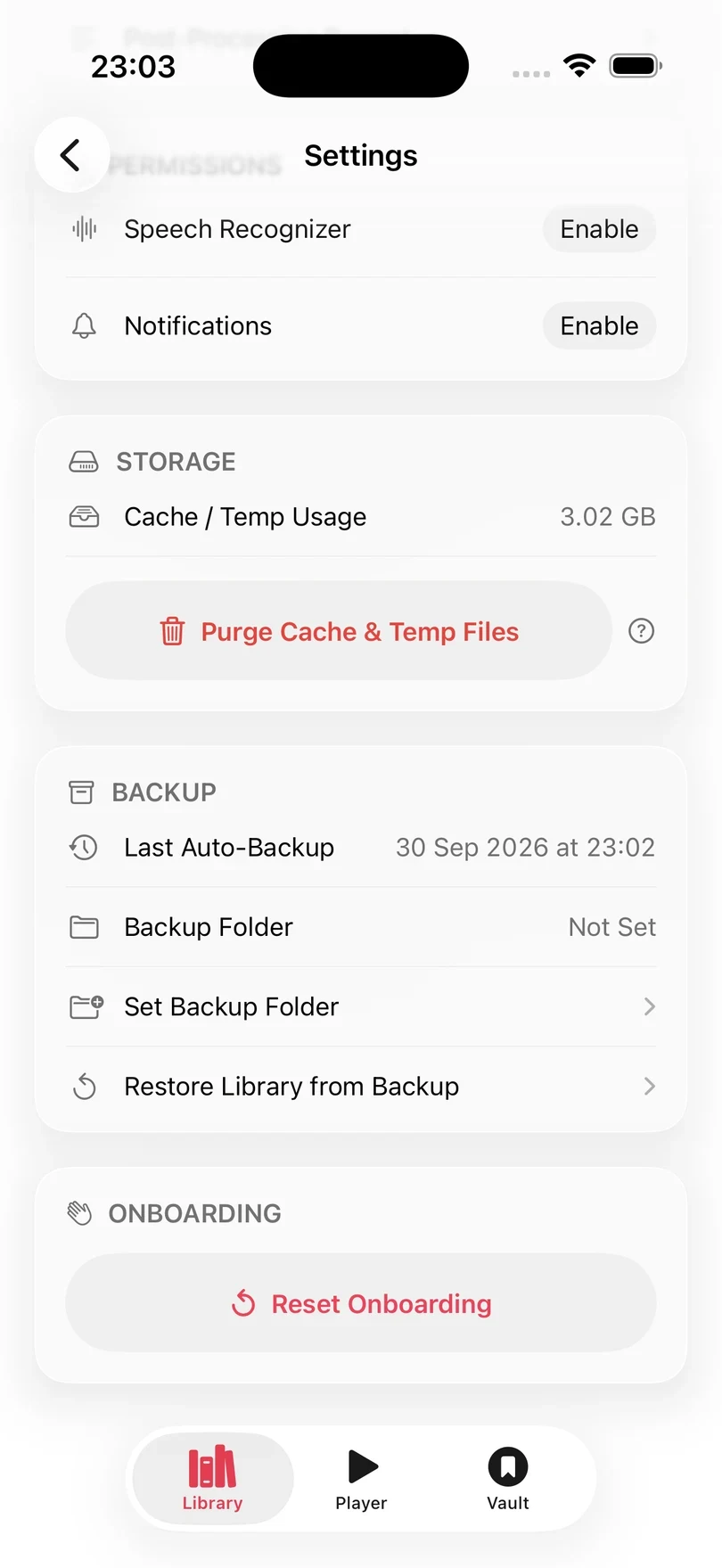
- Scroll to Backup.
Choose a backup folder
Tap Set Backup Folder and choose a folder in Files. Once a folder is set, Excerpt writes its latest backup there and shows the folder name in Settings.
Use Change Folder to move the destination. Use Stop Syncing to remove the saved folder; stopping sync does not delete the library or existing backup files.
Keep the folder somewhere you control
A backup is only useful if the folder survives a lost or replaced device. An iCloud Drive folder or another backed up location is a sensible destination.
Restore a library
Tap Restore Library from Backup and choose the source. Restore from Internal Backup lists the backups kept on this device. Restore from External File opens Files, where you choose excerpt_backup.json.gz from your backup folder. Excerpt asks you to confirm because the restore replaces the current library data.
If the restore fails, Restore Error says why:
- This backup file could not be read. The file is damaged, or it is not a library backup. A JSON export of a single book is not a backup. Import it with Import JSON Export instead.
- Unsupported backup version The backup was made by a newer version of Excerpt. Update Excerpt, then restore again.
Restoring replaces library data
Your current highlights, chapters, and listening history are replaced by the selected backup. The audio files already on the device are preserved, but a restored book may still need its audio file to be relinked.
Use an internal backup
If you choose Restore from Internal Backup, Excerpt opens Internal Backups. Each entry shows its date and book count. Expand an entry to see what changed since the backup before it, then tap Restore This Backup and confirm.
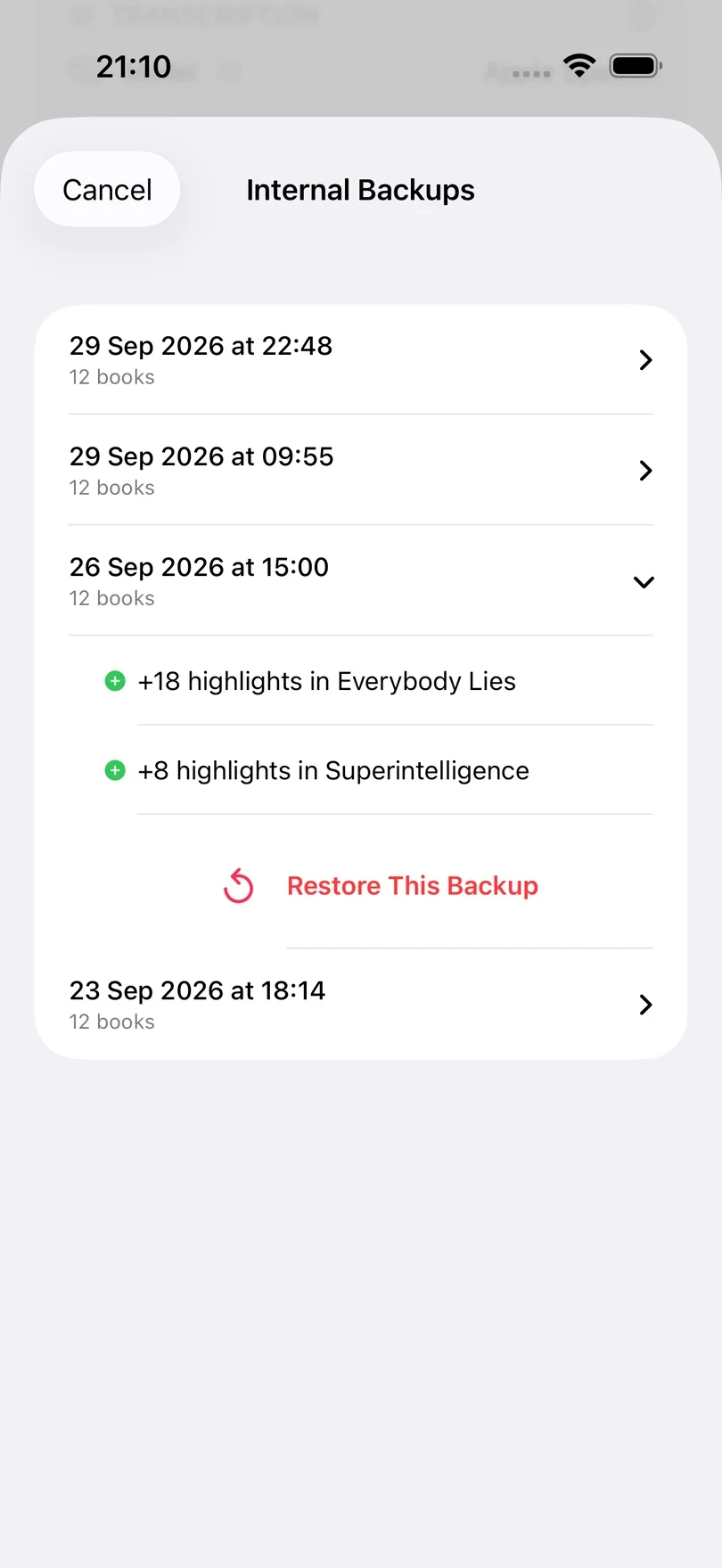
Excerpt makes an internal backup two minutes after you change your library, and when you leave the app if the newest is more than a day old. It keeps up to 10, spaced further apart as they age. They stay on this device only, so they will not survive losing the phone; a backup folder will.
Export an individual book’s data
A JSON export carries one book’s details, highlights, and chapters to another Excerpt library, without the audio. Make one with Share JSON when you export a book’s highlights.
- Open the Library tab and tap +.
- Choose Import JSON Export.
- Read the notes, then select the JSON file from Files.
- Select the restored book and choose its original audio file when Excerpt asks for it.
The import brings back the title, author, and playback position, every highlight with its transcription, and chapter names and positions but will need the audio to be relinked.
Use the original audiobook where possible
Chapter positions and highlight timings are applied to the audio you choose. A different recording or edition may need its highlights retimed or its EPUB match checked again.