
The Apple Watch app lets you take a highlight from your wrist without getting the iPhone out. It works as a remote control for the player on the iPhone, with the highlighter as its main button.
Install and connect
Install Excerpt on the watch from the Watch app on the iPhone it is paired with. There is no account to sign in to.
The watch app needs Excerpt to be running on the iPhone with a book selected. If the watch cannot reach the iPhone, it says iPhone not reachable and its controls are dimmed until it can. See If the iPhone is out of reach.
What the watch can’t do
It’s a remote
- The watch does not play audio. The audio always comes from the iPhone.
- Highlights can only be trimmed, edited or retimed on the iPhone.
For the full player, see Player Controls.
What the watch shows
The watch app has two pages that you swipe sideways between. It opens on the playback controls, and the second page lists your recent books. Additionally you can scroll the crown to see the current book’s recent highlights.
The controls page shows the current book and the playback buttons. If no book has been selected yet it says No book selected, and if the watch cannot reach the iPhone it says iPhone not reachable.
Control the phone
Every button controls the player on the iPhone, which is where the audio keeps playing.
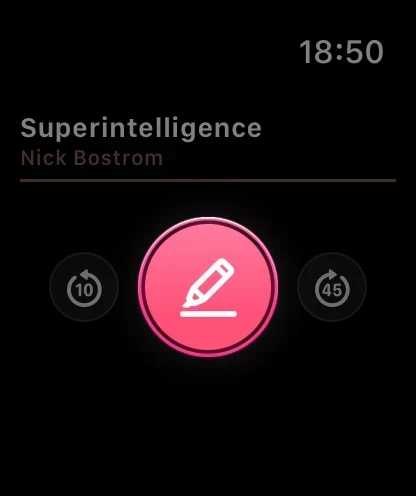
- When no book is playing, the large centre button, is Play. Tap it to start playing the book on the iPhone.
- The buttons on either side skip back and forward. They use the Backward Skip and Forward Skip lengths set on the iPhone in Settings › Playback, and their icons show the number of seconds.
- While the audio is playing, a Pause button is shown beneath the centre button.
The controls are dimmed until the watch can reach the iPhone and a book is selected there.
Take a highlight
While the audio is playing, the centre button turns into the highlighter.
- Start playback on the phone, then open Excerpt on your watch.
- Tap the highlighter, or use Double Tap on a supported watch (Series 9 and Ultra 2 or later).
- The watch taps your wrist to confirm that the highlight has been saved.
The highlight is taken on the iPhone in the same way as if you had tapped the highlighter in the player, and it is transcribed there too.
If the iPhone is out of reach
The highlighter needs the iPhone. While the watch shows iPhone not reachable, the button is dimmed and cannot be tapped.
If the connection drops just as you tap, the watch keeps the highlight and sends it when the two reconnect:
- Saved — will sync means the highlight is stored on the watch and is waiting to be sent. The iPhone saves it at the position the book has reached when it arrives, moved back by the delay but by no more than 30 seconds. If it arrives later than that, open it on the iPhone and move its start and end.
- Saved · N this session means the iPhone received the highlight immediately. N is the number of highlights you have taken in this session.
Browse with the Digital Crown
On the controls page, turn the Digital Crown to go through the highlights of the current book one at a time. A card shows the date of each highlight, its position in the list (n / total) and a preview of highlight text.
- Turn the Digital Crown until the card shows the highlight you want.
- Tap the card to read the whole highlight.
The card closes when you turn past the end of the list, or if you leave it for a few seconds.
Pick a recent book
Swipe to the second page and tap one of your recent books. The iPhone switches to that book and starts playing it. This page only works while the watch can reach the iPhone.
Widgets for the watch face
The Excerpt widget can be added to a watch face in a corner, circular or rectangular slot.