
Read Along shows the text of the ebook while the audiobook plays. It follows the narration, as you listen.
Before you start
Read Along only works for a book that has an epub linked to it. If the player has no Read along button, the book has no ebook yet and you will need to add one first.
If the button reads Aligning ebook…, Excerpt is still aligning the ebook to the audiobook, so wait for it to finish. The button says so when it is waiting instead: Alignment queued when the alignment is scheduled behind another job, Alignment paused, or Waiting for audio while the audiobook downloads from iCloud. Tap the badge on the book’s cover in the Library tab to see what it is waiting for.
See Align an EPUB with Your Audiobook for how to link one.
Follow one sentence at a time
- Start playing a book with a linked ebook.
- Tap Read along beneath the artwork.
- Tap Show cover when you want to close the read-along view
The sentence being read is shown in the centre, with the text before and after it faded above and below.
On iPhone, the Read Along panel takes the place of the artwork until you tap Show cover.
On iPad, the ebook page opens beside the player, so the player controls are still visible.
Read the full page
Tap the expand button beside Read along to open the full page of the ebook. The text scrolls automatically, so the paragraph or sentence being narrated is always on screen.
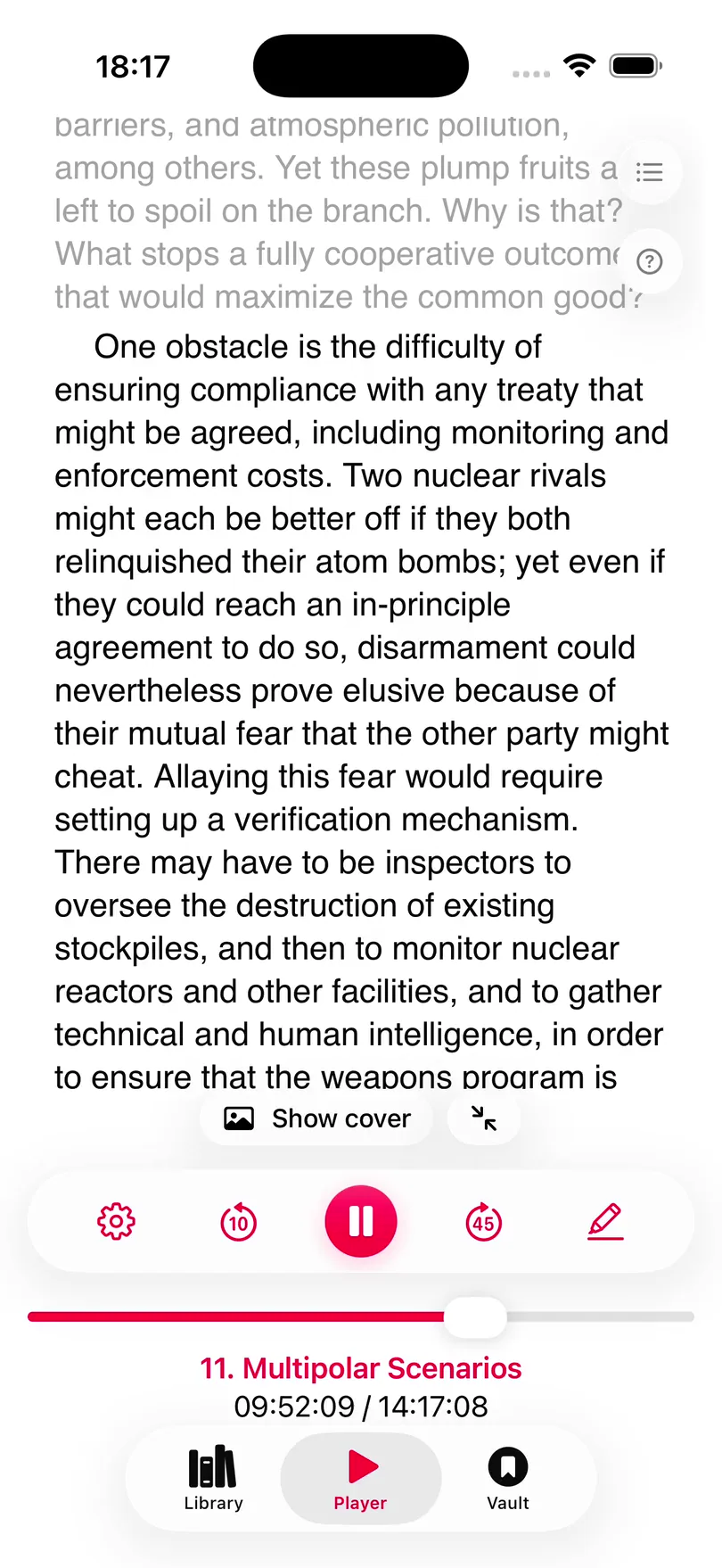
You can scroll the page yourself at any time to read ahead or look back. This pauses the automatic scrolling, and a Resume Following button appears. Tap it to go back to the sentence being narrated.
To read the ebook without the player, tap the book button beside the expand button. The ebook opens full screen at the passage being narrated.
Highlight from the page
You can create or change highlights directly from the full page by selecting at least five words. A capsule-shaped button appears beneath the text and offers the action that matches what you selected. Once it has finished, a confirmation with Undo is shown.
- Create: select words that are not part of any highlight, then tap New Highlight. Excerpt finds those words in the audio, saves them as a highlight, and shows Highlight added.
- Extend: start the selection inside a highlight and continue past either end of it. The capsule shows how many words will be added
- Trim: select words inside a highlight, then tap the capsule. Excerpt updates the highlight’s audio start/end times to match the part you selected.
If the capsule says Select at least 5 words, select a few more words. If it says anything else, or an alert says the highlight could not be added, see why a selection is not found. The same actions work in the ebook reader, and Create a Highlight from the Ebook shows each of them.
Readalong Appearance
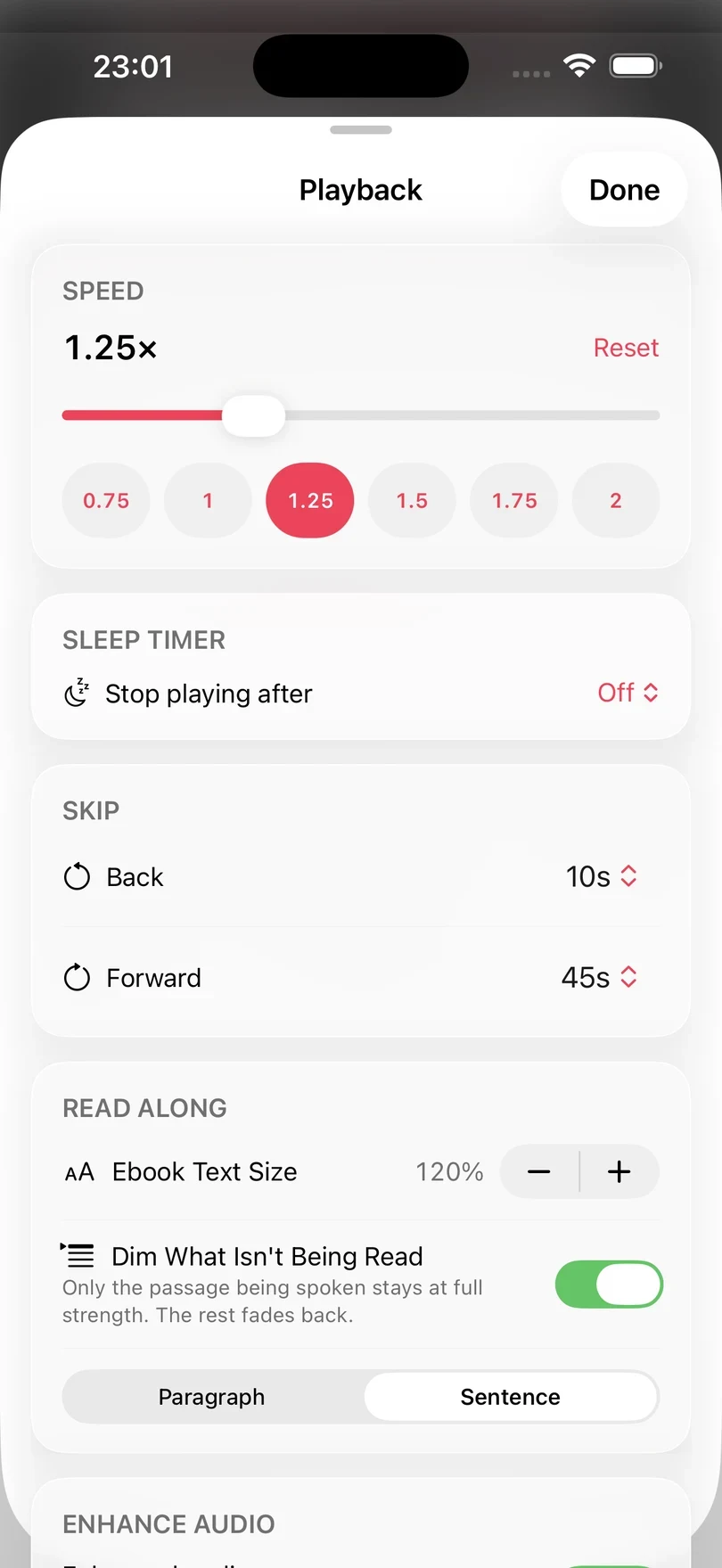
Tap the gear icon at the left of the player controls to open the Playback Settings sheet. In the Read Along section, Ebook Text Size sets the size of the text, from 80% to 240%.
Dim What Isn’t Being Read fades the text that is not currently being narrated. When it is on, you can choose between Paragraph to dim other paragraphs, or Sentence to only keep the current sentence being spoken from being dimmed.
When the audio and ebook differ
An audiobook and its ebook do not always match word for word. The narrator may read out credits that are not in the ebook, skip a table, or be reading from a slightly different edition. Read Along handles these differences as follows:
- If the narrator says something that is not in the ebook, Read Along tells you that this part is not in the ebook and carries on once the audio and the text match again.
- If the narrator skips some text (such as a table in an ebook), Read Along skips to after it, so it does not fall behind the audio.
- If Excerpt loses its place for a moment after you move to another position, it keeps showing the last sentence until the audio enters a part that could be aligned to the text
Still stuck on Aligning ebook…?
If the button still says this after the ebook has had plenty of time to align, see Fix a Problem in Excerpt.