
Audiobookshelf is a server that you host yourself to store your audiobook library. Excerpt can find that server if it’s on the same network as your device (such as same home WiFi), import books from it, and keep your listening position synced with it in both directions. You can sign in with a password or an API key, and the listening you do in Excerpt is recorded on the server.
Connect your server
Open Library, tap +, then choose Import from Audiobookshelf. You can also connect from Settings › Audiobookshelf › Server. There are two ways to find the server:
- Tap Scan My Network if the server is on the same Wi‑Fi network. Excerpt checks the ports that Audiobookshelf normally uses.
- Or enter the address yourself, such as
192.168.1.10:13378. - If iOS asks for Local Network access, allow it, as the scan cannot reach the devices on your network without that permission.
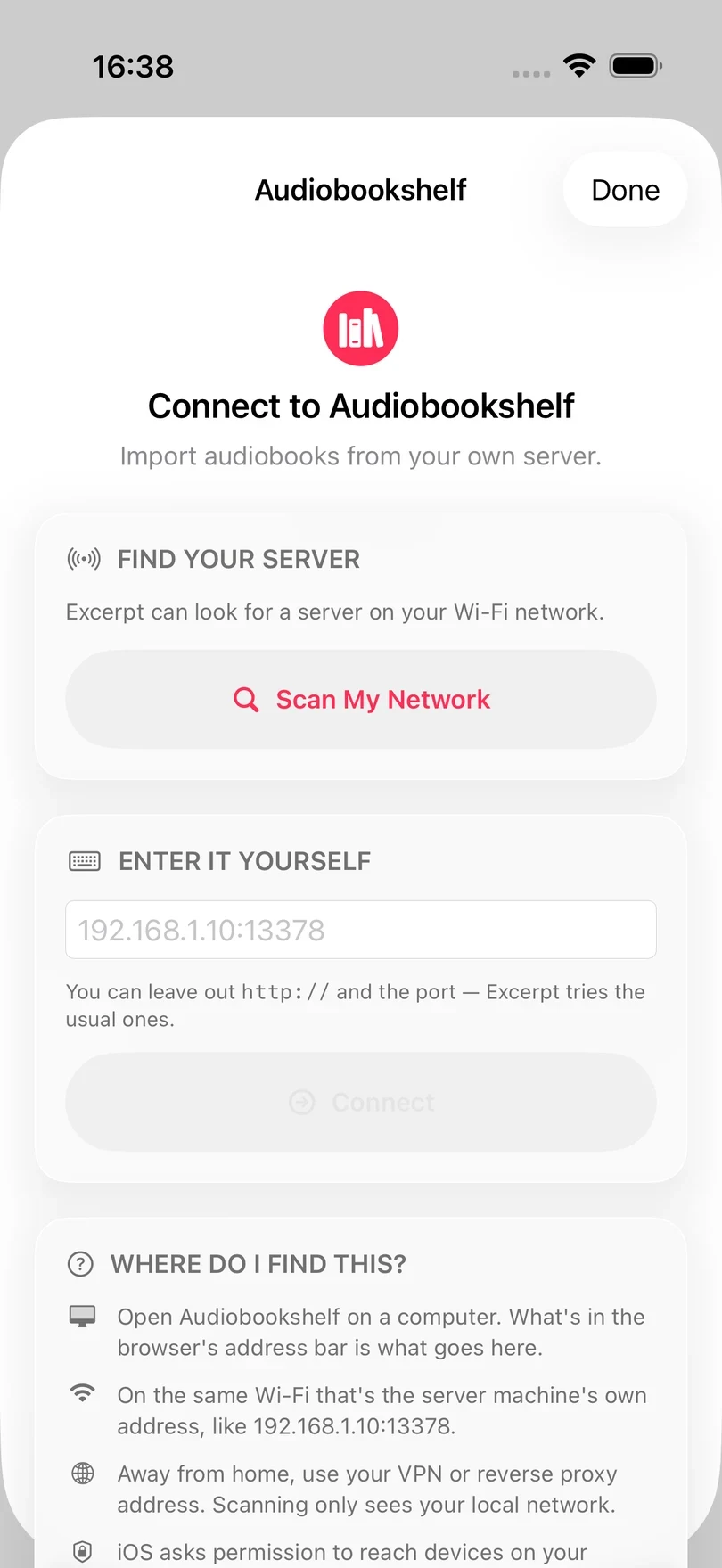
If the scan does not find a server, tap Try Other Ports or enter the address manually. The scan can only find servers on the local network, so when you are away from home use the address of your VPN or reverse proxy instead.
If Excerpt rejects an address you typed, the error under the button says why:
- No Audiobookshelf server at that address. Use the address you open in a browser, including the port.
- … refused the connection. Audiobookshelf may not be running on the server.
- Couldn’t establish a secure connection to … The server’s certificate was not accepted, which is usual for a self-signed certificate. Enter the address starting with
http://to connect without TLS. - The address redirected to … A sign-in page or proxy sits in front of the server, so enter the address of Audiobookshelf itself.
- Too many sign-in attempts. Wait a minute before trying again.
Use Tailscale to reach your server away from home
I recommend Tailscale for keeping Excerpt connected to your Audiobookshelf server when you are outside your home network. Install it on the machine that hosts the server and on your iPhone or iPad, then enter the Tailscale address of that machine (such as my-server.tailnet-name.ts.net:13378) instead of its local IP address. The same address works at home too, so your position keeps syncing wherever you are.
Sign in
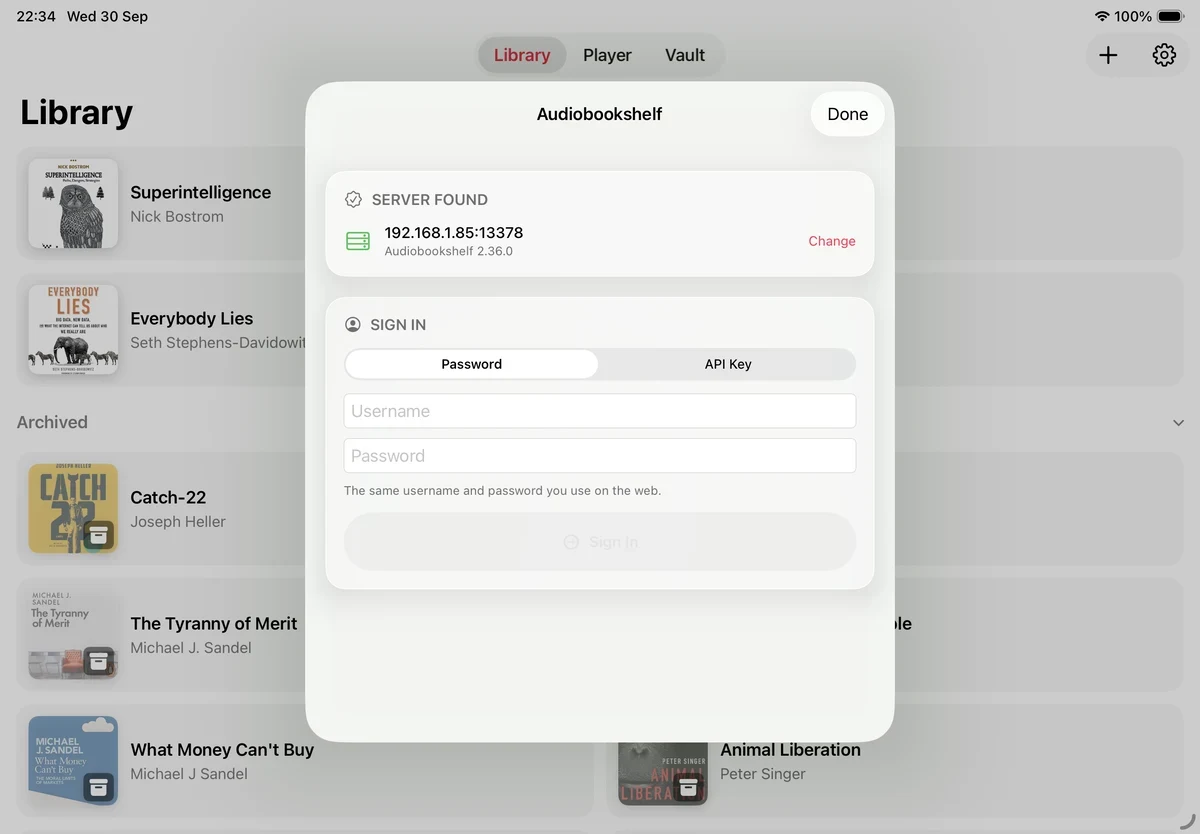
Once Excerpt has found the server, choose how to sign in. You can use the same username and password that you use on the Audiobookshelf website, or paste an API key (single sign-on is not supported).
- You create an API key in Audiobookshelf under Settings → API Keys → Add API Key. Only an administrator of the server can create one.
Browse and import
- After signing in, open Browse and Import.
- Choose a book from the library on the server. Books that are already in Excerpt are marked as imported.
- Tap a book to download it. A book that is a single file is downloaded directly, and a book made of several files is downloaded as a ZIP so that Excerpt can build its chapters.
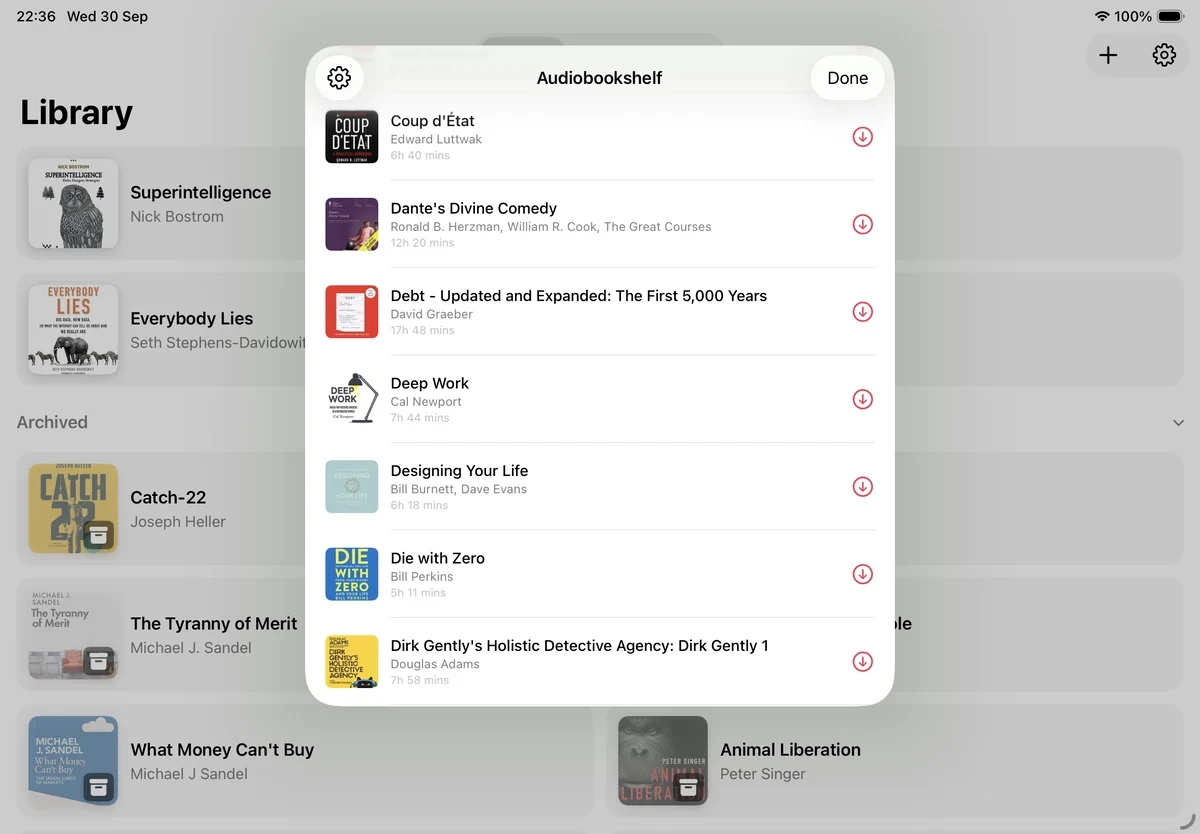
The downloaded book is added to your Excerpt library. You can then edit its details, link an epub, and take highlights in the same way as with any other imported audiobook.
The download continues in the background when you leave the app, so a long book can finish downloading while you are doing something else.
If the download fails, Excerpt shows Audiobookshelf Import Failed with the reason:
- Your Audiobookshelf sign-in has expired. Open Settings › Audiobookshelf › Server, tap Sign In Again, then download the book again.
- Your account isn’t allowed to do that. Your user on the server probably does not have the download permission, so check it in the server’s user settings.
- Audiobookshelf isn’t responding. or another error saying the server did not respond. Check that the server is running and reachable from this device, then try again.
Sync your listening position
Sync Listening Position is on by default. Excerpt sends your position in the book to Audiobookshelf, and continues from where you stopped listening in another app. You can turn it off in Settings › Audiobookshelf › Server. To sync at a moment of your choosing, use the Sync with Audiobookshelf action in Shortcuts. See Shortcuts Actions Reference.
When the two positions differ, Excerpt usually settles it without asking:
- If the server is further along, because you listened in another app, Excerpt moves forward to that position.
- If you have listened on this device since the last sync, its position is sent to the server.
- If the server is up to two minutes behind and this device has not moved, Excerpt follows it back.
It asks only when the server is more than two minutes behind this device, or the first time it compares a book with the server. Choose Use Server Position, Keep This Device, or Decide Later.
Link a book you already have
If you imported a book from Files and the same book is on your server, you can link the two. Its position then syncs in both directions, and your listening is recorded on the server.
- In Library, swipe right on the book and choose Edit.
- In the Audiobookshelf section, tap Link to Audiobookshelf.
- In Match Book, pick the copy of the book that is on the server. The search is filled in with the title of the book, and an exact match is listed first.
- If the two positions are more than a few seconds apart, Which Position? asks which one to keep: Keep This Device or Use Server Position.
Each result shows the length of the book. A copy marked — different length cannot be linked, because the positions in the two files would not correspond. Two copies count as different when their lengths are more than about 5% apart (never less than one minute, never more than five), which usually means another edition or an added introduction.
Once the book is linked, the section reads Syncing with followed by the address of your server. Excerpt sends the listening you had already done on this book to the server once, and then sends each new listening session when it ends.
To stop syncing the book, tap Unlink. The book stays in your library and the listening that is already on the server stays there. If you link the book again, that listening is not sent a second time.
If a linked book stops syncing, no alert is shown. Open Edit Book and read the Audiobookshelf section, where the reason is written in orange:
- Audiobookshelf sign-in expired. Tap Sign In Again.
- This book is no longer on the server. Tap Unlink, then link the book to its new copy.
- The copy on the server is a different length. The file on the server has been replaced with another edition, so the two can no longer be linked.
If no server is connected the button is dimmed, so connect a server first as described above.
Relink missing audio
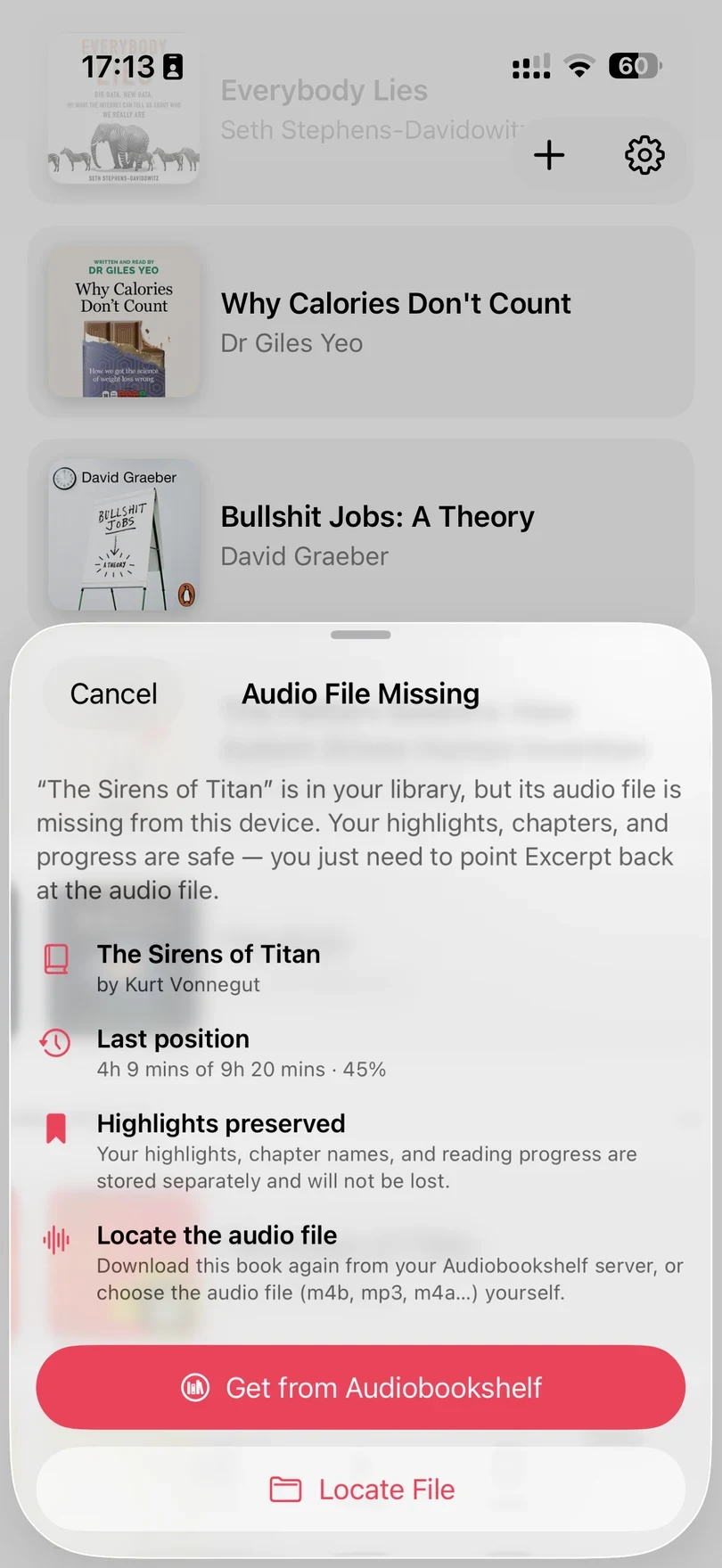
If a book has no audio to play (for example after you archive it), Excerpt keeps the book and its highlights and shows Audio File Missing when you open it. Choose Get from Audiobookshelf to download the audio from your server again, or Locate File if you already have the file. If your sign-in to the server has expired, use Sign In Again first. See bringing back an archived book for what happens to the highlights.
What the integration does not do
- Excerpt does not stream from the server. The custom models used by the app need the full audio and the Apple Neural Engine of the device so streaming would be impractical to implement. Therefore, book is downloaded once, and the audio plays from the iPhone or iPad.
- Excerpt does not support Audiobookshelf single sign-on.
- Signing out stops future sync but does not remove imported books from Excerpt.