
While a book is playing, Excerpt shows a Live Activity on the Lock Screen and in the Dynamic Island. It shows the current chapter, and time remaining in that chapter, and a big highlight button, so you can save a highlight without unlocking the phone or opening the app.
Highlight from the Lock Screen
While an audiobook is playing, the Live Activity is shown beneath the playback controls that iOS puts on the Lock Screen. It shows the name of the current chapter and of the book, the time left in the chapter, and a progress bar for the chapter.
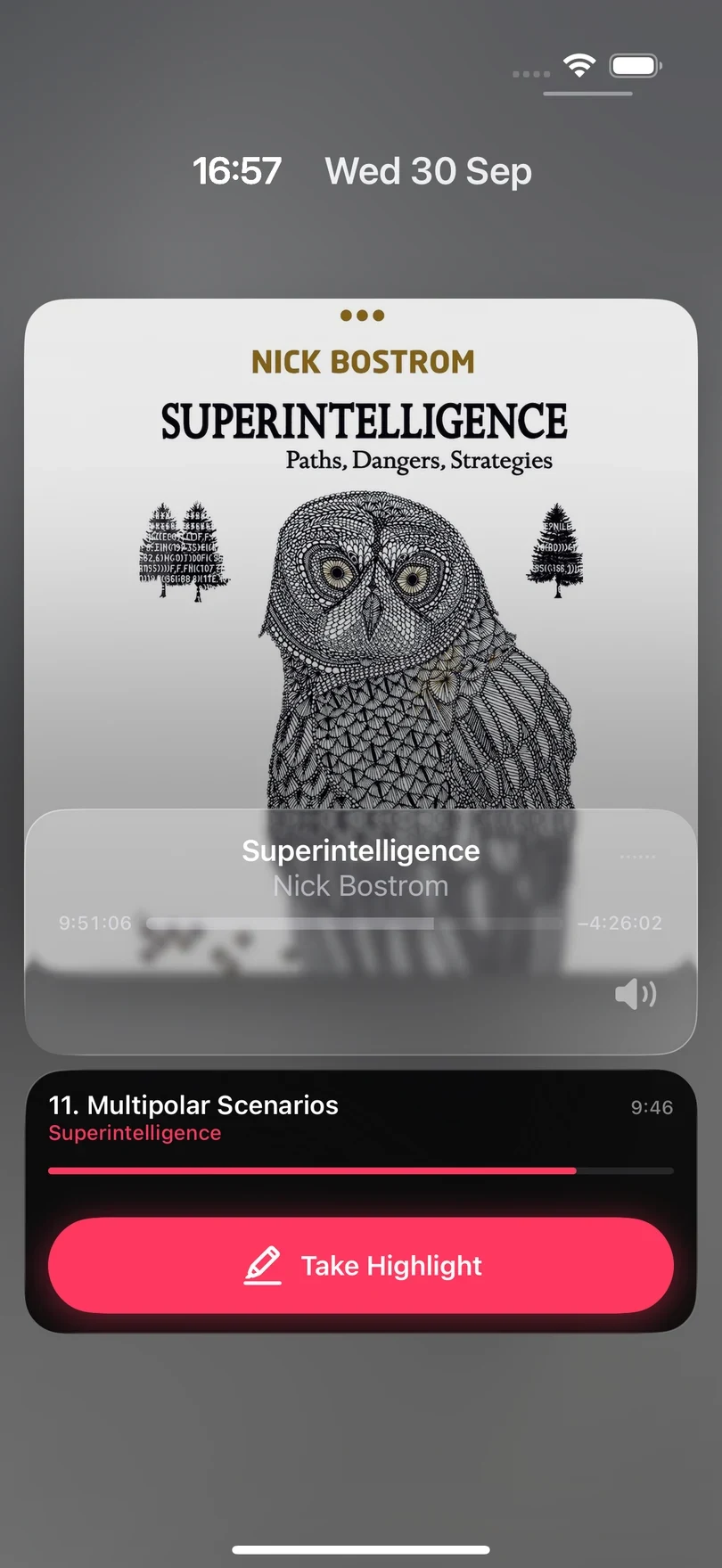
Take a highlight
Tap Take Highlight on the Live Activity. Excerpt saves what you have just heard as a highlight, in the same way as the highlight button in the player, and starts transcribing it on the device. The audiobook keeps playing, so you can take several highlights one after another without losing your place.
For a few seconds the button reads Saved from and the time it captured, and an undo button appears beside it. Tap the button to delete the highlight you just saved.
Highlight from the Dynamic Island
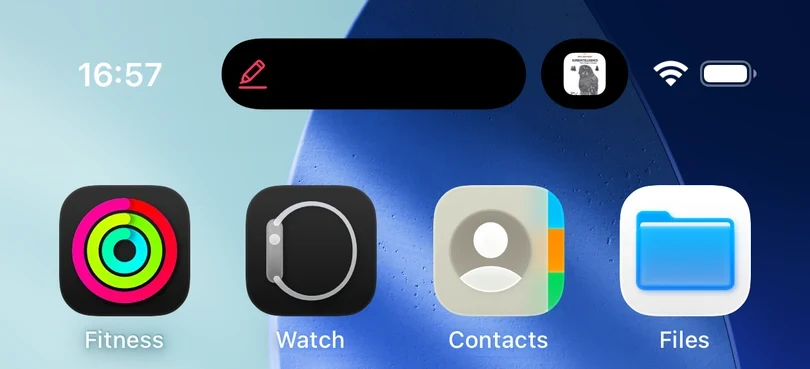
The Dynamic Island shows the highlighter while you are on the Home Screen or using other apps. When it is collapsed, a small red highlighter icon is shown in the pill, so you can tell at a glance that the book is still playing.
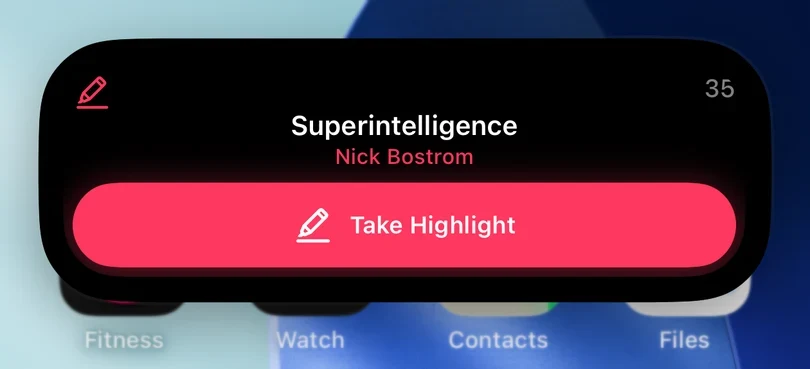
Touch and hold the pill to expand it. The title and author of the book are shown above a full-width Take Highlight button.
Keep the sleep timer in view
If you start a sleep timer, the Live Activity also shows the time left on it, so you can see when playback will stop without opening Excerpt.
Turn it on or off
Open Settings and find Live Activity under Playback. The description under the toggle lists what it adds: chapter progress, the sleep timer, and a highlight button on the Lock Screen and Dynamic Island. Turn it off if you do not want Excerpt to appear on the Lock Screen or in the Dynamic Island. The player itself is not affected.
The Live Activity on the Lock Screen needs an iPhone that supports Live Activities. The Dynamic Island is only available on iPhone 14 Pro and later.
Other ways to highlight without the app
There are a few other ways to save a highlight without opening Excerpt:
- Headphones and the rewind button. Quick Highlight remaps a triple-press on compatible headphones (such as AirPods), or the Lock Screen rewind button, to save a highlight. See set skip length and hands-free highlighting.
- Control Centre and the Action button. On iOS 18 or later, Excerpt’s Take Highlight control can be added to Control Centre or assigned to the Action button.
- Siri, Shortcuts, and Apple Watch. Both can save a highlight in the same way when the phone is out of reach. See Automate Excerpt with Siri and Shortcuts and Use Excerpt on Apple Watch.