
You can change a book’s details, link its ebook, compress, enhance or share the modified audiobook file. Most of this is done from Edit Book sheet.
Open the book menu
In Library, press and hold a book or swipe it to show its actions.
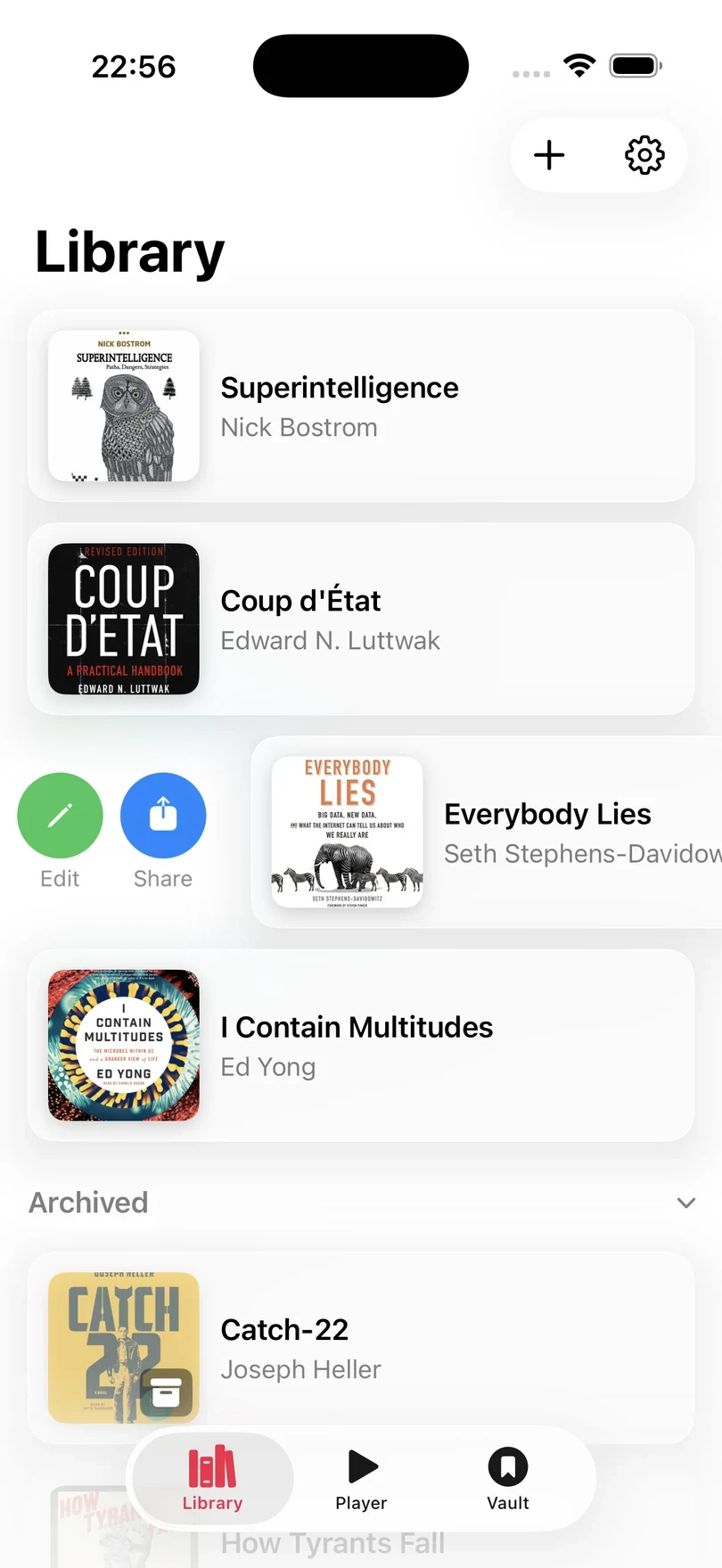
- Edit opens Edit Book.
- Share exports the book as a single m4b file.
- Archive deletes the book’s files to free up storage, but keeps its highlights, metadata, listen logs, insights, and chapters.
- Delete removes the book permanently, after asking you to confirm.
Archive or delete
Archive deletes the audio, the ebook and its index, any enhanced audio, and any m4b exports. This clears space in iCloud but means the book is now archived across all of your devices. The book’s data stays in your library with its highlights, chapters, details, and listening history, so you can always unarchive it later by selecting it and selecting its audio file again.
Delete asks you to confirm first. The alert says how many highlights would be deleted with the book and offers three choices:
- Archive Instead frees up the storage but keeps the highlights.
- Delete Permanently deletes the book along with its highlights and its chapters, and this cannot be undone.
- Cancel leaves the book as it is.
If the book is already archived, the alert only offers Delete Permanently and Cancel.
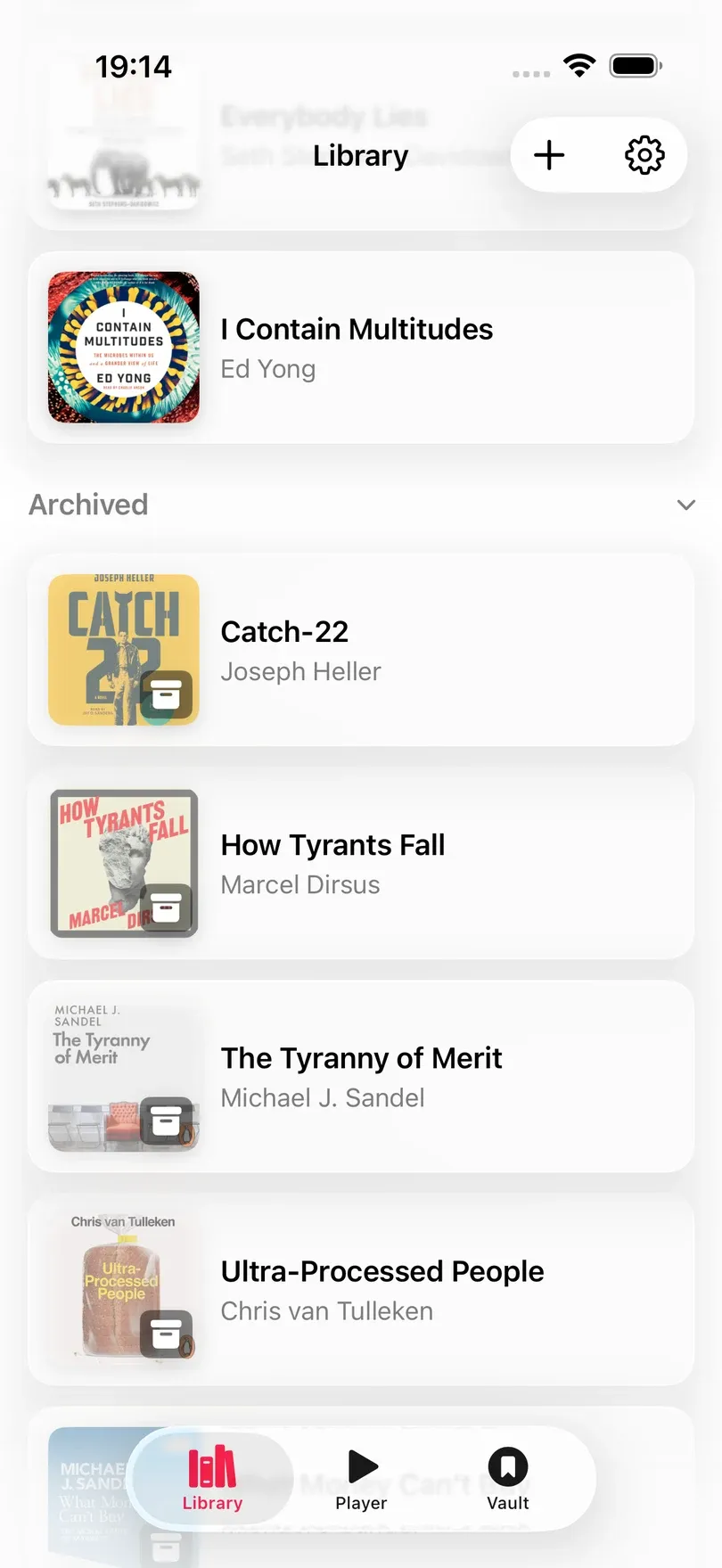
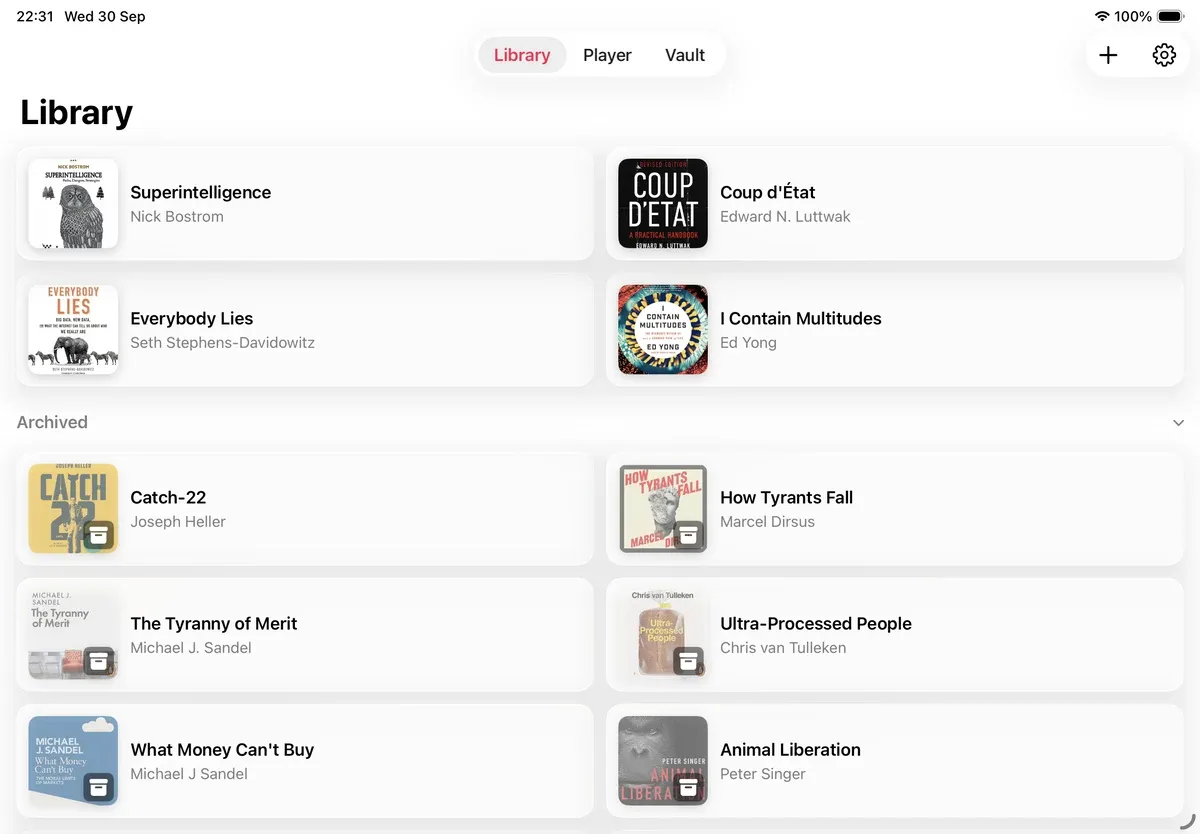
Archived books are listed under Archived, and each cover is marked with an archive badge.
Bring back an archived book
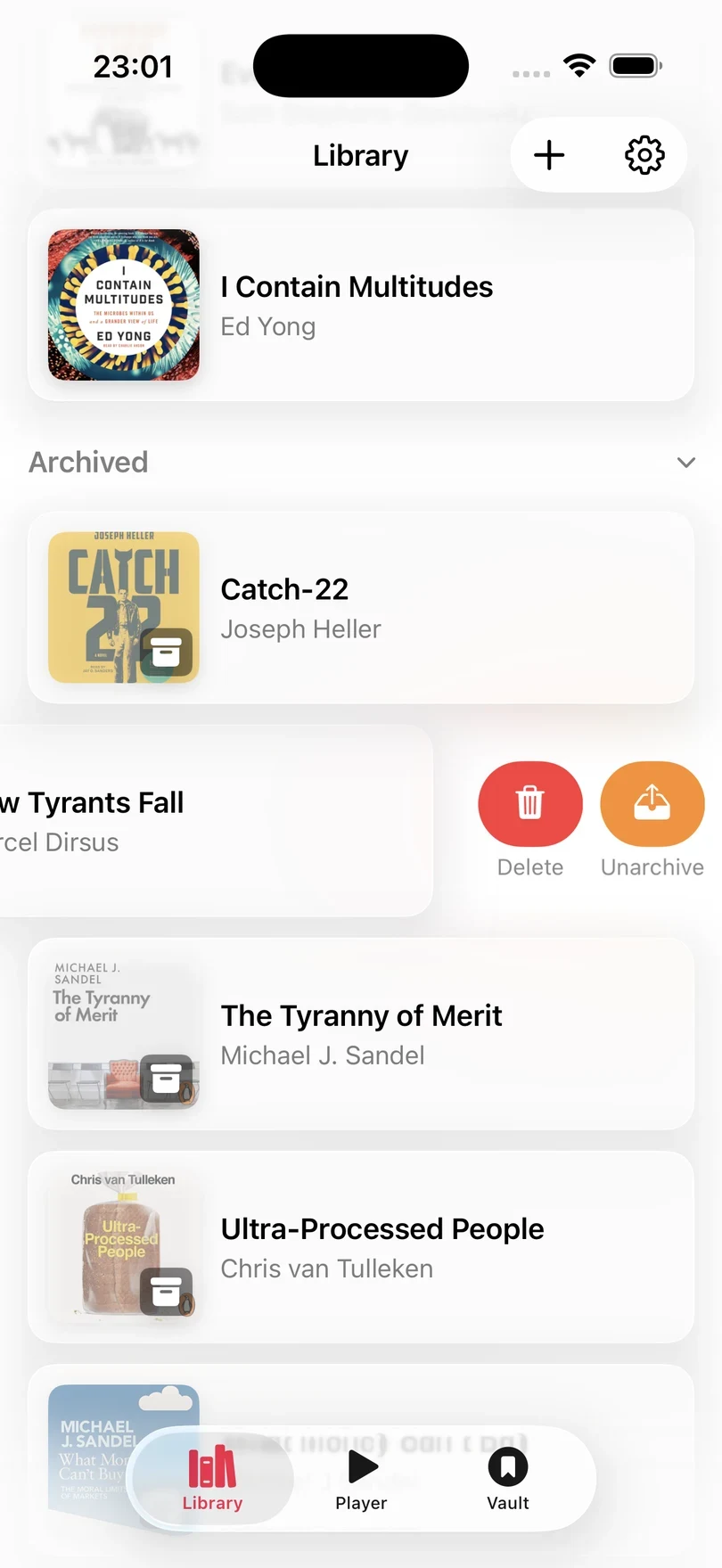
Swipe left on an archived book and tap Unarchive. Excerpt has kept the book’s highlights, chapters, and progress, but its audio was deleted when it was archived, so it shows Audio File Missing and asks you to choose the source audio file again. The same sheet is shown if a book’s audio file goes missing from the device for any other reason.
If the file is on the device but cannot be played, Excerpt shows Audio File Damaged instead. Tap Delete Audio File, then choose the original file again. Your highlights, chapters, and listening history are kept either way. If the book is also in iCloud, Excerpt deletes the damaged copy and downloads a fresh one by itself.
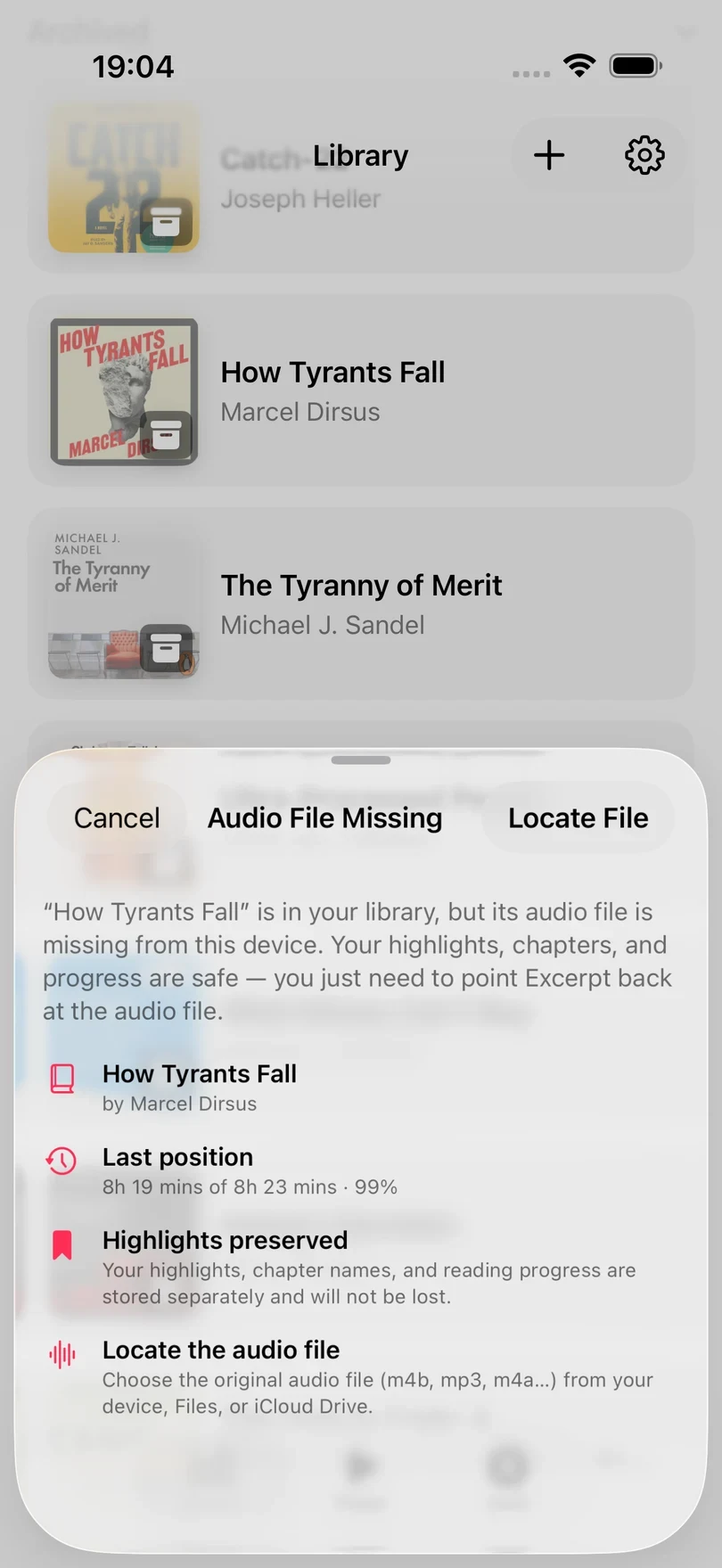
Tap Locate File and choose the audio file from Files or iCloud Drive. If you have connected an Audiobookshelf server, you can choose Get from Audiobookshelf instead to download it again.
If the file you choose is a different edition of the book, the highlights will no longer line up with the right parts of the audio. Excerpt offers to re-time them:
- Add the Ebook Back or Add an Ebook uses the text of the book to place every highlight exactly.
- Search the Audio looks for each highlight in the audio itself, which takes longer and can miss some.
- Later leaves the highlights as they are.
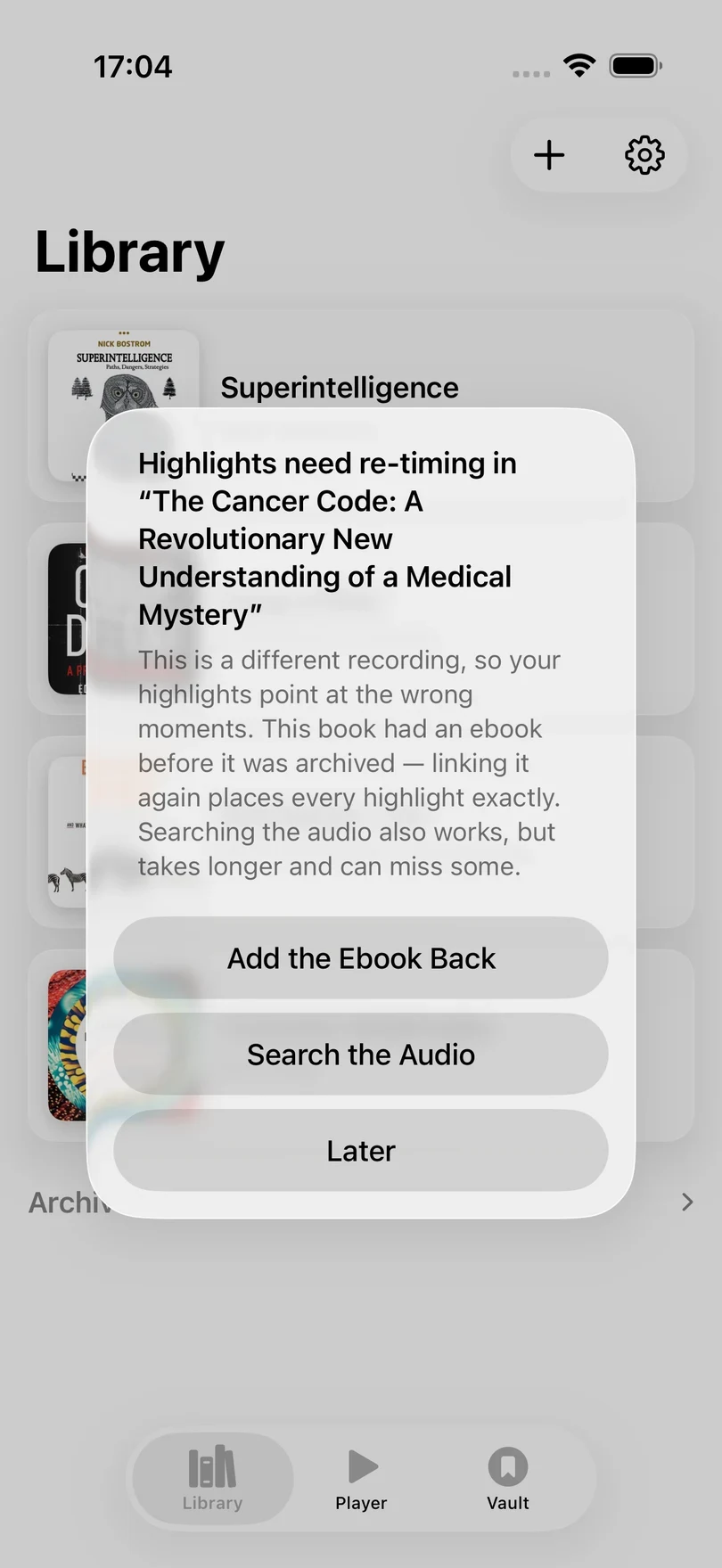
If the book already has an ebook linked, Excerpt re-times the highlights automatically.
Changing the book metadata
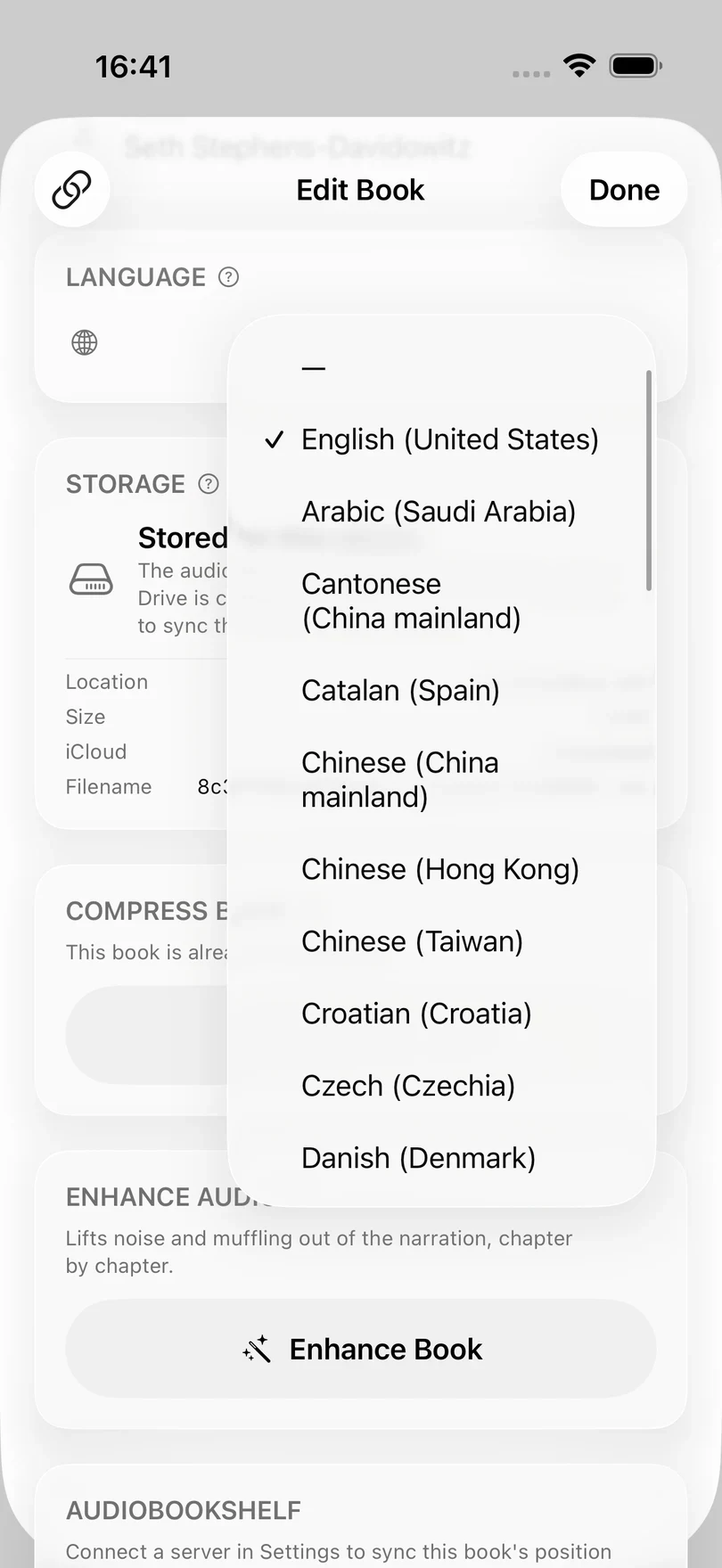
The Title and Author can be edited directly. Under Book Language, choose the language that the narrator speaks. Excerpt uses it to transcribe highlights, to align the audio with the ebook, and to follow the narration in Read Along, so the wrong language makes all of these less accurate for the whole book.
Tap Change Cover to choose an image from Photos. To reset the artwork back to whatever the audio file contains as a cover press Reset Artwork.
The link button in the top left copies a deep link URL for you to use in shortcuts or bookmarks, that opens this book in Excerpt.
Add or replace the ebook
The EPUB section is where you add, prepare, or replace the matching ebook. Linking an epub lets Excerpt use the exact text of the book for your highlights, and makes Read Along available.
See Align an EPUB with Your Audiobook for the full process.
Compress the audio
A large book can be made smaller by re-encoding its audio. The chapters and highlights are not affected.
- In Edit Book, tap Compress Book.
- Choose a Format. Excerpt can compress audiobooks into two formats: Opus gives the smallest file for its quality. AAC (HE-AAC) is larger but more compatible and plays in every app, including Apple Books.
- Play the three 15-second samples, switching each one between Original and the new format to hear the difference. Tap Shuffle for three different samples.
- Tap Compress Book, then Compress to confirm.
Compression replaces the original file and cannot be undone, so keep a copy of the original somewhere else first.
If the section says This book is already compressed., compressing it again would not make it any smaller and would only degrade audio so doesn’t offer it. If it says This book’s audio can’t be read yet. Download it to compress it., tap the book in the Library to download its audio from iCloud first.
If you want the opposite of compression, as in the narration to sound clearer rather than the file to be smaller, try the new Enhance feature. See Enhance! Clean Up Old, Low-Quality Audiobooks.
Share the book as an m4b
In Library, swipe right on a book or press and hold it, then tap Share.
Excerpt builds a single m4b audiobook file, which contains the audio you imported with your updated metadata such as any changes to the title, author, chapters, and artwork. If you imported an m4b or AAC or Opus these are exported without needing any audio encoding, however mp3 cant be stored in m4b so its audio is converted to AAC.
If the book has enhanced audio, Excerpt asks Which version would you like to share? and you can choose Enhanced or Original.
The first time you share a book, and again after any change to its details or chapters, Excerpt has to build the file first and shows Keep app open and await alert, then try again. Keep Excerpt open until an alert says the export is done, then swipe the book’s row in the Library and tap Share again.
Choosing Enhanced for a book that is only partly enhanced shows Not Fully Enhanced and offers the original instead.