
Open View All Highlights from the player to see all the highlights of one book. From there you can search them, export them, or open any of them to edit.
Browse or search
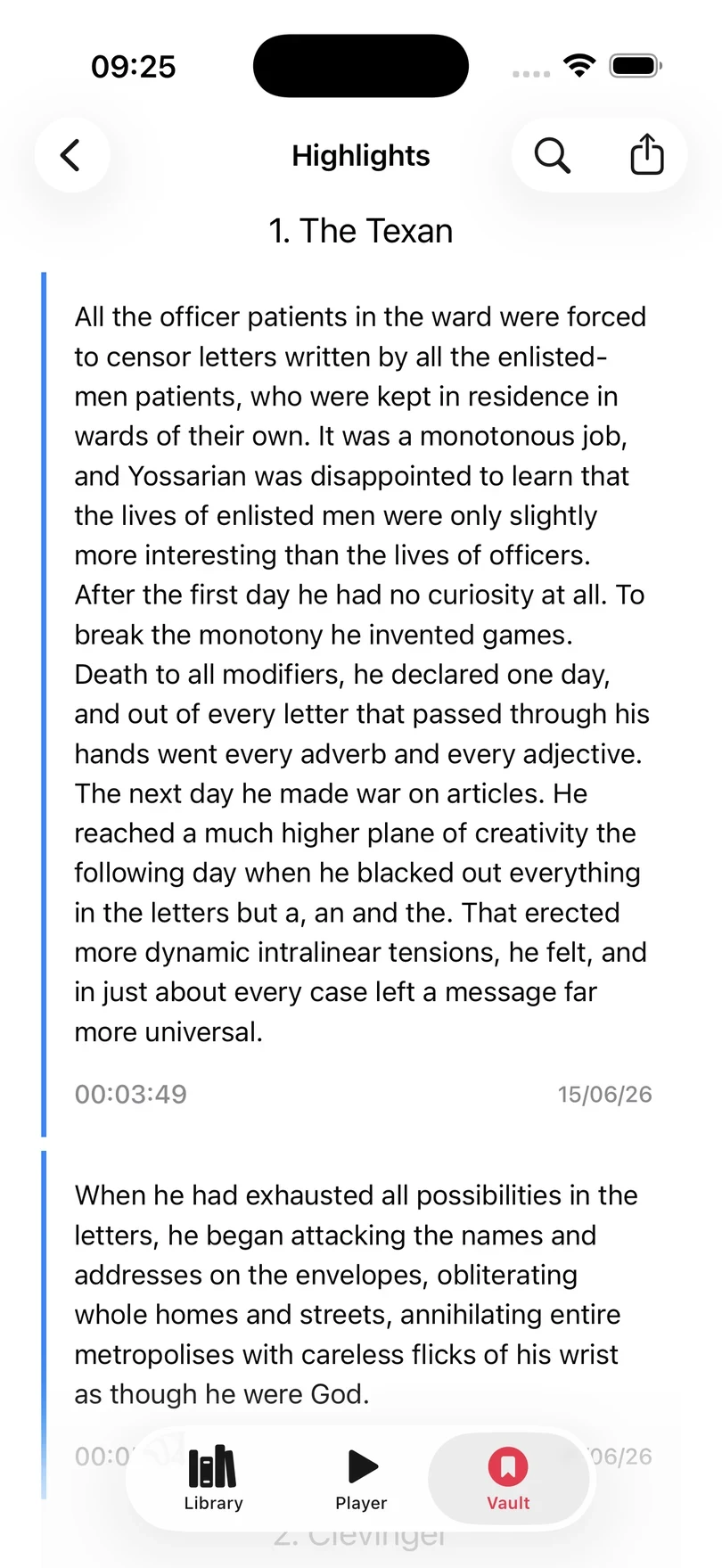
Tap a highlight to edit it. To narrow the list, tap Search and enter a word or phrase, then use the arrows beside the result count to move between the matches.
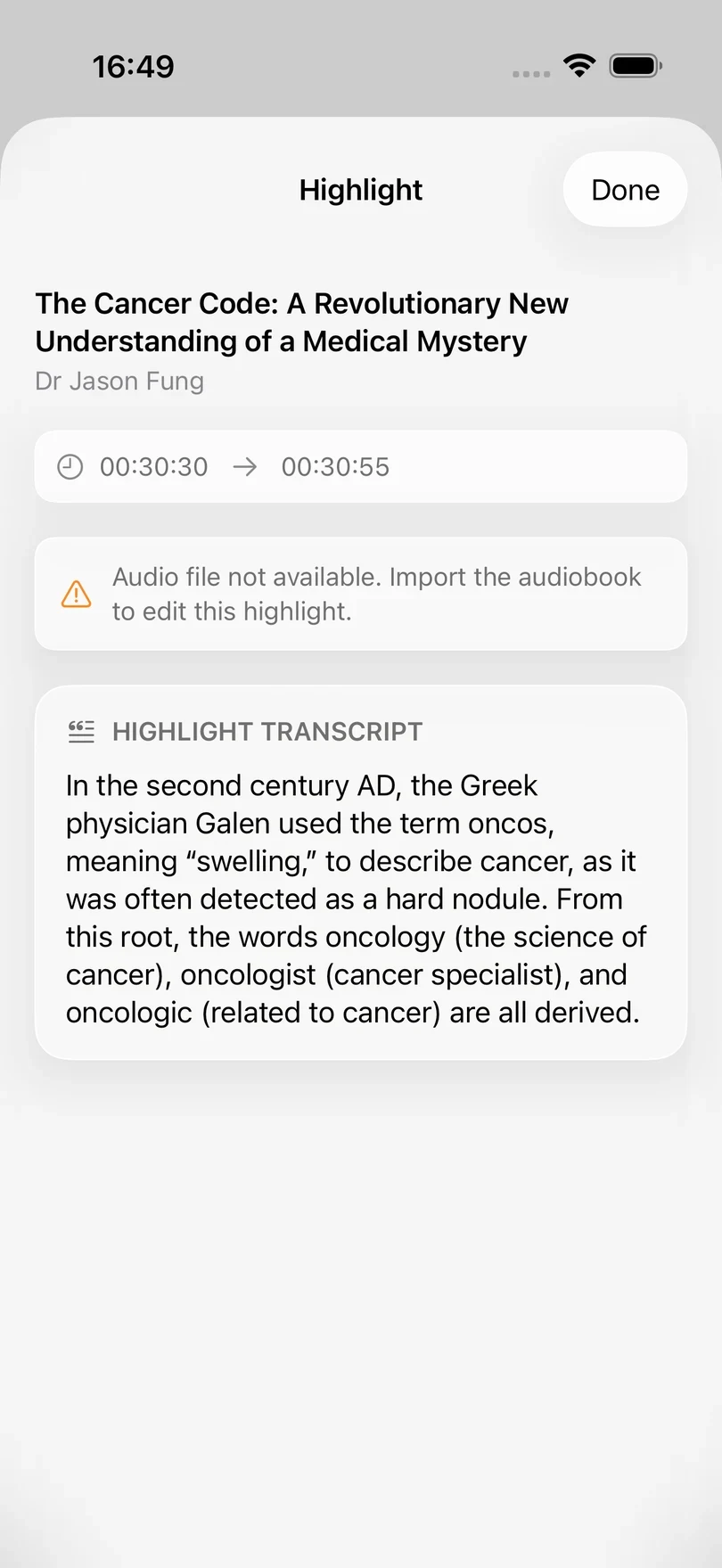
If Excerpt cannot find the audio file of the audiobook (for example if the book is archived), the highlight opens as read-only. You can still read and copy its text, but the audio needs to be relinked before you can change its start/end time or its content.
Export a book’s highlights
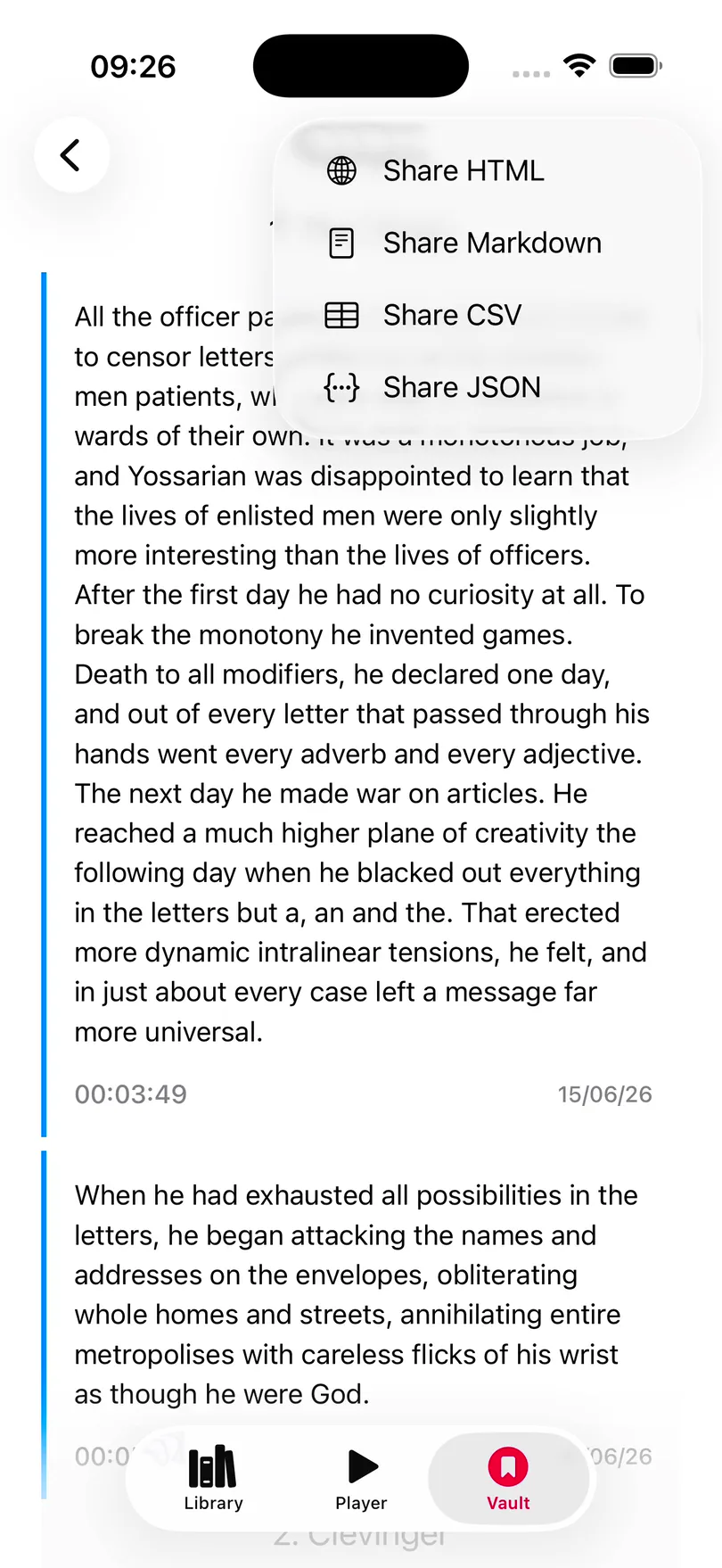
Tap the Share icon and select a format to export your book’s highlight. Each export file contains every highlight in the book (including the archived ones) in listening order, and is named after the book, such as Title.highlights.md.
- Share Markdown is for notes apps or LLMs. It has a Highlights heading, a heading for each chapter, and each highlight as a quote, without timestamps or dates.
- Share HTML makes a styled page you can open in a browser, with the timestamp and date of each highlight (I use this to add to the Custom HTML part of Calibre to keep my highlights with my books).
- Share CSV is for spreadsheets and uses the Readwise CSV layout: Highlight, Title, Author, URL, Note, Location, and Date columns, with chapter names as .h1 rows.
- Share JSON contains everything: the details of the book, its highlights, and its chapters. It can be read back into Excerpt with Import JSON Export. See Export an individual book’s data.
If the menu reads Preparing exports…, leave it open for a moment while Excerpt builds the files. Exporting does not change your highlights.
Send highlights to Obsidian or a notes app
From the share sheet you can send the Markdown file directly to Obsidian or another notes app, or choose Save to Files and save it into your vault folder.
If you want to do this without opening the book, use the Export Highlights action in Shortcuts. It takes a book and a format and returns the file, which the next step of the shortcut can then save to your vault. See Shortcuts Actions Reference.
Actions for an individual highlight
Press and hold a highlight to open its context menu. From there you can copy its text, copy a link that opens it in Excerpt, edit it, or delete it.
The swipe actions are only in the highlight list under the player. There, swipe right and tap Jump to move playback back to that highlight, or swipe left to delete it. Create and Edit a Highlight explains the rest of the editor.