
Insights turns your listening and highlight history into a small report of the time spent listening to different books or editing highlights, where in a book you highlight the most, and which devices have the most activity.
Open Insights
- Open the Library tab.
- Tap Settings, then choose Insights in the About section.
Read the report
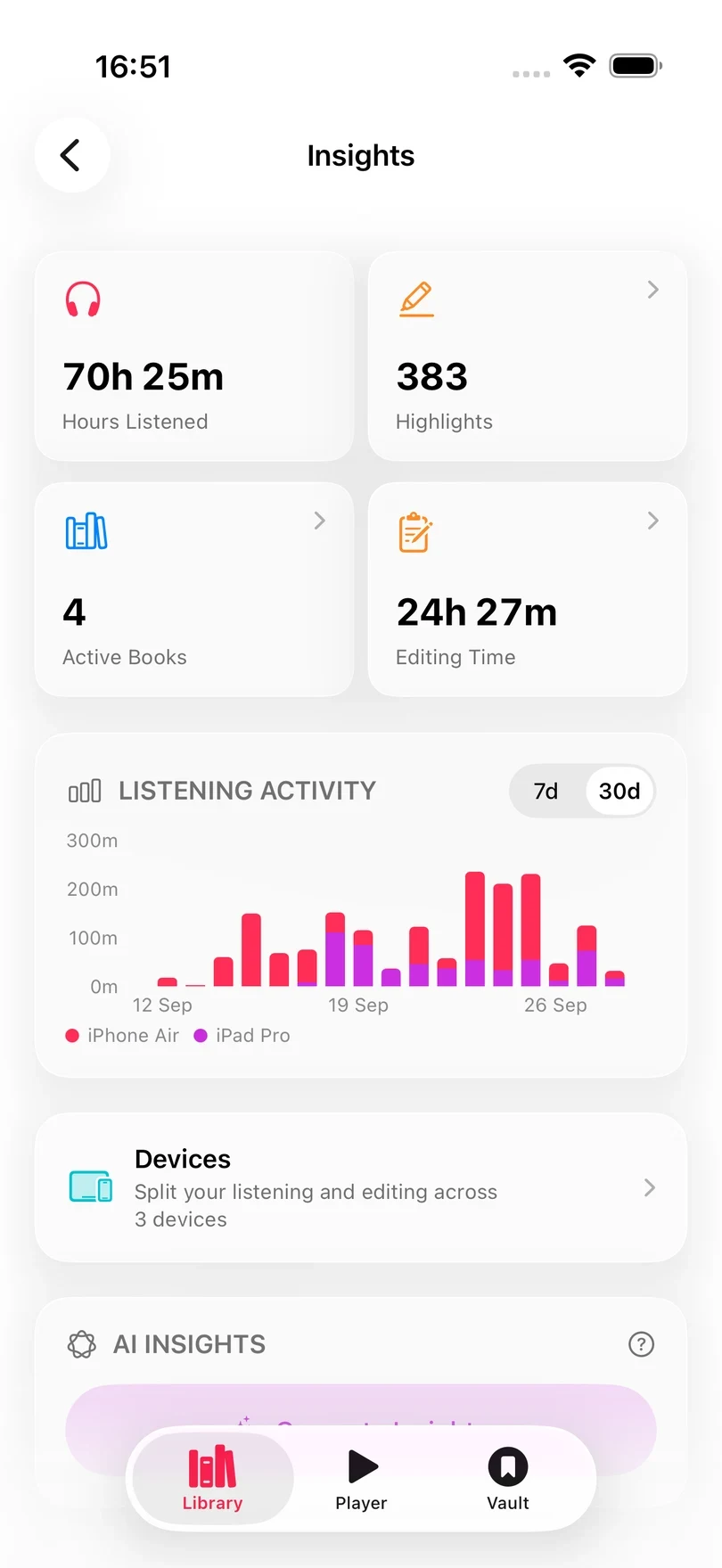
The top cards show Hours Listened, Highlights, Active Books, and Editing Time.
The activity chart switches between 7d and 30d. Below it, Most Listened ranks books by listening time and Recent Highlights gives you a quick overview at the highlights you have most recently captured.
Look closer
Tap a card with an arrow to open its own report:
- Highlights counts this week against last week, charts the last 30 days, and ranks the books you highlight most.
- Editing Time shows how long you spend refining highlights, your longest day, and the books you edit most.
- Active Books lists every book you have listened to, with a search field for title or author.
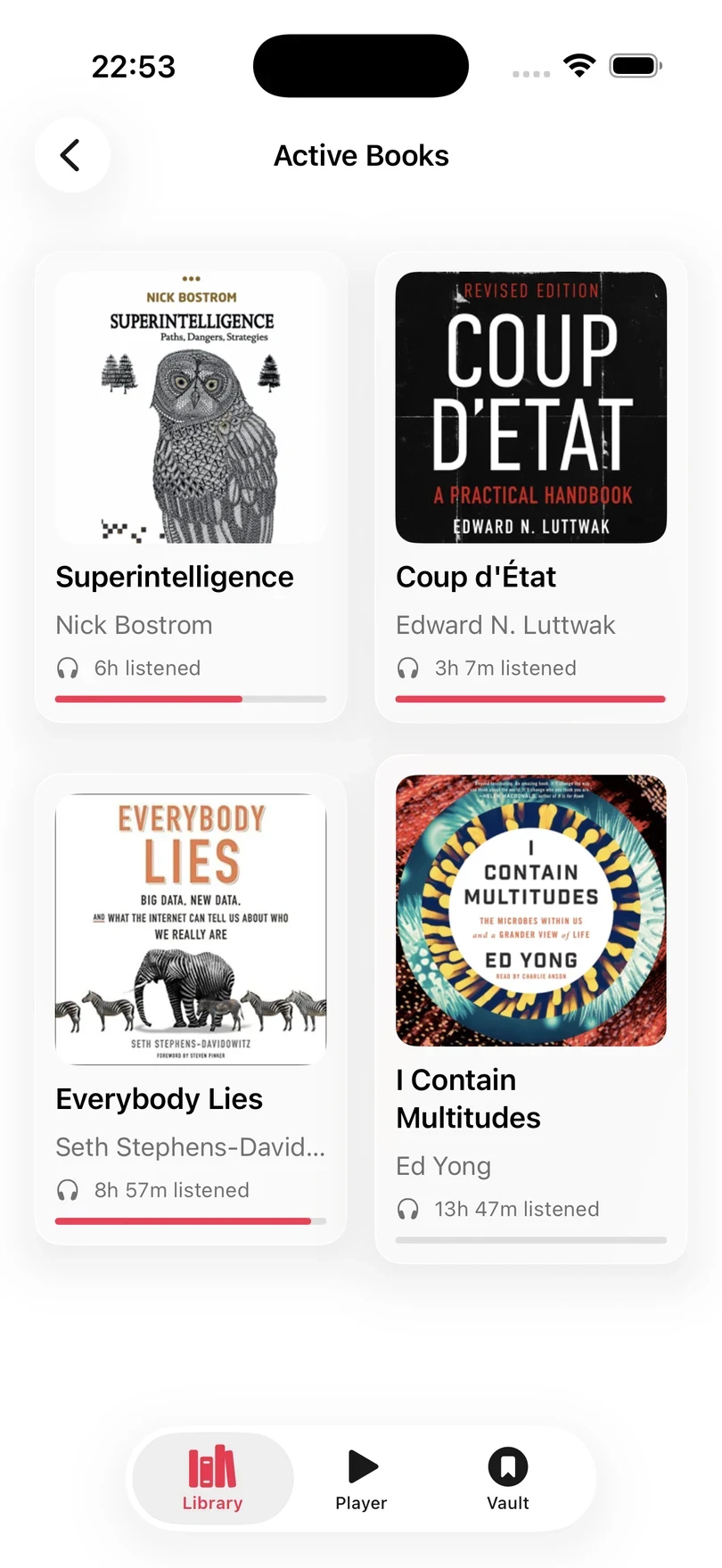
See one book
Tap a book in Most Listened or Active Books to open Book Insights. From the player, the same report is under This Book in Playback.
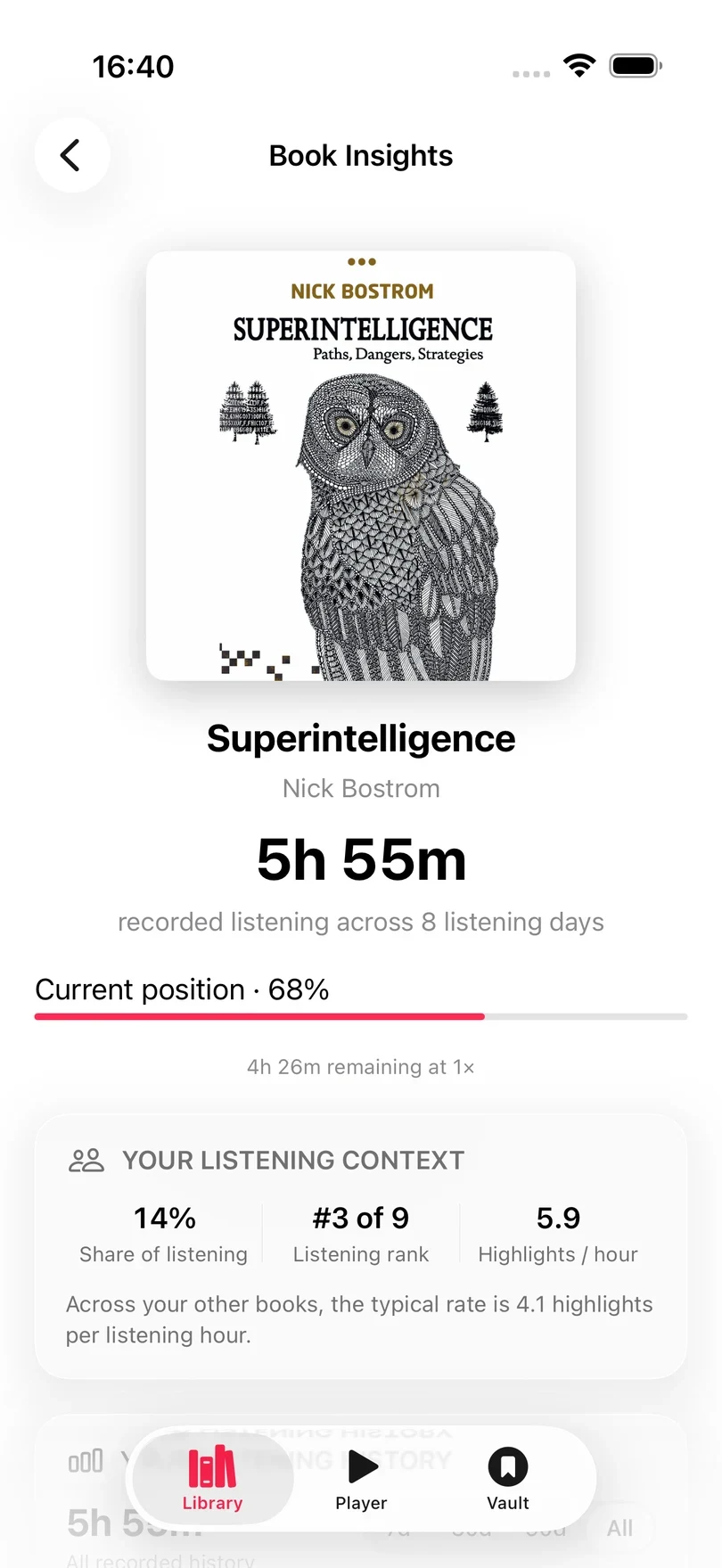
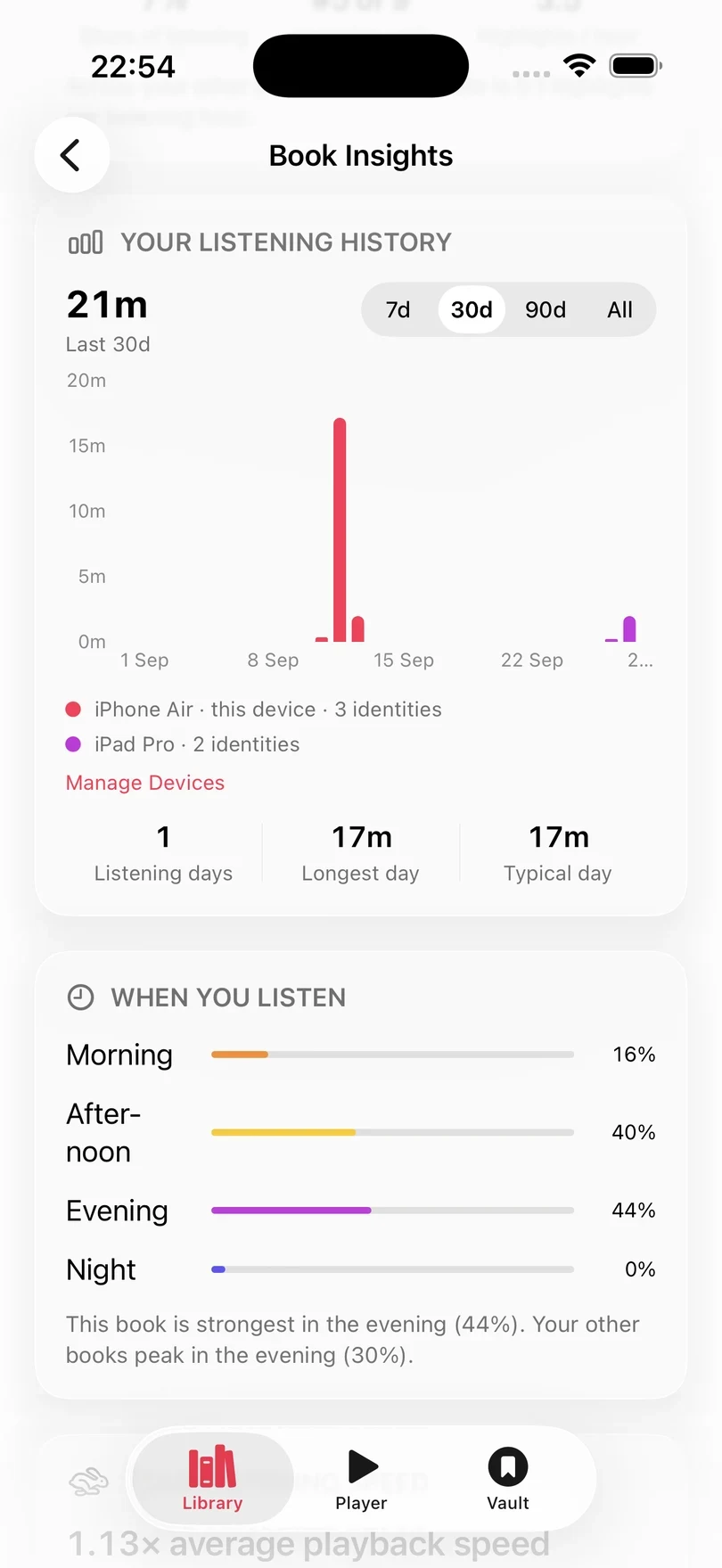
It shows how long you have listened, where you are, and how the book compares: its share of your listening, its rank, and highlights per hour. Further down are your listening days, the time of day you listen, your speed, and what you captured. Comparisons appear once a book has 30 minutes of listening.
Compare your devices
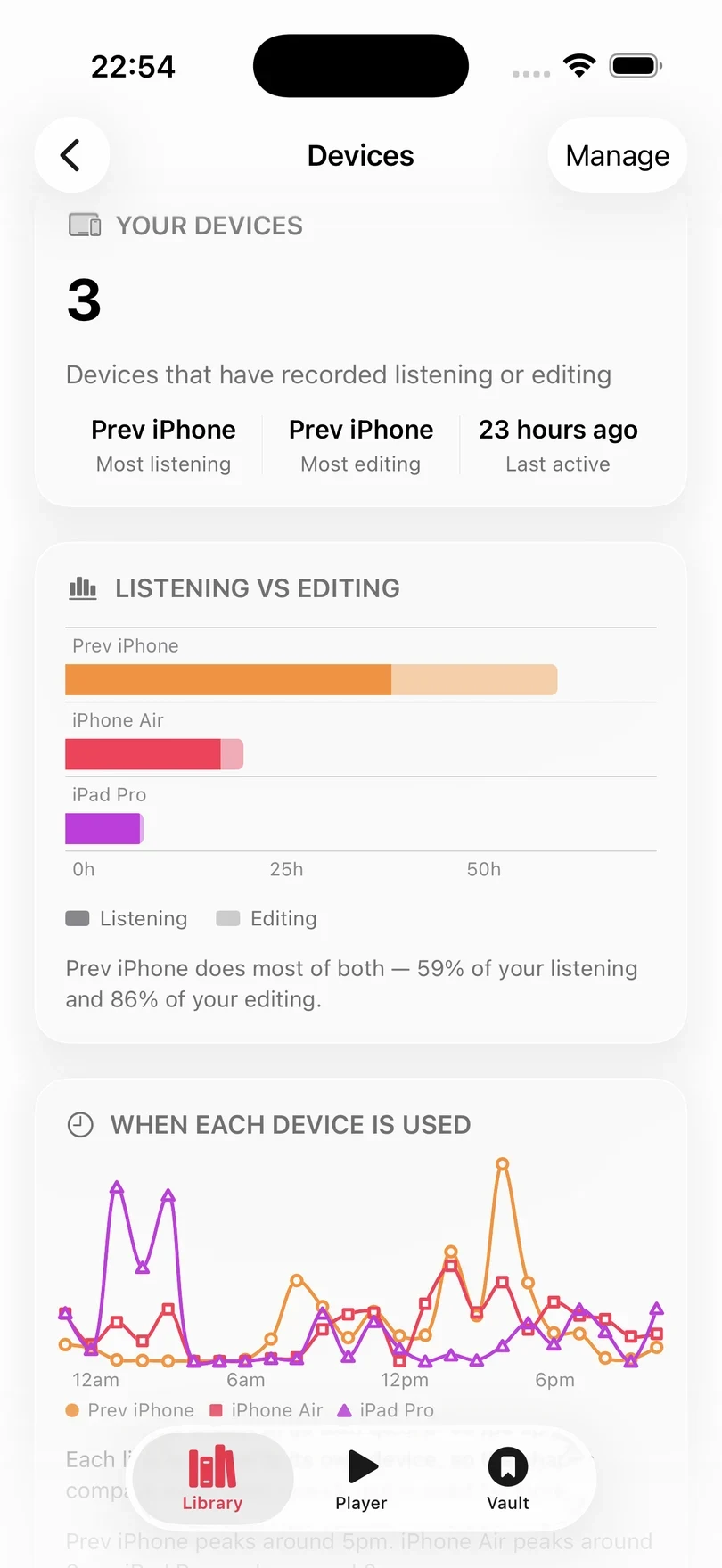
If you listen on more than one device, the Devices row opens a report for each of them: which does most listening, which most editing, and when each is used. Tap a device to see the books on it. It also shows what device is used around what times in the chart below that making it easy to see the patterns behind your habits.
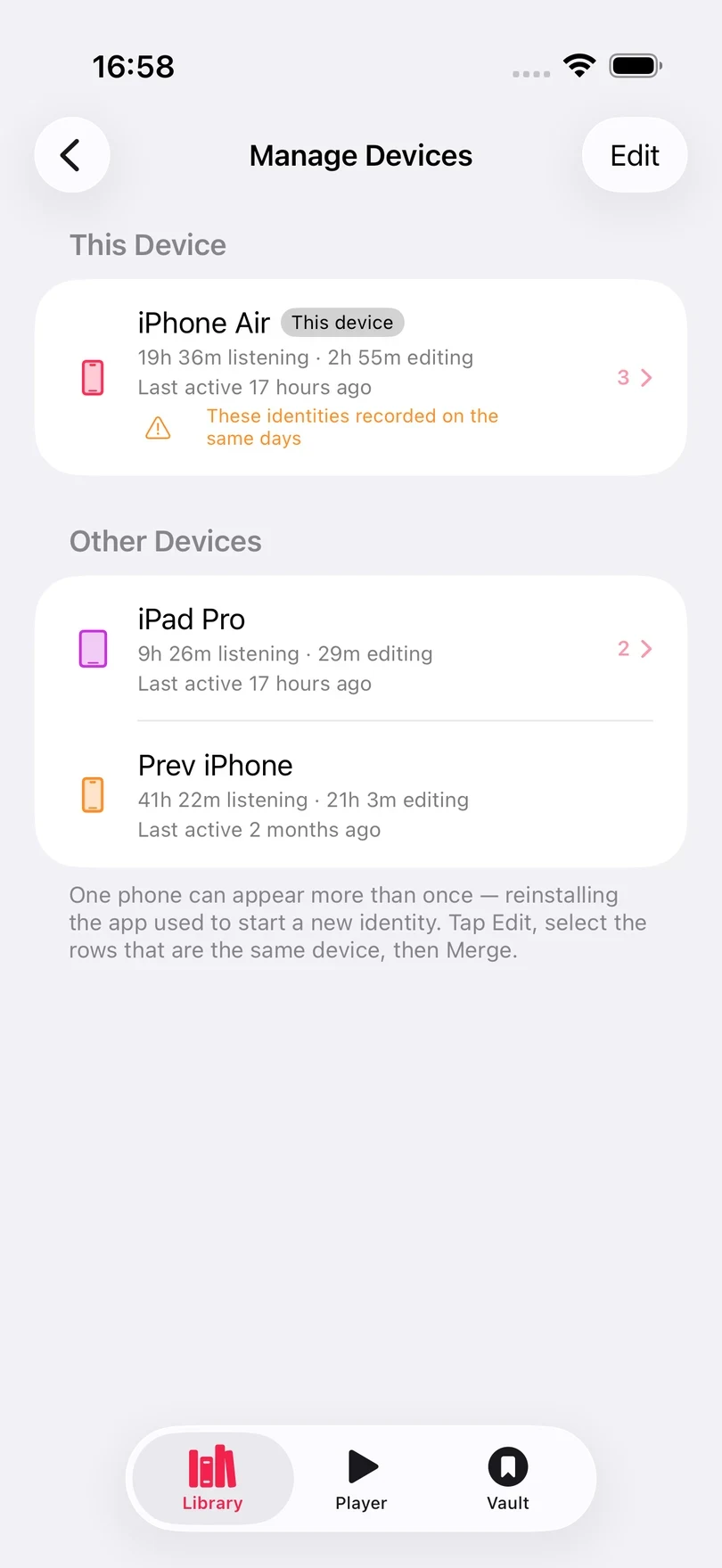
One phone can appear twice in the list (often after uninstalling and reinstalling the app). To merge those devices together to show as one record, tap Manage, then Edit, select the rows that are the same device, and tap Merge. Their records stay separate underneath, so you can split them again later. Tap a device to rename it.
Generate AI Insights
When your device supports Apple Intelligence and there is enough listening data, the AI Insights card offers Generate Insights. Tap it to create a short, personalised reading of your listening habits. Due to the small size of the Apple Intelligence model this is more of a novelty than anything else and it does invent things.
- Make sure Apple Intelligence is enabled in iOS Settings.
- Open Insights and wait for the report to load.
- Tap Generate Insights. The report is created on the device.
- Use the refresh button in the card to generate an updated report after your listening changes.
Nothing leaves the device
AI Insights uses Apple Intelligence on device. Excerpt does not send your listening data away to generate this report.